You're building a home office and have two computers on your shortlist: a tiny Mini PC that barely takes up desk space and a traditional desktop tower with room for future upgrades.
Which should you buy?
Here's the thing: a bigger computer isn't automatically faster, and a smaller one isn't automatically quieter, cheaper, or more efficient.
A well-equipped Mini PC can handle programming, dozens of browser tabs, office applications, and even some gaming. A desktop tower may give you better graphics options, easier repairs, and more room to expand.
The trick is comparing what you're actually getting for your money.
We'll look at 2026 systems, independent benchmarks, complete-system costs, and the workloads that really determine which option makes sense.
1. The Short Answer
Don't choose based on size alone. Start with what you need the computer to do.
| Your main use | Best starting choice |
|---|---|
| Everyday office work | Either; Mini PC saves space |
| Software development | Either; check RAM and sustained CPU performance |
| Photo and light video editing | Either |
| Heavy rendering and demanding video work | Tower with suitable hardware |
| Modern graphics-intensive gaming | Tower with dedicated GPU |
| Local AI with a substantial GPU | Upgradeable tower |
| Small home lab or lightweight server | Mini PC |
| Long-term internal expansion | Standard-component tower |
A Mini PC makes sense when its existing hardware already meets your needs. A tower becomes more attractive when additional components, sustained performance, or hardware replacement matter.
2. What Actually Separates a Mini PC From a Tower?
A Mini PC places the processor, cooling, memory, and storage inside a compact enclosure. Many use integrated graphics, meaning the graphics processor shares system memory instead of having its own dedicated graphics memory.
A desktop tower offers more physical space for cooling, expansion slots, drives, and graphics cards.
But the models vary enormously.
Consider these systems sold or reviewed in 2026:
| Computer | Hardware | Key distinction |
|---|---|---|
| ASUS NUC 16 Pro | Intel Core Ultra Series 3 | Kit and ready-configured variants; model-specific memory options |
| GEEKOM A9 Max 2026 | Ryzen AI 9 HX 470, Radeon 890M | Compact system with configurable memory and SSD storage |
| Beelink SER10 Max | Ryzen AI 9 HX 470, Radeon 890M | Dual-channel memory in the independently tested configuration |
| MSI Codex Z2 B8NVL-695US | Ryzen 7 8700F, RTX 5060 8GB | Prebuilt tower with dedicated graphics and internal PCIe expansion |
Sources: ASUS, GEEKOM, Beelink, and MSI manufacturer documentation.
One important detail: ASUS NUC 16 Pro configurations differ significantly. Specified socketed-memory kits support up to 128GB, while certain integrated-memory versions cannot be upgraded the same way.
Similarly, the MSI tower includes PCIe and storage connections, but its graphics slot is already occupied. Any future GPU replacement must meet the case and power-supply requirements.
Buying lesson: Always check the exact model number, not just the computer family.
3. How to Compare Equivalent Hardware
Imagine two computers with similar RAM, SSD capacity, processor capability, and graphics performance.
That's a useful starting point for investigating whether their cooling and power limits affect sustained performance.
But here's the catch: two CPUs can have similar names or core counts and still perform differently.
Compare these factors:
| Component | What matters |
|---|---|
| CPU | Exact model, architecture, core design, power limits |
| RAM | Capacity, channel configuration, speed, upgrade options |
| SSD | Capacity, performance, remaining slots |
| GPU | Integrated versus dedicated, performance and usable memory |
| Cooling | Sustained results, fan noise, temperatures |
| Connectivity | Display outputs, USB, Ethernet, Wi-Fi |
| Price | Complete system, OS, missing parts, warranty |
If you're choosing between computers at the same price, the hardware may be very different.
A $1,400 Mini PC might prioritize a premium processor and integrated graphics. A $1,400 tower might allocate more of its cost to a dedicated graphics card.
Neither is necessarily better for your work. That's why we need benchmarks and full pricing, not just specifications.
4. Real Benchmarks: What Does the Evidence Show?
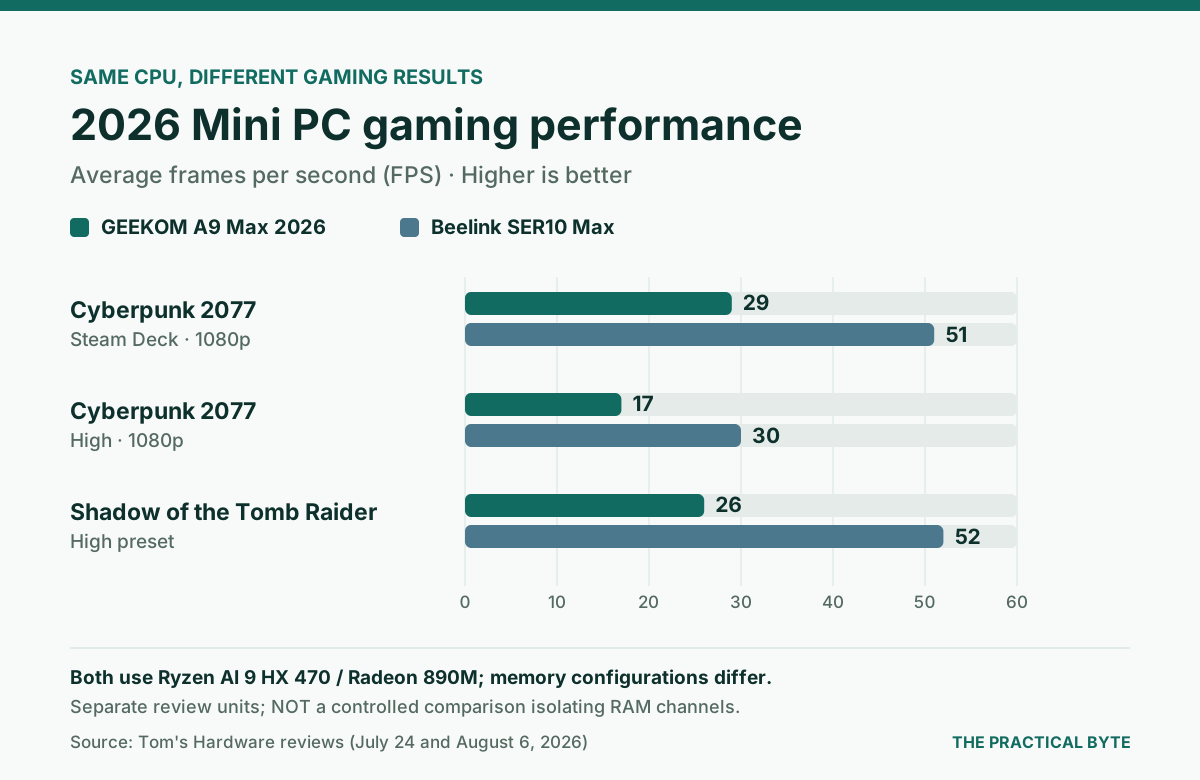
Let's start with two 2026 Mini PCs using the same processor and integrated GPU.
Tom's Hardware reviewed the GEEKOM A9 Max and Beelink SER10 Max, both equipped with a Ryzen AI 9 HX 470 and Radeon 890M.
Their tested memory configurations differed: the GEEKOM used one 32GB DDR5-5600 module; the Beelink used two 32GB modules.
Gaming benchmarks
| Game, tested setting | GEEKOM A9 Max | Beelink SER10 Max |
|---|---|---|
| Cyberpunk 2077, Steam Deck preset, 1080p | 29 FPS | 51 FPS |
| Cyberpunk 2077, High, 1080p | 17 FPS | 30 FPS |
| Shadow of the Tomb Raider, High | 26 FPS | 52 FPS |
Source: Tom's Hardware's separate 2026 reviews.
The Tomb Raider figure for Beelink is taken from its own review; a comparative passage in the GEEKOM review reports 54 FPS.
Don't interpret these results as a controlled single-variable experiment. Differences in RAM capacity, channel configuration, firmware, and test conditions prevent that conclusion.
What they demonstrate is that buying two computers with the same CPU name does not guarantee the same gaming experience.
What about Mini PCs versus towers?
StorageReview published Cinebench 2026 CPU rendering results for an ASUS NUC 16 Pro and a Dell Pro Max Tower T2:
| System tested | CPU | Cinebench 2026 multicore |
|---|---|---|
| ASUS NUC 16 Pro | Core Ultra X7 358H | 4,741 points |
| Dell Pro Max Tower T2 | Core Ultra 9 285K | 8,856 points |
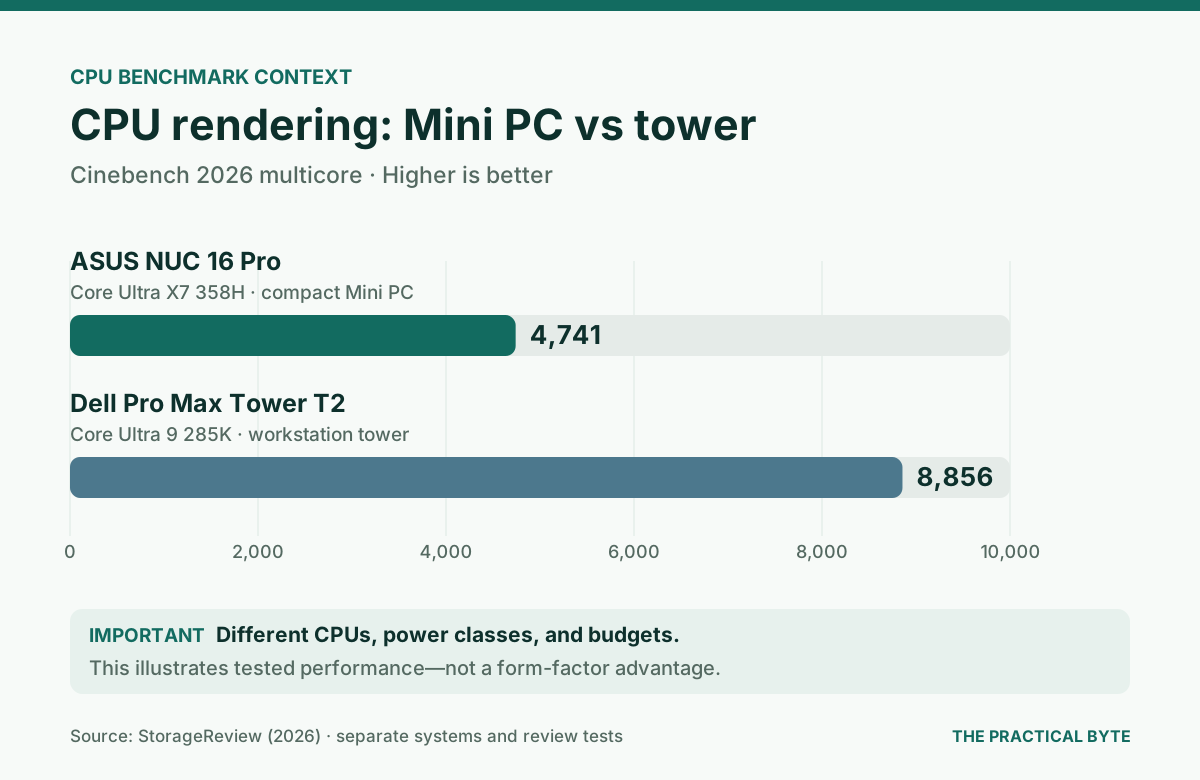
These are measurements reported by the same independent testing organization, using the same named benchmark version, but from different systems and test runs.
This is not an equivalent-hardware or same-budget comparison. The Dell is a substantially different workstation-class configuration. The numbers demonstrate what two specific systems delivered, not the inherent speed advantage of towers.
For a fair purchase decision, look for benchmarks matching your shortlisted configurations, including CPU rendering, real applications, sustained workloads, and graphics tests with identical game settings.
Never compare different Cinebench versions or game presets as if their numbers were interchangeable.
5. Desk Space and Portability
Mini PCs have an obvious advantage here.
Many fit beside a monitor or behind a VESA-compatible display. That's useful if your office shares space with a bedroom, living room, or dining area.
A desktop tower requires more floor or desk space and room for ventilation.
However, a Mini PC isn't a laptop. You'll still generally need a power adapter, monitor, keyboard, and mouse.
Before mounting one behind your display, make sure its fans and frequently used USB ports remain accessible.
Our recommendation: Choose the Mini PC for a compact workspace. Choose the tower if you have room and want easier access to internal hardware.
6. Sustained Performance and Cooling
Opening a spreadsheet and rendering a video for an hour place very different demands on a computer.
In short tasks, a good Mini PC may feel extremely responsive. During prolonged workloads, processor power limits and cooling capacity become more important.
A larger tower provides room for bigger coolers and more airflow. But that doesn't guarantee better cooling: chassis design, fan configuration, and component power matter too.
Tom's Hardware measured approximately 34°C at idle and 79°C under stress on its GEEKOM A9 Max review unit, with wall-power consumption ranging from roughly 7 W at idle to a maximum observed 79 W.
Those are measurements from one review unit, not Mini PC standards.
For tasks like repeated software builds, video encoding, 3D rendering, or running several virtual machines, seek reviews that show performance after sustained load.
Check whether the processor maintains its speeds or reduces performance to stay within thermal and power limits.
7. Noise and Electricity Use
A compact computer can be quiet at idle and noticeably louder during heavy work.
Smaller fans sometimes need higher rotational speeds to move enough air. Towers can use larger fans, but dedicated graphics cards and aggressive fan settings may also produce substantial noise.
In Tom's Hardware's GEEKOM review, sound levels were approximately 29–30 dB at idle and around 41 dB under stress, under the reviewer's testing conditions.
Don't compare that figure against an unrelated review without checking measurement distance and background noise.
Power consumption is also more complicated than it looks.
Three figures matter:
- Idle consumption when the machine isn't doing much.
- Power used during your normal work.
- Total energy required to complete a particular task.
A faster computer might draw more electricity but finish a demanding job sooner.
Our recommendation: For an always-on computer, look for measured idle consumption. For heavy workloads, evaluate power used to complete the task. Don't assume smaller automatically means more efficient.
8. Upgrades, Repairs, and Long-Term Ownership
This is where a good desktop tower can become appealing.
Memory and storage
Many Mini PCs allow SSD and RAM replacements. Others use soldered memory, limiting future upgrades.
The ASUS NUC 16 Pro family includes socketed CSO-DIMM configurations and integrated-memory variants. Buyers should not assume all versions offer the same 128GB upgrade path.
The Beelink SER10 Max has two documented M.2 storage positions.
MSI's Codex Z2 tower documents two M.2 connections, four SATA connections, PCIe slots, and a 650W power supply for its specified configuration.
These details matter more than the broad label "desktop."
Graphics expansion
A standard tower offers more practical options for installing or replacing a desktop graphics card.
Some Mini PCs support external graphics solutions, but docks, high-speed connections, compatibility, and additional costs complicate the purchase.
If you know you'll want a stronger GPU in two years, plan for it now.
Repairability
A standard-component tower often makes replacing fans, drives, a PSU, or a graphics card easier.
But proprietary business towers may restrict component compatibility. Likewise, some Mini PCs have accessible service panels and easily replaceable drives.
Check service manuals, warranties, and replacement-part availability.
For refurbished business desktops, examine component age, warranty coverage, power consumption, and official Windows 11 compatibility. A cheap older tower is not necessarily a better long-term bargain.
9. What Does a Barebones Mini PC Really Cost?
Here's where advertised prices become misleading.
A barebones kit can arrive without RAM, storage, or an operating system.
For a concrete October 2026 example, consider the ASUS NUC 16 Pro Core Ultra 7 356H kit, part number RNUC16GDKU76000U.
| Component | Referenced USD price |
|---|---|
| ASUS NUC 16 Pro barebones kit | $697.99 |
| Crucial 32GB (2×16GB) DDR5-6400 CSO-DIMM kit | $599.99 |
| Samsung 990 EVO Plus 1TB SSD | $237.10 |
| Windows 11 Home license, if required | $139.00 |
| Illustrative complete-system subtotal | $1,674.08 |
Prices were taken from U.S. retailer/manufacturer listings and a dated October 15 SSD offer. These are illustrative component prices, not a confirmed combined shopping cart. Verify compatibility, stock, taxes, shipping, and the price at checkout.
You could reduce the cost by choosing different compatible components or using a supported Linux distribution rather than purchasing a Windows license.
Now compare complete-system offerings:
| System | Reference price | Key included hardware |
|---|---|---|
| Beelink SER10 Max | $1,299 review-listed base price | Ryzen AI 9 HX 470, 32GB, 1TB, Windows 11 |
| MSI Codex Z2 B8NVL-695US | $1,499 listed regular price | Ryzen 7 8700F, RTX 5060 8GB, 16GB, 1TB, Windows 11 |
The MSI price varies with promotions. These systems differ in CPU, RAM, graphics, warranty, and form factor; they are same-price-neighborhood examples, not equivalent configurations.
At roughly this budget, the tower offers dedicated graphics, while the Beelink provides more included RAM and a smaller footprint.
The barebones NUC example shows why comparing only the kit price can be misleading, particularly when memory prices are elevated.
The correct buying calculation is:
Full cost = base computer + missing RAM + SSD + required OS + accessories + taxes and shipping.
Don't pay for unused upgrade possibilities, but don't underestimate what completing a kit costs.
10. Recommended Hardware by Workload
The following are practical starting configurations, not mandatory minimum specifications.
| Workload | CPU guidance | RAM | SSD | GPU |
|---|---|---|---|---|
| Office work | Modern efficient CPU | 16–32GB | 512GB–1TB | Integrated |
| Software development | Strong single/multicore CPU | 32–64GB | 1–2TB | Usually integrated |
| Creative work | Strong multicore CPU | 32–64GB | 1–2TB+ | Dedicated for demanding production |
| Gaming | Modern gaming-capable CPU | 16–32GB | 1TB+ | Dedicated for demanding games |
| Local AI | CPU compatible with chosen tools | 32–64GB+ | 1TB+ | Supported GPU, VRAM matched to model |
Office work
For documents, meetings, browser tabs, and everyday productivity, a suitable Mini PC is often an easy fit.
Just make sure it has enough connections for your displays and peripherals.
Software development
A developer running Visual Studio, databases, Docker, and multiple browsers should prioritize memory, SSD capacity, and sustained CPU performance.
A 32GB configuration is a practical starting point for moderately demanding development; heavier virtual-machine workloads may benefit from 64GB or more.
Either form factor can work.
Creative work and gaming
Light editing doesn't necessarily require a tower. Heavy GPU rendering and demanding games change the picture.
An upgradeable desktop with a suitable dedicated GPU is usually the better starting platform for those workloads.
Local AI and Ollama
Want to experiment with local language models?
Both formats can run supported smaller or quantized models. Your usable memory, memory bandwidth, GPU compatibility, model size, and context length determine the experience.
Tom's Hardware reported approximately 11.4 tokens per second on the Beelink SER10 Max review unit with a quantized Qwen 3.5 9B model using llama.cpp under Ubuntu.
That is not an Ollama benchmark, nor does it predict performance for other configurations.
For more demanding local inference, a desktop with replaceable, supported GPU hardware often provides greater flexibility. An 8GB graphics card may be limiting for larger models; determine VRAM requirements for your intended models before purchasing.
Always check Ollama's current GPU-support documentation.
What about the Mac mini?
Apple's 2026 Mac mini uses M6 or M5 Pro silicon. It's worth considering if your workflow supports macOS.
Its unified-memory architecture differs from conventional Windows towers, and memory isn't a user-replaceable upgrade.
Treat it as an additional compact-computer option, not a directly equivalent Windows/Linux comparison.
11. Pre-Purchase Checklist
Before ordering, verify:
- My most demanding applications are supported.
- The exact CPU and GPU are appropriate for my workloads.
- RAM capacity and upgradeability meet future needs.
- Storage capacity and available drive slots are sufficient.
- Independent reviews cover sustained performance.
- Noise and power measurements match my concerns.
- My monitors, networking, and peripherals are supported.
- The OS is compatible and properly licensed if required.
- I understand warranty coverage and repair restrictions.
- The price includes every component needed to use the system.
- Any planned GPU upgrade fits the case, PSU, and software ecosystem.
12. Final Verdict: Which Should You Buy?
For a compact home office: A properly configured Mini PC is an excellent candidate. You don't need a tower just to browse, attend meetings, write code, or work with documents.
For demanding gaming or rendering: Favor a tower with a capable dedicated GPU, provided its complete configuration and price make sense.
For software development: Choose based on memory, CPU performance, storage, and whether you need virtual machines or specialized hardware. Either can win.
For local AI: Start with the models and software you intend to run. If GPU upgrades are central to your plan, an appropriate tower usually offers more flexibility.
For long-term repairability: A standard-component tower is generally more accommodating than a highly integrated compact system, though exceptions exist.
The best decision isn't Mini PC versus desktop in isolation.
Compare the workload, complete hardware configuration, independent evidence, and total cost. Then choose the form factor that fits your life.
Sources and Further Reading
Manufacturer specifications and compatibility
- ASUS NUC 16 Pro — Technical Specifications
- GEEKOM A9 Max — Product Specifications
- Beelink SER10 Max — Product Specifications
- MSI Codex Z2 B8NVL-695US — Specifications
- Apple — 2026 Mac mini Announcement
- Microsoft — Windows 11 Requirements
- Ollama — GPU Support
Independent benchmarks
- Tom's Hardware — GEEKOM A9 Max 2026 Review
- Tom's Hardware — Beelink SER10 Max Review
- StorageReview — ASUS NUC 16 Pro Review
- StorageReview — Dell Pro Precision 9 T2 and Pro Max Tower T2 Benchmark Comparison
Pricing reference points
- Newegg — ASUS NUC 16 Pro Barebones Listing
- Newegg — DDR5 CSO-DIMM Memory Listings
- Samsung — 990 EVO Plus 1TB Specifications and List Price
- October 15 SSD Price Reference
- Microsoft — Windows 11 Home
Editorial disclosure: This article is based on manufacturer specifications, retailer listings, and independently published tests. The Practical Byte has not conducted original hands-on tests. Prices are dated examples and may change. No affiliate relationship with the products mentioned is asserted.