If you're buying a computer for software development, I'd recommend starting with 32 GB of RAM if your budget allows. For students and beginners, 16 GB can still be a perfectly reasonable choice. And while 64 GB or more has its place, not every developer needs that much memory.
The important question isn't simply how much RAM your programming language needs. It's how many applications your computer must handle at the same time.
I've been working professionally as a software developer for approximately nine years, primarily with C#, .NET, Visual Studio, and SQL Server.
A few years ago, I was comfortably doing my work on a computer with just 8 GB of RAM. I regularly had Visual Studio, SQL Server tools, browsers, and Microsoft Office applications open. For a while, that setup worked well.
As my projects became more demanding and newer development tools arrived, things started slowing down. I upgraded to an SSD, which made a noticeable improvement. Later, moving to 32 GB of RAM made everyday development considerably smoother.
Visual Studio responded better, switching between applications became easier, and I experienced fewer interruptions from slowdowns.
Today, I'm thinking about another upgrade, particularly because I want to explore running AI models locally.
But my experience has also taught me something important: more RAM isn't always the answer to a slow computer.
Here's how I'd approach the decision today.
16 GB vs. 32 GB vs. 64 GB: The Short Answer
Different developers have different requirements, but these are reasonable starting points.
| RAM capacity | Who should consider it | My recommendation |
|---|---|---|
| 16 GB | Students, beginners, lightweight web development, cloud-based coding | Good budget starting point |
| 32 GB | Professional developers, .NET, full-stack applications, local databases, multitasking | My preferred general-purpose choice |
| 64 GB+ | Multiple demanding VMs, large local datasets, intensive containers, certain local AI workloads | Buy when the workload justifies it |
These aren't universal minimum requirements or results from comparative hardware benchmarks. They're practical purchasing guidelines based on typical development workflows and my professional experience.
When 16 GB Is Enough
If you're learning programming, building smaller applications, or primarily using VS Code and browser-based development tools, 16 GB can serve you well.
For someone buying their first development laptop on a limited budget, I'd consider 16 GB RAM paired with a 512 GB SSD a sensible starting configuration.
You may eventually need more memory as your projects become complex, but there's no reason to delay learning or starting professional work just because you cannot afford 32 GB.
I'd simply try to choose a machine that supports future memory upgrades.
Why I Prefer 32 GB for Professional Development
Professional development often involves far more than writing code in one IDE.
On a normal working day, you might run multiple Visual Studio solutions, SQL Server, a browser with numerous tabs, debugging tools, background services, and office applications.
Each application consumes resources, and the combined workload matters more than any individual program.
That's why I prefer 32 GB when buying a development computer today.
Microsoft's Visual Studio 2026 system requirements recommend 16 GB for typical professional solutions and state that Visual Studio works best with 64 GB.
That doesn't mean everyone needs 64 GB. Microsoft's figures describe the IDE, while your purchasing decision also depends on the other software running alongside it.
For my kind of work, 32 GB offers a sensible balance between cost and capability.
When 64 GB or More Makes Sense
I'd consider 64 GB if I were regularly running several demanding virtual machines, multiple memory-heavy containers, large local datasets, or AI models that require substantial system memory.
But I wouldn't buy 64 GB simply because someone describes it as future-proof.
Unused RAM doesn't automatically make software compile faster or improve application responsiveness.
Before spending extra, I'd want to know which workload actually needs the additional memory.
How RAM Requirements Change Between Development Workloads
Two developers can work in the same programming language and still need completely different hardware.
The difference often comes down to their tools, project complexity, and how much they run simultaneously.
Front-End and Lightweight Web Development
Suggested starting point: 16 GB
For HTML, CSS, JavaScript, smaller React applications, and routine web development, 16 GB can be sufficient.
A typical setup might include VS Code, a local development server, browser developer tools, and several open tabs.
Consider 32 GB when you're working with larger projects, running multiple development servers, or testing several applications simultaneously.
.NET and C# Development
My preferred choice: 32 GB
This is the area where I have the most firsthand experience.
Working with .NET often means running Visual Studio, debugging applications, managing several projects, and working with SQL Server.
When multiple solutions are open alongside databases and browser tools, memory usage can become significant.
I've experienced the difference between working on an 8 GB machine and having 32 GB available.
For someone buying a computer specifically for professional .NET development, I'd personally choose 32 GB if affordable.
Full-Stack Development and Local Databases
Suggested starting point: 32 GB
Full-stack development often requires a frontend application, backend services, a database, and browser testing tools.
A local SQL Server instance can use memory for database operations and caching, depending on its configuration and workload.
If you host your database remotely, your local memory requirements might be lower.
For a complete development environment running on one computer, 32 GB is a sensible capacity to evaluate.
Docker and Container-Based Development
Suggested starting point: 32 GB for regular multi-container work
Docker makes running supporting services convenient, but each container and the applications inside it still consume resources.
A single lightweight container might require little memory. Several containers running databases, APIs, caches, and background services can require considerably more.
Docker Desktop's Windows installation requirements include 8 GB of system RAM. That's not a guarantee that a complex containerized development environment will run comfortably with only 8 GB.
Consider 64 GB if your actual container workload repeatedly experiences significant memory pressure.
Android Development
Suggested starting point: 32 GB when using emulators
Android development can involve Android Studio, Gradle builds, emulators, debugging tools, and other applications.
Emulators add their own resource demands.
Google's Android Studio system requirements recommend 32 GB RAM for a Windows setup running Android Studio with an emulator.
Using a physical Android device instead of an emulator may reduce local resource requirements.
Virtual Machines and Home Labs
Suggested range: 32–64 GB or more
Virtual machines require memory for their operating systems and applications, in addition to the memory used by the host computer.
If you're running several VMs simultaneously, calculate their expected memory requirements together.
Some virtualization platforms support dynamic memory allocation, but that doesn't remove the need for sufficient physical memory.
Multiple demanding VMs can justify 64 GB or more.
Data Engineering and Large Datasets
Suggested range: 32–64 GB+, depending on local processing
Data-processing workloads can become memory-intensive, especially when working with large datasets locally.
However, requirements depend on dataset size, processing methods, and whether computations happen on your computer or in the cloud.
Don't assume every data engineer needs 64 GB. Measure the workload first.
Local AI Development
Suggested capacity: Model-dependent
Local AI is one reason I'm considering my next hardware upgrade.
I currently use cloud-based AI tools, but I'm interested in experimenting with models running on my own computer.
Cloud services generally perform the model computation remotely. Local AI systems must use your own hardware.
Depending on the model and runtime, performance may depend on system RAM, CPU capability, GPU performance, or available video memory.
Some models can run using system memory, while others benefit greatly from dedicated GPU memory.
Before deciding between 32 GB, 64 GB, or more, I'd choose the models I intend to run and evaluate their actual hardware requirements.
Students and Cloud-Based Developers
Suggested starting point: 16 GB with an SSD
Students, beginners, and developers using remote environments can often accomplish meaningful work without expensive hardware.
My advice is to start with a capable computer, focus on learning, and upgrade when the workload genuinely demands it.
A 16 GB computer isn't automatically unsuitable for professional development.
How to Check Whether You Actually Need More RAM
Before spending money on additional memory, I'd recommend testing your current computer under a realistic workload.
Windows provides tools that make this relatively straightforward.
Step 1: Recreate Your Normal Working Environment
Open the applications you usually use together.
For example:
- Visual Studio with your actual projects.
- SQL Server and its management tools.
- Browser tabs and development documentation.
- Local application services or containers.
- Other applications you keep open while working.
A small sample project may not represent the requirements of your normal development environment.
Step 2: Open Windows Task Manager
On Windows 11, press Ctrl + Shift + Esc.
Select Performance → Memory.
You'll find several useful measurements.
| Measurement | What it means |
|---|---|
| In use | Physical RAM currently being used |
| Available | Memory Windows can make available for applications |
| Committed | Virtual memory committed by Windows, supported by RAM and other backing storage |
| Cached | Memory used for caching, much of which can be reclaimed when needed |
High RAM utilization alone doesn't prove that your computer is running out of memory.
Windows uses otherwise available memory for caching and system operations.
What's more important is whether memory pressure is sustained and whether it's affecting responsiveness.
Step 3: Test During a Real Workload
Try rebuilding a large Visual Studio solution, debugging your application, launching an emulator, or running your normal containers.
Monitor memory usage before and during the operation.
Then open Task Manager's Processes tab and sort by memory consumption.
For additional details, press Win + R, type resmon, and open Resource Monitor.
Its Memory tab can help you investigate processes and hard faults.
Hard faults aren't hardware defects. They occur when a required memory page must be retrieved from storage. Occasional hard faults are normal, but sustained paging activity accompanied by slowdowns may indicate memory pressure.
What I Measured on My Own Development Laptop
To understand my current system better, I captured several Windows performance screenshots on October 20, 2026.
My laptop has the following configuration:
- Processor: Intel Core i7-1185G7
- Installed RAM: 32 GB
- Operating system: Windows 11
- Workload: Multiple Visual Studio instances, SQL Server-related tools, Microsoft Edge, ChatGPT, and background applications
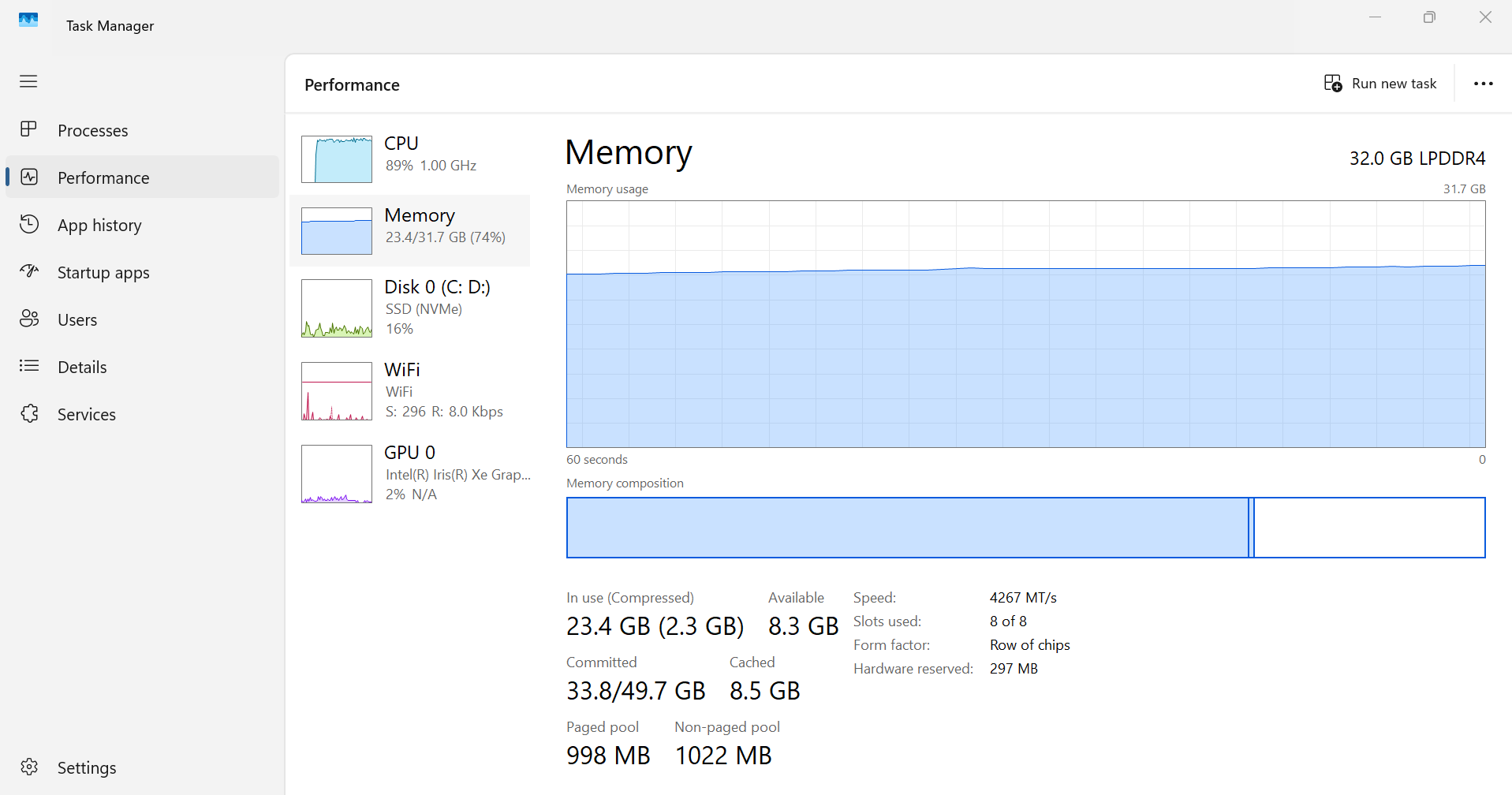
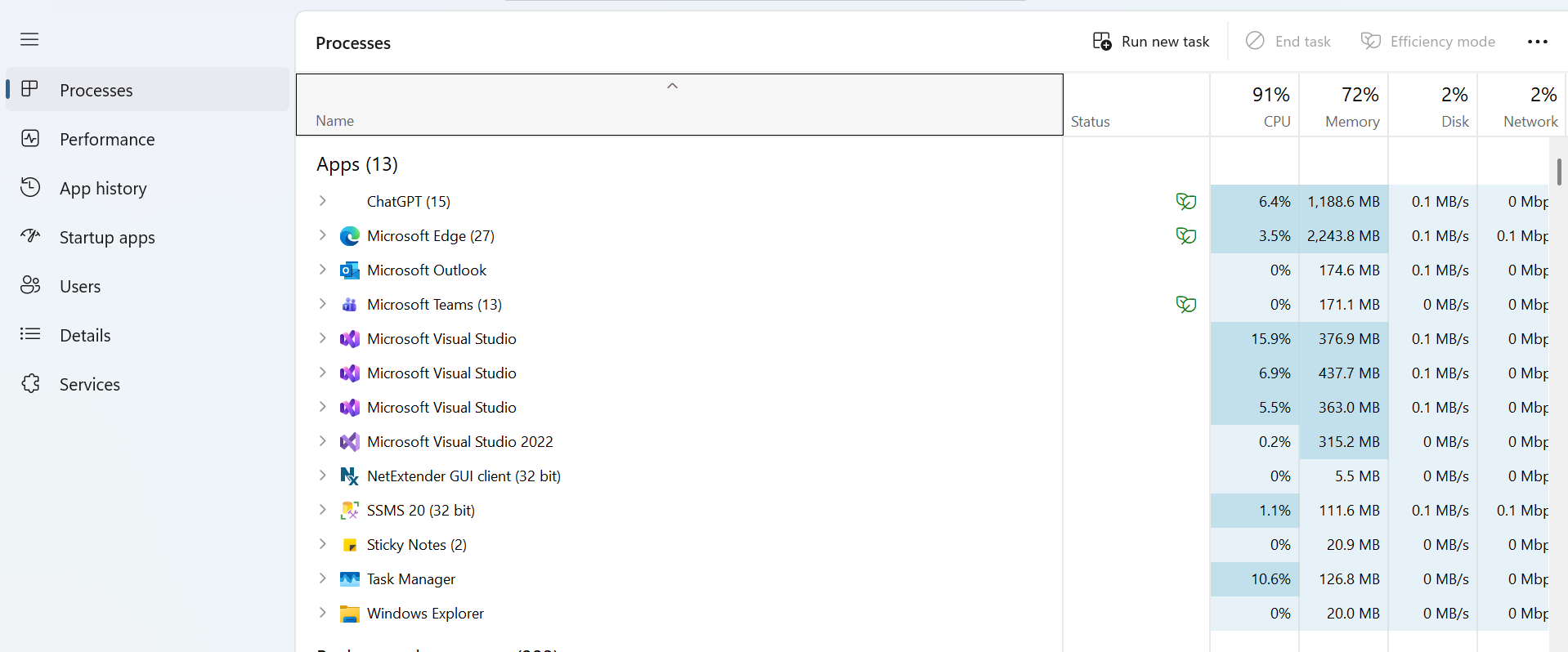
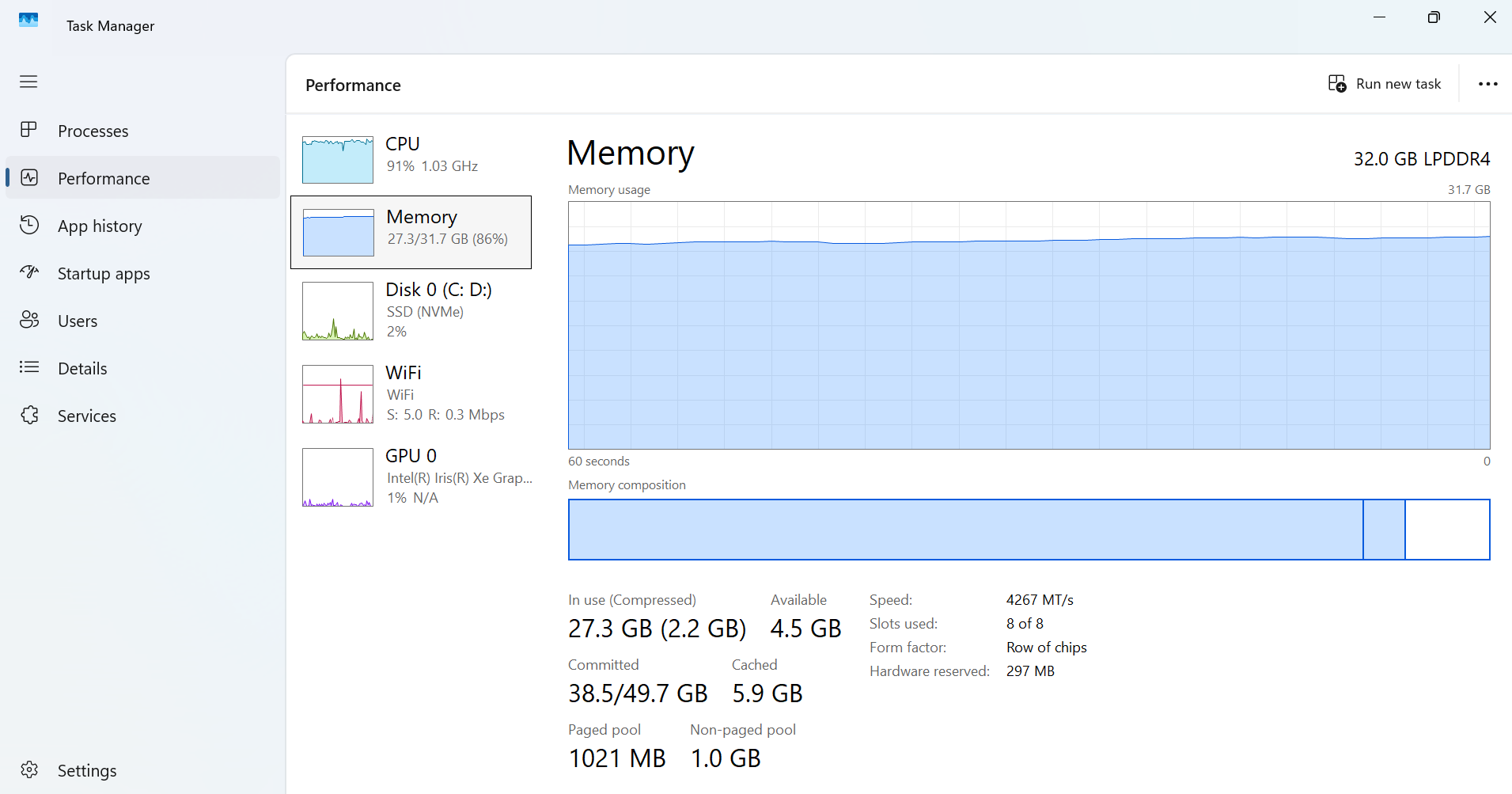
I first captured memory usage during a normal working session. Then I captured another reading while rebuilding a Visual Studio solution.
Memory Usage Before and During Rebuilding
| Measurement | Normal session | During rebuild |
|---|---|---|
| RAM in use | 23.4 GB | 27.3 GB |
| RAM utilization | 74% | 86% |
| Available RAM | 8.3 GB | 4.5 GB |
| Committed memory | 33.8 GB | 38.5 GB |
| CPU utilization | 89% | 91% |
The second screenshot showed approximately 3.9 GB more physical memory in use.
During the rebuild, Visual Studio, my browser, and switching between applications became noticeably slower.
However, these were two observations, not a controlled benchmark. I can't attribute the entire increase in memory usage to compilation alone.
The system also had 4.5 GB of available RAM during the rebuild, so the screenshots do not prove that my installed memory was exhausted.
What caught my attention was the CPU.
An Unexpected Discovery: Windows Power Mode
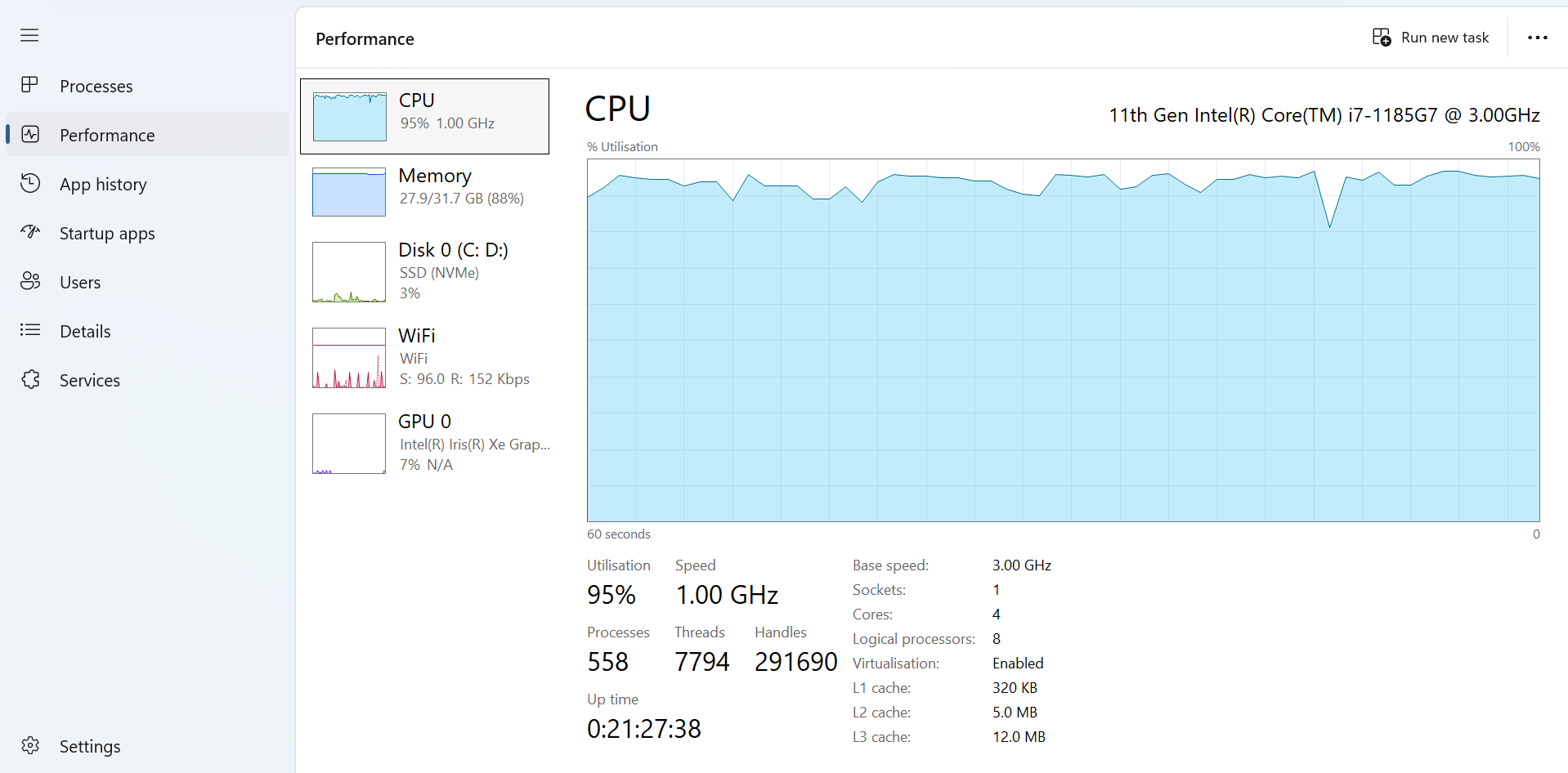
While investigating the slowdowns, I noticed that my processor was reporting unusually low operating speeds during a demanding workload.
My laptop was connected to its charger, but Windows was configured to use Best power efficiency.
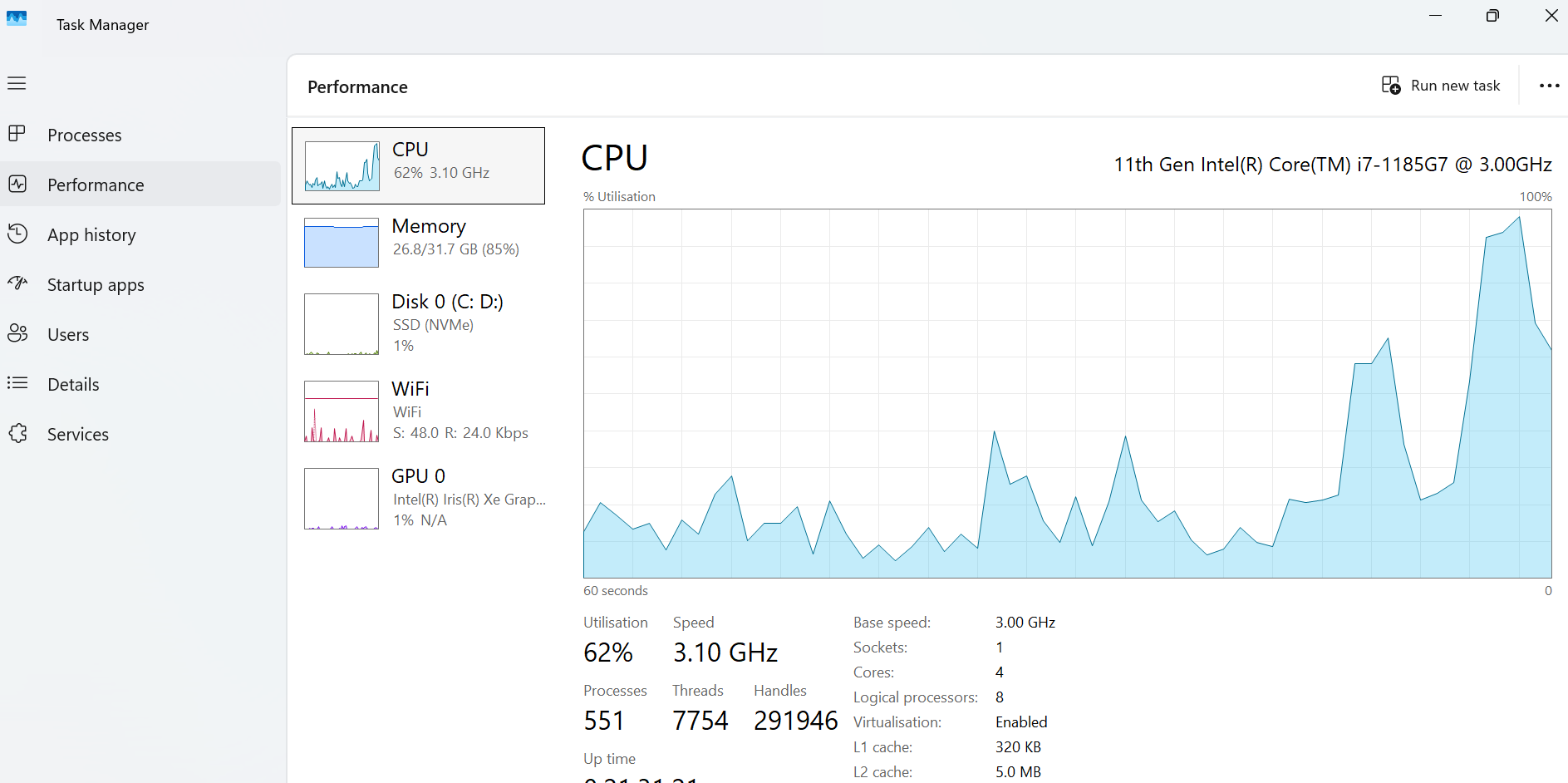
I changed the setting to Best performance and repeated the rebuild observation.
| Measurement | Best power efficiency | Best performance |
|---|---|---|
| CPU utilization | 95% | 62% |
| Reported CPU speed | 1.00 GHz | 3.10 GHz |
| RAM usage | 27.9 GB | 26.8 GB |
I noticed better responsiveness after changing the power mode.
The reported CPU frequency was considerably higher, but these were separate snapshots taken under different levels of CPU utilization.
I didn't record build completion times or conduct repeated controlled tests, so this isn't evidence of a particular percentage improvement.
Still, it demonstrated something worth remembering:
A computer can feel faster without upgrading its RAM.
In my case, investigating a Windows setting helped improve the development experience.
That's exactly why I recommend diagnosing performance problems before purchasing new hardware.
When Additional RAM Won't Solve Your Problem
RAM is only one part of a development computer.
Even with plenty of memory installed, other components or software configurations can limit performance.
CPU Performance
Compilation, debugging, and running tests can place substantial demands on your processor.
If CPU performance is the limiting factor and memory isn't under pressure, adding more RAM may have little effect.
Check processor utilization, frequency, and power settings before upgrading.
Storage Performance
I personally noticed an improvement when I moved my development environment to an SSD.
Storage performance affects file operations, application loading, and other disk-intensive tasks.
If you're still using a traditional hard drive, an SSD upgrade may improve responsiveness more than adding RAM.
Thermal Throttling
Processors can reduce their operating speed when temperatures become excessive.
If your laptop repeatedly slows down under sustained load, cooling and temperature limits may be worth investigating.
I didn't confirm thermal throttling on my own laptop, so I wouldn't assume heat caused the low CPU speed I observed.
GPU and Video Memory
Local AI workloads and some other applications depend heavily on graphics hardware.
Adding system RAM doesn't increase the dedicated video memory installed on a GPU.
The right upgrade depends on your model, runtime, and hardware configuration.
Software Configuration
Extensions, background processes, build settings, and resource limits can all influence performance.
Before replacing hardware, investigate whether unnecessary applications or configuration problems are affecting your development tools.
Remote Services and Network Performance
Sometimes, the delay isn't happening on your computer at all.
A slow remote database, cloud service, or external API won't necessarily become faster because your laptop has more RAM.
Understanding where the bottleneck occurs is more useful than guessing.
Check RAM Upgradeability Before Buying a Laptop
Memory capacity matters, but so does whether you can increase it later.
Some laptops have RAM soldered directly to the motherboard. Others use replaceable memory modules.
If you buy a laptop with 16 GB of soldered RAM and later discover that you need 32 GB, replacing the laptop might be your only practical option.
That's why I'd check upgradeability before purchasing.
What to Verify
1. Soldered or replaceable RAM
Find out whether the memory can be upgraded through standard module replacement.
2. Number of available slots
A laptop with 16 GB might use one 16 GB module, two 8 GB modules, or soldered memory. These configurations offer different upgrade options.
3. Maximum supported capacity
Check the manufacturer's specifications for the exact model. Don't assume that every laptop supports 64 GB simply because compatible-looking memory modules exist.
4. Memory type and compatibility
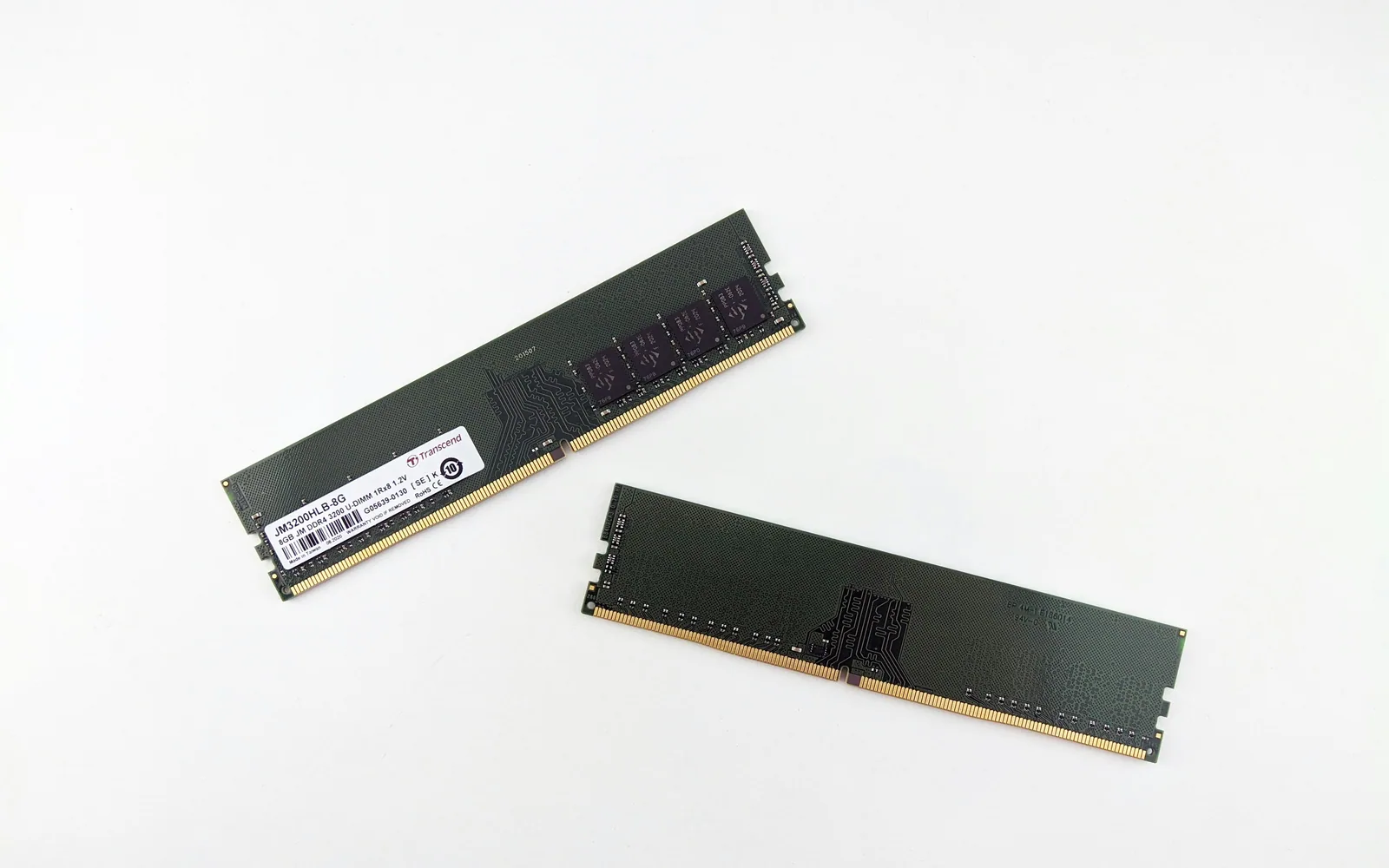
DDR4 and DDR5 aren't interchangeable. Module format, supported speed, capacity, and system compatibility all matter.
5. Memory configuration
Where supported, dual-channel memory can improve bandwidth, although the practical benefit depends on the workload.
For ordinary development, I'd prioritize capacity and compatibility before spending extra on small memory-speed differences.
Should You Buy 16 GB Now and Upgrade Later?
If you're a student or developer on a tight budget, that can be a sensible approach.
However, if you already know you'll be running multiple IDEs, databases, virtual machines, or demanding workloads, buying 32 GB from the beginning may be more convenient.
And if the laptop has soldered memory, I'd pay even closer attention to future requirements.
My Five-Step RAM Buying Decision
If I were purchasing a development computer today, I'd follow this process.
Step 1 — List the applications you actually need.
Consider which tools run simultaneously, not just which programming languages you use.
Step 2 — Choose a realistic starting capacity.
For lightweight development, evaluate 16 GB. For professional multitasking, consider 32 GB. For demanding virtualization, data processing, or local AI, investigate whether 64 GB or more is justified.
Step 3 — Measure your current workload if possible.
Look at available memory, paging, application responsiveness, and CPU activity during realistic tasks.
Step 4 — Check upgradeability.
Understand whether you can expand the computer's memory later and what that upgrade would involve.
Step 5 — Spend where it matters most.
If memory is the bottleneck, upgrading RAM may help. If the CPU, storage, cooling, or software configuration is responsible, address that instead.
Final Recommendation: What Would I Buy Today?
For someone beginning their development journey, 16 GB RAM with a 512 GB SSD remains a reasonable entry point.
For professional developers regularly running Visual Studio, SQL Server, browsers, local services, and multiple projects, 32 GB is my preferred starting configuration.
For developers with demanding virtual machines, large datasets, or specific local AI workloads, 64 GB or more may be worthwhile, provided there's a clear reason for the additional capacity.
My own experience moving from 8 GB, upgrading to an SSD, and eventually working with 32 GB has shown me how much a computer's responsiveness can affect everyday development.
But my recent investigation also reminded me that hardware capacity alone doesn't tell the whole story.
Sometimes the improvement you're looking for comes from understanding the problem rather than buying another component.
My final advice is simple: Choose the RAM your workload needs, leave reasonable room to grow, and don't mistake higher specifications for automatically better performance.
A development computer should make your work easier, not become another problem you have to solve.
About the Author
Syed Shuja Haider is a software developer with approximately nine years of professional experience, specializing in C#, .NET, SQL Server, and application development.
His work involves building, debugging, and maintaining software using Visual Studio, databases, and other professional development tools.
Through The Practical Byte, he shares practical technology guidance informed by his development experience and technical research.
Personal website: syedshujahaider.com
Editorial Disclosure
This article was prepared with AI assistance for research, organization, and drafting. The author's development experience, hardware-upgrade history, and Windows performance observations were supplied firsthand.
Technical recommendations were informed by official documentation and are intended as practical purchasing guidance rather than universal hardware requirements.
The performance readings were captured on October 20, 2026, using a Windows 11 laptop with 32 GB RAM and an Intel Core i7-1185G7 processor.
These were observational measurements, not controlled comparative benchmarks. No specific performance improvement is attributed solely to a RAM upgrade, SSD upgrade, or Windows setting without supporting measurements.
No hands-on product testing, purchased hardware review, or paid endorsement is claimed. No affiliate links are included in this draft.
References and Further Reading
- Microsoft — Visual Studio 2022 System Requirements
- Microsoft — Visual Studio 2026 System Requirements
- Docker — Docker Desktop for Windows
- Google — Android Studio System Requirements
- Microsoft — SQL Server Memory Configuration
- Microsoft — Introduction to Windows Page Files
- Microsoft — Change Windows Power Mode
- Microsoft — Optimize Visual Studio Startup
- Intel — Understanding Processor Throttling
- Dell — How to Upgrade Computer Memory
RAM capacities described throughout this guide are planning recommendations. Actual requirements depend on software, concurrent workloads, operating system, and hardware configuration.