
Wi-Fi 6 vs Wi-Fi 6E vs Wi-Fi 7: Which Upgrade Makes Sense for a Home Office?
Understand the real differences, separate marketing speeds from everyday performance, and choose the upgrade your workspace actually needs.
Reviewed and approved by Syed Shuja Haider

A home office does not need the fastest router in a catalog. It needs a connection that keeps video meetings clear, cloud tools responsive, and file transfers predictable—even when everyone else in the house is online. That difference matters when router boxes promise several gigabits per second, but your laptop still loses a call from the next room.
Wi-Fi 6, Wi-Fi 6E, and Wi-Fi 7 are not interchangeable labels. Wi-Fi 6 improved efficiency on the familiar 2.4 and 5 GHz bands. Wi-Fi 6E brought that same underlying technology to 6 GHz. Wi-Fi 7 adds a new generation of wireless features, including Multi-Link Operation (MLO), higher-order modulation, and potentially much wider channels. The newer technology can be better—but only when the entire connection supports it. [1][2][3]
This guide explains what the specifications mean in real home-office situations, where a new router helps, when Ethernet or improved coverage is the smarter investment, and how to shop without mistaking marketing numbers for measured performance.
The short answer: Keep a reliable Wi-Fi 6 setup if it already handles your workload. Consider Wi-Fi 6E when your compatible devices can benefit from 6 GHz in a congested environment. Consider a suitably equipped Wi-Fi 7 router for demanding local-network transfers, modern compatible clients, or a planned multi-gigabit upgrade. If the problem is a weak signal in another room, solve coverage first.
At a glance: Wi-Fi 6 vs Wi-Fi 6E vs Wi-Fi 7
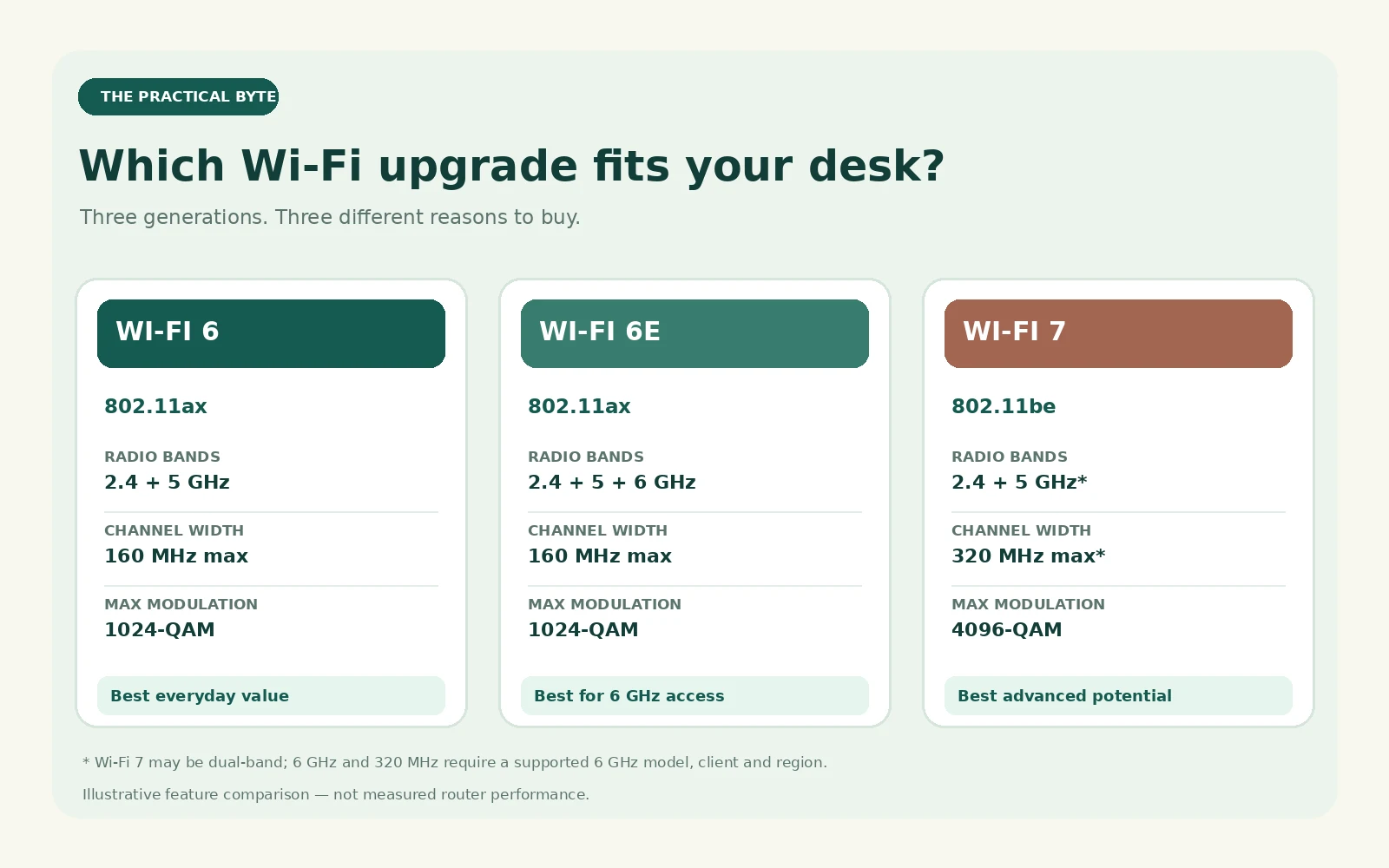
| What matters | Wi-Fi 6 | Wi-Fi 6E | Wi-Fi 7 |
|---|---|---|---|
| IEEE family | 802.11ax | 802.11ax | 802.11be |
| Bands commonly available | 2.4 and 5 GHz | 2.4, 5 and 6 GHz | 2.4 and 5 GHz; 6 GHz on supported models |
| Maximum defined channel width | 160 MHz | 160 MHz | Up to 320 MHz, requiring supported 6 GHz operation |
| Highest modulation | 1024-QAM | 1024-QAM | 4096-QAM (4K-QAM) |
| Multi-Link Operation | No | No | Yes, when router and client support it |
| Main advantage | Efficient, mature everyday Wi-Fi | Access to additional wireless spectrum | More potential capacity and flexible link management |
| Best-fit purchase | Value-focused home office | Busy apartment with 6 GHz-capable clients | High-demand wireless or multi-gigabit network |
These are maximum technology capabilities, not guaranteed router specifications. In particular, not every Wi-Fi 7 router has a 6 GHz radio. A dual-band Wi-Fi 7 model may operate only at 2.4 and 5 GHz. As one concrete example, TP-Link lists its Archer BE230 as a dual-band Wi-Fi 7 router without a 6 GHz band. [4]
First, understand the difference between Wi-Fi speed and internet speed
The speed advertised by a router typically refers to a theoretical wireless physical-layer rate, sometimes adding together the maximum rates of different bands. It is not the speed one computer can necessarily download from the internet. A single laptop has its own antenna count, channel-width support, radio limits, and driver behavior. Real traffic also carries wireless and network-protocol overhead.
Imagine that your fiber service delivers 300 Mbps and an existing Wi-Fi 6 laptop already receives a stable 300 Mbps near your desk. A Wi-Fi 7 router will not turn that subscription into 1 Gbps service. There may be improvements in local transfers or handling competing wireless activity, but faster internet speed is not the automatic outcome.
Reverse the situation: your ISP supplies 1 Gbps, but the laptop achieves only 80 Mbps in an upstairs office. The problem might be walls, poor placement, interference, or an overloaded access point. Replacing one router with a more expensive model in the same bad location may leave the main problem unresolved.
There are three different performance questions worth asking:
- Internet throughput: How much of your subscribed connection reaches the device?
- Local throughput: How quickly can you move a backup, video project, or virtual machine file between equipment inside your home?
- Connection quality: Does latency remain predictable, with low packet loss and few disconnects when the network is busy?
For meetings and remote desktops, the third question can matter more than raw peak bandwidth. For a workstation backing up to a network-attached storage (NAS) server, the second question may justify faster wireless gear even if the internet plan is modest.
What Wi-Fi 6 changed—and why it is still useful
Wi-Fi 6 is based on IEEE 802.11ax and is also known as High Efficiency Wi-Fi. Rather than focusing only on peak link rates, it improved how the network shares airtime among many devices. That was an important step as houses filled with phones, laptops, televisions, cameras, speakers, and smart appliances. [3][5]
OFDMA: sharing channel resources more efficiently
Orthogonal Frequency-Division Multiple Access (OFDMA) allows a compatible access point to allocate smaller sets of frequency resources to different clients. Think of it as using the available vehicle capacity more efficiently rather than reserving the whole road for a tiny package. It can help when many clients are moving short bursts of data, although its benefit depends on traffic and support on both sides of the connection.
A busy household is a practical example: one laptop is on Teams, another is editing a cloud document, and several phones are exchanging background traffic. OFDMA does not create new internet bandwidth, but it can improve wireless airtime usage compared with less efficient arrangements.
MU-MIMO, 1024-QAM, and other improvements
Multi-User MIMO gives capable access points additional ways to communicate with multiple compatible clients. Wi-Fi 6 also uses up to 1024-QAM modulation under favorable signal conditions, allowing more bits per symbol than earlier mainstream Wi-Fi generations. Target Wake Time can help supported clients organize activity and reduce energy consumption. [3]
Those details are not features you need to configure individually. For a typical home office, the result is a mature and generally capable platform for ordinary work, provided the router is well placed and is sufficiently powerful for the household.
When Wi-Fi 6 is the right answer
A good Wi-Fi 6 router is enough for many people who use browser-based applications, software repositories, messaging, video calls, shared documents, and standard file synchronization. It also makes sense if most of your devices only support Wi-Fi 5 or Wi-Fi 6. They would not acquire Wi-Fi 7 features merely by associating with a newer router.
Its limitations become more important when 5 GHz is genuinely crowded, when you need very fast local wireless transfers, or when a new network is being built around multi-gigabit wired equipment. In those cases, look at the next two options—but do not write off a solid Wi-Fi 6 system just because it is older.
Wi-Fi 6E explained: what the extra 6 GHz band actually buys you
Wi-Fi 6E uses the same 802.11ax family as Wi-Fi 6. The meaningful extension is permission to operate on 6 GHz where regional rules and compatible hardware allow it. That gives supported clients an additional pool of spectrum, often with less legacy-device traffic than 5 GHz. It is not a blanket promise of faster or longer-range coverage. [3][6]
2.4 GHz, 5 GHz, and 6 GHz serve different jobs
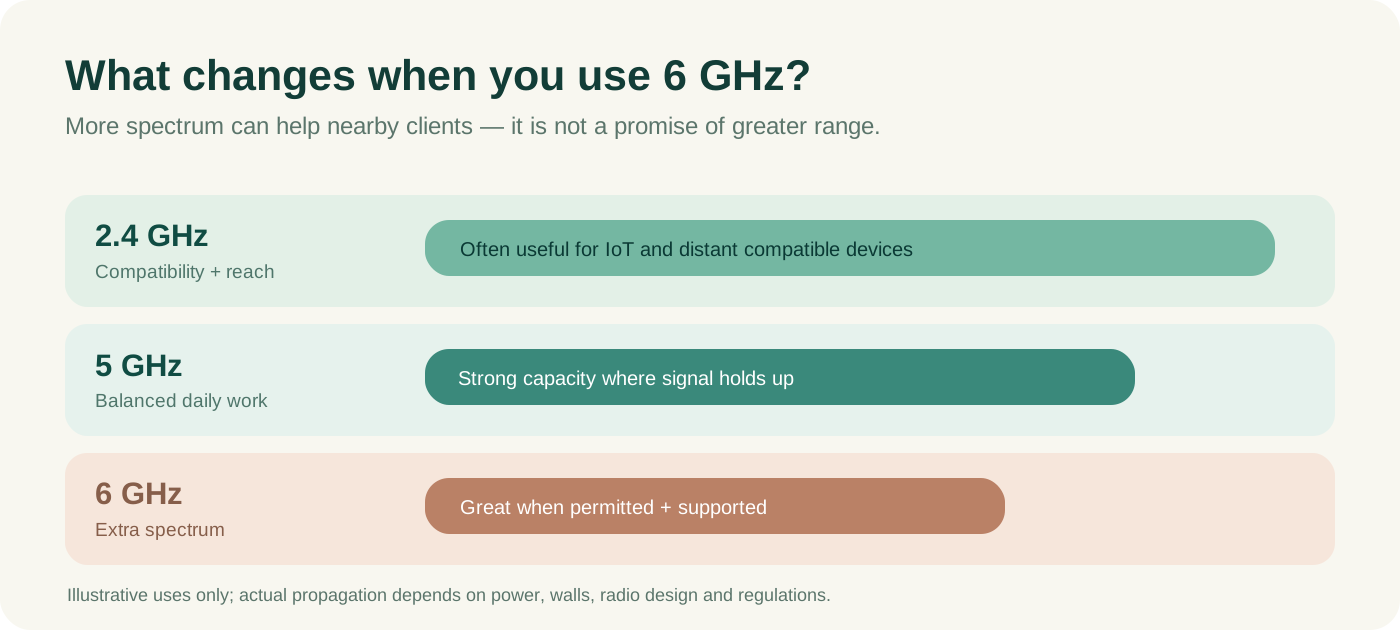
| Band | Typical strength | Trade-off in the home |
|---|---|---|
| 2.4 GHz | Coverage and compatibility for lower-bandwidth devices | More shared traffic and relatively narrow channels |
| 5 GHz | Balanced capacity and range for work laptops | Neighboring networks and indoor obstacles can reduce performance |
| 6 GHz | More spectrum for newer capable equipment | Shorter effective reach can be an issue; regional rules apply |
6 GHz is useful because more frequencies can mean more room for wide channels without colliding with older neighboring devices. Imagine a block of apartments in which dozens of routers compete on 5 GHz. Moving a compatible laptop to 6 GHz may avoid part of that congestion—especially when the router is close and the band is relatively clear.
But every wall still matters. At otherwise comparable settings, higher radio frequency generally incurs greater propagation loss, and real building materials can weaken 6 GHz performance further. Router power, antenna design, layout, and regulation also affect coverage. A strong 5 GHz signal can outperform a marginal 6 GHz signal from the next floor.
Compatibility is a three-part requirement
To benefit, you need a 6 GHz-capable router or access point, a client adapter that supports Wi-Fi 6E or compatible Wi-Fi 7 operation, and appropriate software and regional permission. On Windows, operating-system versions and drivers affect what appears and what is usable. Intel's support documentation specifically points to Windows 11, current drivers, platform enablement, and national spectrum rules for its Wi-Fi 6E and Wi-Fi 7 products. [7]
An older Wi-Fi 6 laptop still works with a Wi-Fi 6E router—but over a supported older band, not over 6 GHz. Likewise, buying a tri-band router cannot turn an incompatible phone into a 6 GHz client.
Security on 6 GHz is stricter
Wi-Fi 6E's 6 GHz operation requires modern security mechanisms: WPA3 for secured connections or Enhanced Open for applicable passwordless networks, along with protected management frames. WPA2-only configuration is not allowed on the 6 GHz band. That can surprise people who reuse an older home-network security profile. [6]
You may still retain appropriate compatibility settings on your 2.4 and 5 GHz networks for legacy printers and smart devices. The key is to configure the modern 6 GHz network correctly rather than disabling protections to accommodate an older client.
When Wi-Fi 6E does—and does not—make sense
Choose Wi-Fi 6E when the main laptop and phone can use 6 GHz, the access point is near your workspace, and 5 GHz competition is a verified problem. It can be a good value when an established tri-band 6E system is substantially cheaper than a comparable tri-band Wi-Fi 7 setup.
Skip it when the office is far away behind thick walls, virtually none of your clients support 6 GHz, or you cannot use the band legally in your region. In those situations, better 5 GHz coverage, an additional wired access point, or a higher-quality Wi-Fi 6 router may produce the more noticeable improvement.
Wi-Fi 7 explained: important improvements beyond a faster label
Wi-Fi 7 is built on the 802.11be family. Its enhancements were developed to increase potential throughput, reduce latency in suitable deployments, and provide greater flexibility in how links and wireless channel resources are used. The Wi-Fi Alliance launched Wi-Fi CERTIFIED 7 in January 2024, and IEEE lists 802.11be-2024 as an active standard. [1][2]
320 MHz channels: useful, but not universal
Wi-Fi 6 and 6E provide up to 160 MHz channels. Wi-Fi 7 adds the possibility of 320 MHz channels in the 6 GHz band. A wider channel can move more data under the right conditions, just as a wider road can accommodate more traffic. The catch is that the router, client, regulations, and available contiguous spectrum all have to cooperate. [2]
If a country makes only a limited slice of 6 GHz available, or the model lacks a 6 GHz radio entirely, the headline 320 MHz feature may not apply. Wider is also not automatically better in every crowded environment. Depending on interference, a narrower stable channel can sometimes deliver a better user experience than a wider unreliable one.
4K-QAM: greater efficiency when the signal is clean
Wi-Fi 7 can use 4096-QAM, commonly called 4K-QAM. At a comparable symbol rate, it represents 20% more bits per symbol than the 1024-QAM used by Wi-Fi 6 and 6E. The improvement is conditional: sophisticated modulation needs a sufficiently good signal-to-noise ratio. You should not expect it to deliver its maximum benefit through multiple concrete walls. [2]
This is a useful distinction between the theoretical link capacity printed on a box and actual application throughput at a desk. A router's radio can support an impressive rate without every phone or laptop being capable of using it.
Multi-Link Operation: more flexible wireless connections
Multi-Link Operation (MLO) is one of Wi-Fi 7's most significant changes. A compatible multi-link device can establish multiple links, and particular operating modes can help with throughput, latency, or reliability. The Wi-Fi Alliance identifies MLO as a core Wi-Fi 7 advance. [2]
A compatible laptop may be able to use coordinated connections on more than one band. However, do not translate MLO into the simplistic claim that every Wi-Fi 7 laptop continuously adds 5 GHz and 6 GHz speeds together. Implementations differ, not every product includes 6 GHz, and the router and client must support compatible operating modes.
Flexible resource allocation and puncturing
Wi-Fi 7 also improves how channel resources may be assigned and how a wide channel can remain useful when part of it is affected by interference. Multi-resource-unit allocation and puncturing are technical features that can improve spectrum use rather than simply relying on wider channels. They matter most as part of a complete, capable design—not as isolated reasons to buy the first inexpensive model carrying a Wi-Fi 7 label. [2]
The important warning: dual-band Wi-Fi 7 exists
Some Wi-Fi 7 routers use only 2.4 and 5 GHz. They can still advertise 4K-QAM or MLO in relevant combinations, but they do not provide the 6 GHz benefits of tri-band Wi-Fi 6E gear. For example, TP-Link's published Archer BE230 specifications list 2.4/5 GHz wireless operation and no 6 GHz radio. [4]
A purchaser trying to escape crowded 5 GHz spectrum could therefore find that a cheaper dual-band Wi-Fi 7 router is less suitable than a tri-band Wi-Fi 6E model. The right comparison is between specific devices, not two words on their packaging.
Do the advertised gigabit figures matter to home-office work?
Manufacturers may advertise combined ratings such as AX3000, AXE5400, or BE9300. These are product-class labels derived from theoretical wireless band rates, not independent tests of your internet connection. A number is particularly misleading when it adds several bands that one ordinary client does not use as a single unrestricted connection.
You also need to distinguish the radio link rate shown in an operating system from an application transfer rate. Wireless encryption, acknowledgments, protocol overhead, channel contention, signal conditions, other clients, the router's CPU, and the destination system all consume some of the practical capacity.
Consider a hypothetical 20 GB file transfer from your laptop to a NAS. At a sustained real application rate of 800 Mbps, the raw data alone would take about 200 seconds. At 1,600 Mbps, it would take about 100 seconds. Those numbers are illustrations, not measured Wi-Fi 6 or Wi-Fi 7 benchmarks; actual elapsed time also depends on NAS storage, Ethernet switches, file-sharing overhead, and changing wireless conditions.
The point is not that every Wi-Fi 7 laptop will double transfer speed. It is that local-network workflows can use more bandwidth than a video meeting. If you routinely move tens of gigabytes and have a wired NAS connected at 2.5 GbE or faster, higher wireless capacity may reduce waiting. If you only access cloud documents, there may be little practical reward.
Home-office scenarios: choose the bottleneck, not the generation
Scenario 1: One remote worker, meetings, email, and browser tools
Your main workload consists of Teams or Zoom, email, spreadsheets, programming documentation, and cloud apps. If the current Wi-Fi 6 connection is stable and covers the workspace, do not upgrade simply because Wi-Fi 7 exists. A solid internet service, usable router placement, security updates, and dependable power matter more.
If the existing router is several generations old, a good Wi-Fi 6 replacement may already be a meaningful and economical change. If you want a more expensive system anyway, buy it for a specific need—such as better coverage, extra Ethernet ports, or a household-wide expansion—not a theoretical rate printed in large type.
Scenario 2: Two remote workers and a busy family
Two adults are on simultaneous calls while other household members stream, play games, and synchronize phones. The first question is whether the internet uplink is saturated. A 6 GHz upgrade will not fix inadequate upstream ISP capacity. Modern router quality-of-service or smart queue management features, correctly configured, may help keep real-time traffic responsive when the connection is busy.
If the wireless link itself is congested, Wi-Fi 6E or tri-band Wi-Fi 7 may create useful separation for newer work laptops. But a well-managed Wi-Fi 6 network remains viable for many families. Use measurements before deciding.
Scenario 3: Apartment building with crowded 5 GHz airwaves
This is a strong case for considering 6 GHz—provided your laptop supports it and the router is close enough. A tri-band Wi-Fi 6E access point may offer the specific benefit you need without the price of a premium Wi-Fi 7 model. A good tri-band Wi-Fi 7 system also works, especially if you are purchasing compatible devices and require its extra capabilities.
Check a Wi-Fi analyzer or router diagnostic page at different times rather than assuming every slowdown is interference. If you cannot access 6 GHz due to region or client limitations, consider better placement, a less congested legal 5 GHz channel, and appropriate channel width.
Scenario 4: Developer with a NAS, VMs, or large backups
A developer who copies virtual-machine images, build artifacts, database backups, or media files across the local network may benefit from Wi-Fi 7 more than a general web user. Here the purchase should include a look at the entire path: laptop wireless adapter, router radio, LAN ports, switch, NAS network interface, storage speed, and any encryption or VPN overhead.
An expensive wireless router attached to a 1 GbE NAS port cannot make that wired link exceed its own limit. Where equipment is stationary, Ethernet is usually the most predictable route to sustained high throughput. Add Wi-Fi 7 for portable devices that genuinely need higher-speed wireless access.
Scenario 5: Large house with weak signal upstairs
If one office is two floors away from the main router, buying a premium single-box router may be the wrong solution. Try relocating the access point to a more central position, or adding an access point closer to the office. A mesh system can help, but whenever feasible, Ethernet backhaul between nodes is especially useful because it avoids spending the wireless link's airtime on communication between those nodes.
A well-designed Wi-Fi 6 mesh or wired access-point setup can deliver more usable reliability than an isolated Wi-Fi 7 unit with poor placement. Budget for cabling and coverage, not just radio specifications.
Scenario 6: New multi-gigabit internet and recent laptops
Suppose you are moving to a connection above 1 Gbps, have newer Wi-Fi 7 laptops, and plan to use fast local storage. A tri-band Wi-Fi 7 system with appropriate 2.5 GbE or faster WAN/LAN ports may be a sensible investment. Verify that those ports are usable in the roles you need, not merely present somewhere on the specification sheet.
Check the client's supported spatial streams, channel widths, and software. You may still find that a good wired workstation connection is the better solution for a fixed desk, while Wi-Fi 7 serves portable devices throughout the office.
Wi-Fi 7 versus Ethernet: the sensible hybrid setup
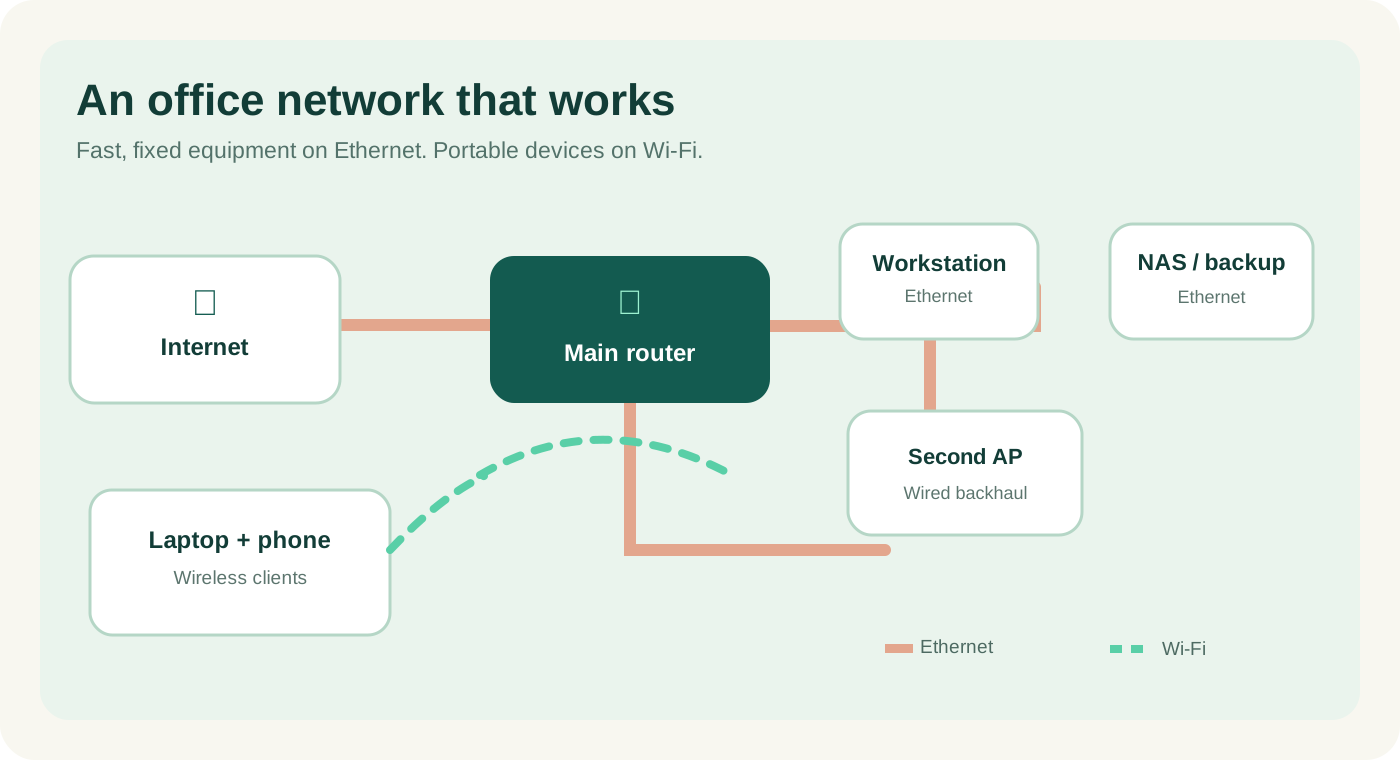
Wireless gives freedom of movement. Ethernet offers a dedicated physical link unaffected by neighboring Wi-Fi transmissions. For fixed equipment, it remains hard to beat for consistent throughput and lower susceptibility to radio conditions.
| Home-office device | Practical starting connection |
|---|---|
| Desktop or workstation | Ethernet, especially for heavy transfers |
| NAS or backup server | Ethernet; consider multi-gigabit if justified |
| Laptop docked at a desk | Ethernet if convenient, otherwise strong Wi-Fi |
| Laptop moving between rooms | Wi-Fi with adequate coverage |
| Smartphones and tablets | Wi-Fi |
| Smart bulbs, sensors, basic IoT | Compatible 2.4 GHz network as needed |
| Multiple access points | Wired backhaul where possible |
For someone building a home lab, a reliable wired core and well-placed wireless access points can be a better long-term investment than an all-wireless design. The two technologies complement each other; neither replaces the other in every workflow.
A practical router-buying checklist
1. Verify the actual bands. If you want 6 GHz, look for an explicit 6 GHz radio in the exact regional product datasheet. "Wi-Fi 7" alone is insufficient proof.
2. Look at the client devices. Confirm whether your laptop and phones support Wi-Fi 6, 6E, or 7. On Windows, Microsoft documents the netsh wlan show drivers command for checking supported radio types. The router and adapter must both support the relevant features. [3]
3. Compare ports. A multi-gigabit internet subscription may justify a 2.5 GbE WAN port; a fast wired NAS or switch may justify 2.5 GbE LAN ports as well. Check whether a port shared between WAN and LAN modes reduces the number of high-speed ports available in your configuration.
4. Check the channel widths honestly. Support for 160 or 320 MHz depends on the model and the client. Local spectrum regulations and interference determine whether a wide channel is practical.
5. Plan the coverage. One strong access point in the right location can be better than a premium router hidden in a utility cabinet. Large layouts may need several access points and wired backhaul.
6. Prioritize security updates. Router firmware maintenance, WPA3 where supported, protected admin access, and avoiding unnecessary remote management are practical security features. An older router that no longer receives security patches is a stronger upgrade candidate than one that simply lacks a newer Wi-Fi number.
7. Check regional rules before importing. The permitted 6 GHz spectrum and radio operating modes vary by jurisdiction. Importing hardware with a US specification sheet does not guarantee those features are legal or enabled in your location. Intel explicitly warns about regional restrictions and manufacturer enablement. [7]
8. Think about the total system. A fancy access point will not fix an inadequate ISP plan, a faulty Ethernet cable, a weak mesh backhaul, or a slow NAS disk array.
Three sensible buying paths
- Value path: Choose a well-supported Wi-Fi 6 system with adequate coverage, current security updates, and the ports you actually need.
- Congestion path: Choose a tri-band Wi-Fi 6E system if compatible nearby clients would genuinely benefit from 6 GHz and pricing is favorable.
- High-performance path: Choose a suitably equipped Wi-Fi 7 system with 6 GHz support, appropriate wired ports, and client compatibility if faster local wireless work is important.
These are feature-based buying categories, not endorsements of untested routers. A recommendation for an exact model requires checking its regional specification, firmware support, and current value.
Test your current network before spending money
You can learn a surprising amount from a simple six-part check. This is more useful than assuming the slowest activity must be caused by an outdated Wi-Fi standard.
- Run a wired baseline. Where possible, plug a computer directly into your router and run several speed tests. Record download, upload, and latency. Results outside Wi-Fi are valuable evidence.
- Test near the router. Use the same laptop over Wi-Fi, preferably on the normal 5 GHz connection, with background downloads paused. Compare the numbers with the wired baseline.
- Test in the office. Repeat at your actual desk, behind the same doors and walls you use during work. Also check whether the connection unexpectedly falls back to 2.4 GHz.
- Test while the household is busy. Repeat during streaming or large uploads. A problem that appears only under load may be congestion or a router/ISP queueing issue rather than weak signal alone.
- Check latency and loss, not only speed. A brief freeze during a meeting may coincide with packet loss or latency spikes, even if a speed test normally shows plenty of bandwidth. Local diagnostic tools or your router's monitoring may help isolate it.
- Change one thing at a time. Try placement, a permitted channel choice, wired backhaul, or a separate access point before spending on a new wireless generation.
To diagnose a local file-transfer problem, test against a device on the local network rather than using an internet speed test alone. Compare wireless transfers with the same workload over Ethernet where possible. Keep notes about device location, band, router settings, and time of day so your observations are repeatable.
Common upgrade mistakes to avoid
Mistaking the router's class number for one-device speed
An AX or BE label can combine theoretical capacities across bands. It does not guarantee that one laptop will reach that number. Read the separate radio specifications, not only the headline.
Assuming all Wi-Fi 7 products include 6 GHz
They do not. This can reverse the expected purchase decision: a tri-band Wi-Fi 6E router can be a better fit for 6 GHz congestion relief than a cheaper dual-band Wi-Fi 7 router. [4]
Forgetting the client side
A Wi-Fi 6 laptop can use a Wi-Fi 7 router through backward-compatible modes, but it does not become a Wi-Fi 7 device. Drivers, firmware, operating-system support, and regional restrictions can also limit advanced features. Intel states that its Wi-Fi 7 functionality on Windows requires Windows 11 24H2 or later. [7]
Buying a new radio instead of fixing dead zones
A badly placed router can produce poor service regardless of its generation. Coverage, additional access points, and wired backhaul should be part of the decision before purchasing premium hardware.
Confusing faster local Wi-Fi with faster internet service
Your router cannot increase the contracted ISP bandwidth. In a home office, faster local Wi-Fi is only valuable when the wireless connection was actually the bottleneck—or when local devices have demanding transfers of their own.
Buying solely for "future-proofing"
Long-term value matters, but paying a large premium for features no client can use might be poor value. A reasonable purchase should still meet a present need: capacity, coverage, suitable ports, security support, or planned device upgrades.
Frequently asked questions
Is Wi-Fi 7 worth upgrading from Wi-Fi 6?
It depends on whether your current Wi-Fi 6 setup is limiting something that matters. If your calls are stable, cloud apps respond normally, and you do not move large local files, the immediate return may be modest. If you have compatible Wi-Fi 7 clients and a multi-gigabit local network, a suitable Wi-Fi 7 router can be worthwhile.
Is Wi-Fi 6E faster than Wi-Fi 6?
Wi-Fi 6E adds 6 GHz; it does not change 802.11ax into a new generation. A clear 6 GHz channel can help compatible clients avoid congested 5 GHz spectrum, but speeds still depend on hardware, signal strength, channel width, interference, and other factors.
Does Wi-Fi 7 always use 6 GHz?
No. Some models are dual-band devices using only 2.4 and 5 GHz. Check the product's radio-band list and do not infer 6 GHz or 320 MHz support from the Wi-Fi 7 name alone. [4]
Do I need a Wi-Fi 7 laptop to use a Wi-Fi 7 router?
No; older supported clients can generally connect in backward-compatible modes. To benefit from Wi-Fi 7-specific client features, however, you need compatible client hardware and software.
Will Wi-Fi 7 fix Zoom and Teams problems?
Only if the relevant bottleneck is local wireless performance and the upgrade addresses it. Congested ISP upload, unstable internet service, VPN trouble, or poor router placement might remain unchanged. A wired connection can still be a useful reliability choice for a fixed meeting desk.
Should I choose Wi-Fi 6E or Wi-Fi 7 for an apartment?
If 5 GHz congestion is proven and your devices support 6 GHz, either a suitable tri-band Wi-Fi 6E or tri-band Wi-Fi 7 system may help. Compare the actual 6 GHz capability, coverage, wired ports, update policy, and total cost. Wi-Fi 7 is not automatically better value.
Can Wi-Fi 7 replace Ethernet for a NAS or workstation?
It can provide fast wireless connectivity to compatible clients, but stationary storage and workstations often benefit from Ethernet's consistency. A wired NAS plus capable Wi-Fi for mobile devices is a strong mixed approach.
Is 6 GHz available worldwide?
No. Countries allow different portions of the band and may impose different power or operational conditions. You must check local rules and the regional product version before depending on 6 GHz features. [7]
Do I need a new router for gigabit internet?
Not automatically. A capable Wi-Fi 6 router may already provide adequate performance for your workload, although achieving the entire subscribed rate over wireless depends on client capability, channel conditions, ports, and overhead. Test the current connection first.
What matters most for a two-story home office?
Coverage and backhaul are usually the first things to inspect. An additional access point near the remote room, preferably connected by Ethernet, may help more than replacing a central router with a higher-generation one.
Final verdict: buy the upgrade that solves a real problem
For the majority of home-office workers, a reliable Wi-Fi 6 network remains sufficient. Its efficiency improvements are already capable of handling meetings, browser-based work, and ordinary household connectivity. There is no obligation to replace it because a newer standard has arrived.
Wi-Fi 6E is the targeted upgrade when a 6 GHz-capable device can benefit from additional spectrum, especially in a busy apartment or an office near the access point. Its benefit disappears if the clients cannot use 6 GHz or if walls and regional restrictions make that band impractical.
Wi-Fi 7 is the performance-oriented upgrade for compatible modern equipment, fast local file transfers, or a thoughtfully designed multi-gigabit network. Choose the exact radio configuration carefully: dual-band Wi-Fi 7 and tri-band Wi-Fi 7 are not equivalent for 6 GHz workloads.
Our purchasing rule is simple: measure first, identify the bottleneck, and pay only for features you can use. The best home-office network is one that quietly supports a full workday, not one that wins a specification-sheet contest.
Sources and further reading
- IEEE 802.11 Working Group, IEEE 802.11be-2024 standard information and publication status. https://www.ieee802.org/11/
- Wi-Fi Alliance, “Wi-Fi Alliance introduces Wi-Fi CERTIFIED 7,” 8 January 2024. https://rss.globenewswire.com/news-release/2024/01/08/2805409/0/en/wi-fi-alliance-introduces-wi-fi-certified-7.html
- Microsoft Support, “Faster and more secure Wi-Fi in Windows.” https://support.microsoft.com/en-us/windows/experience/connectivity-networking/faster-and-more-secure-wi-fi-in-windows
- TP-Link, Archer BE230 product specifications (dual-band Wi-Fi 7 example; not a recommendation). https://www.tp-link.com/pk/home-networking/wifi-router/archer-be230/
- IEEE Standards Association, IEEE 802.11be-2024 overview. https://standards.ieee.org/ieee/802.11ax/7516/
- Cisco, “Configure and Verify Wi-Fi 6E WLAN Layer 2 Security.” https://www.cisco.com/c/en/us/support/docs/wireless/catalyst-9800-series-wireless-controllers/220712-configure-and-verify-wi-fi-6e-wlan-layer.html
- Intel Support, “How to Enable 6 GHz Band Using Intel Wi-Fi 6E or Wi-Fi 7 Products.” https://www.intel.com/content/www/us/en/support/articles/000059385.html
Editorial note: This article is a researched comparison of documented technologies. It does not present independent hands-on router tests, laboratory throughput benchmarks, live product pricing, or manufacturer-provided marketing figures as measured home-office results.