

Remote meetings put your camera on display, but choosing the right camera is not as simple as comparing resolution numbers. A dedicated USB webcam promises a straightforward, always-ready setup. Your smartphone may contain a more capable imaging system, yet turning it into a dependable computer camera can involve mounts, cables, wireless pairing, and a little planning.
For a remote worker, freelancer, teacher, or developer, the practical question is which option delivers clear, consistent video without making the workday harder? This guide compares picture quality, lighting, reliability, audio, heat, privacy, real costs, and cross-platform compatibility. It also provides setup instructions for current iPhone, Android, Mac, and Windows options.
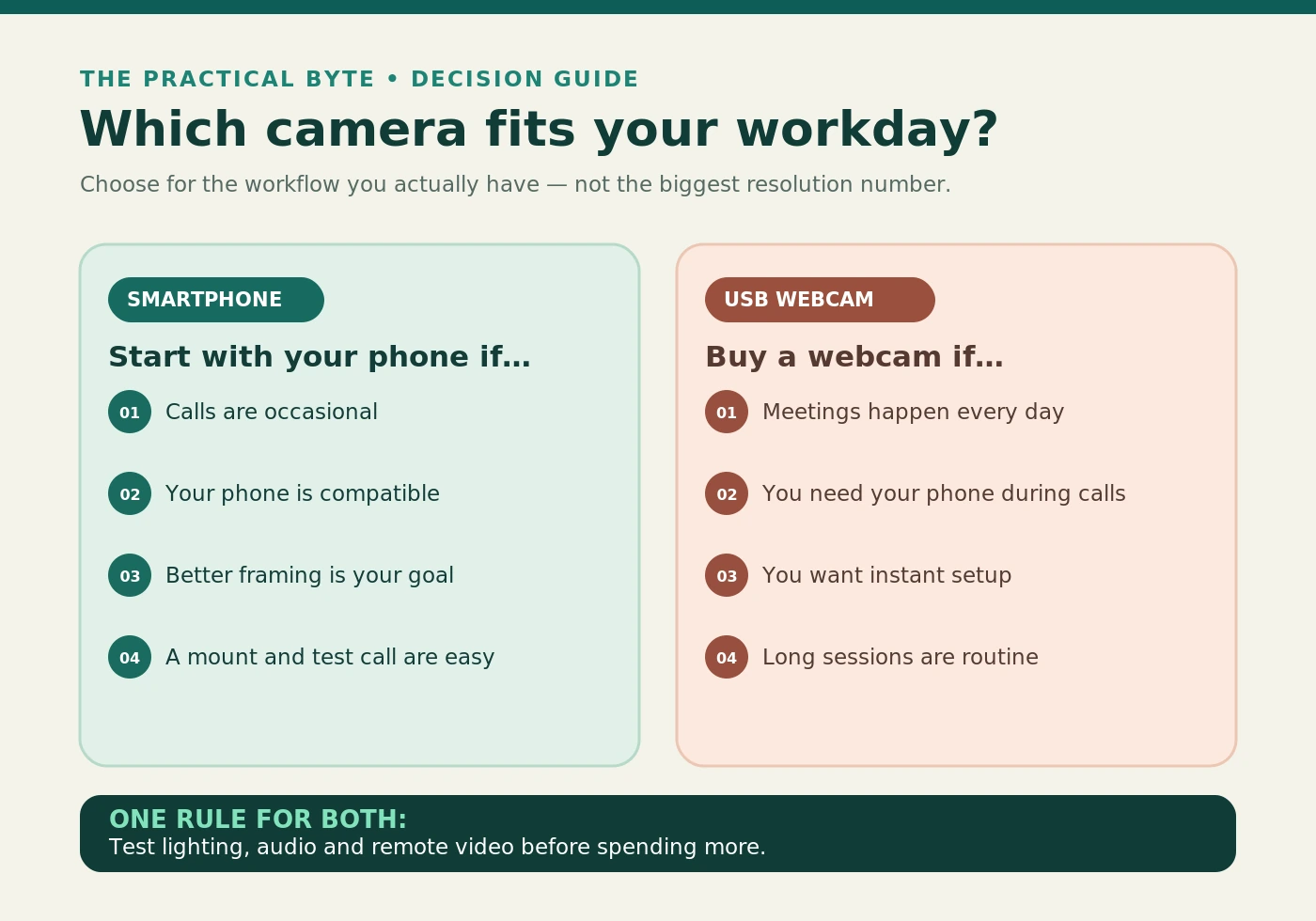
Quick answer: Try a modern phone you already own before buying a webcam, particularly if you only join occasional meetings. If you attend several calls every day, a capable 1080p USB webcam is usually the more convenient permanent solution. A good headset, sensible lighting, and a stable connection can matter more than upgrading either camera.
Webcam vs smartphone: at a glance
| Question | Dedicated USB webcam | Smartphone used as a webcam |
|---|---|---|
| Can the picture look professional? | Yes, especially with good lighting | Yes; modern rear cameras can look excellent |
| Setup for each workday | Typically leave it connected | May involve mounting, pairing, and power |
| Camera-to-computer connection | Usually USB | USB or wireless, depending on method |
| Use during long calls | Straightforward | Watch heat, charging, interruptions |
| Is the phone still available? | Yes | Often less convenient while mounted |
| Best camera placement | Usually atop a display | Flexible with a stand or tripod |
| Built-in sound | Model dependent | Connection-method dependent |
| Additional expense | Purchase price of a camera | Mount, cable, or optional app may be needed |
| Strongest use case | Regular work meetings | Low-cost upgrade or flexible recording angle |
These are patterns, not measured scores. A premium webcam can outperform an older phone, and a phone with a great rear camera may still transmit a poor video feed through the wrong software or network setup.
Why the two camera types look different
A smartphone can have more sophisticated imaging hardware
Phone manufacturers put significant effort into sensors, optics, autofocus, exposure control, and image processing. By contrast, a basic webcam is built principally to produce a continuous video stream from a fixed position. That difference can favor a modern phone in a dim room or when the light behind you is stronger than the light on your face.
But a smartphone does not automatically win. The front and rear cameras on one phone can behave quite differently. Some camera-as-webcam modes crop the image, apply processing, or limit the output resolution. A premium webcam may offer better controls, reliable focus, accurate color, or a sensor optimized for video calls. Treat manufacturer specifications as starting points, not comparative proof.
Sensor, lens, and processing matter more than megapixels
A camera sensor receives light. In general, larger effective light-gathering area and appropriate image processing can help reduce noise in darker scenes. Lens quality influences contrast and sharpness, while exposure algorithms decide how bright the face appears when a window or lamp is in the background.
These factors interact. A sharp camera in poor light may look grainy; aggressive noise reduction can smooth away fine detail; autofocus can continuously change focus when you gesture. This is why judging two cameras from a single spec-sheet row is unreliable.
A quick illustration: imagine a desk beside a bright window. An inexpensive webcam may prioritize the background and leave the face dark. A modern smartphone may compensate more effectively. Move a soft light in front of the speaker, however, and the difference can shrink dramatically. Good lighting is an equalizer.
Resolution: 720p, 1080p, and 4K
| Camera setting | Frame size | What it means for meetings |
|---|---|---|
| 720p (HD) | 1280 × 720 | Usable for ordinary conversations |
| 1080p (Full HD) | 1920 × 1080 | Sensible target for clear professional video |
| 4K (UHD) | 3840 × 2160 | Helpful for capture detail and cropping, not always transmitted |
4K contains four times the pixels of 1080p, but it does not make the image four times better. The conferencing service can compress, reduce, or crop what other attendees receive. In Zoom's HD video documentation, Full HD depends on plan, settings, hardware, and other prerequisites. Google Meet's documentation likewise limits 1080p sending to qualifying editions and supported devices, while network and processing conditions still matter.
That means a 4K webcam purchase should not be justified solely by expecting 4K Zoom meetings. Higher capture resolution may still benefit local recordings and reframing, but a well-lit 1080p image at 30 frames per second is a practical baseline for most calls.
Frame rate, focus, and field of view
Thirty frames per second is generally sufficient when sitting and speaking. A 60fps camera may display smoother motion, but software support, network conditions, available light, and processing demand affect whether that benefit reaches colleagues. Higher frame rates may also require shorter exposures, making some low-light scenes harder to capture.
Autofocus is useful if you lean toward the lens or hold up a physical object. Fixed focus may be equally dependable for a stationary desk position. A wide field of view helps fit multiple people into frame, but can also reveal clutter and make an individual face appear small. A narrow view often works better for a solo worker sitting close to a monitor.
Reliability and latency: what can go wrong?
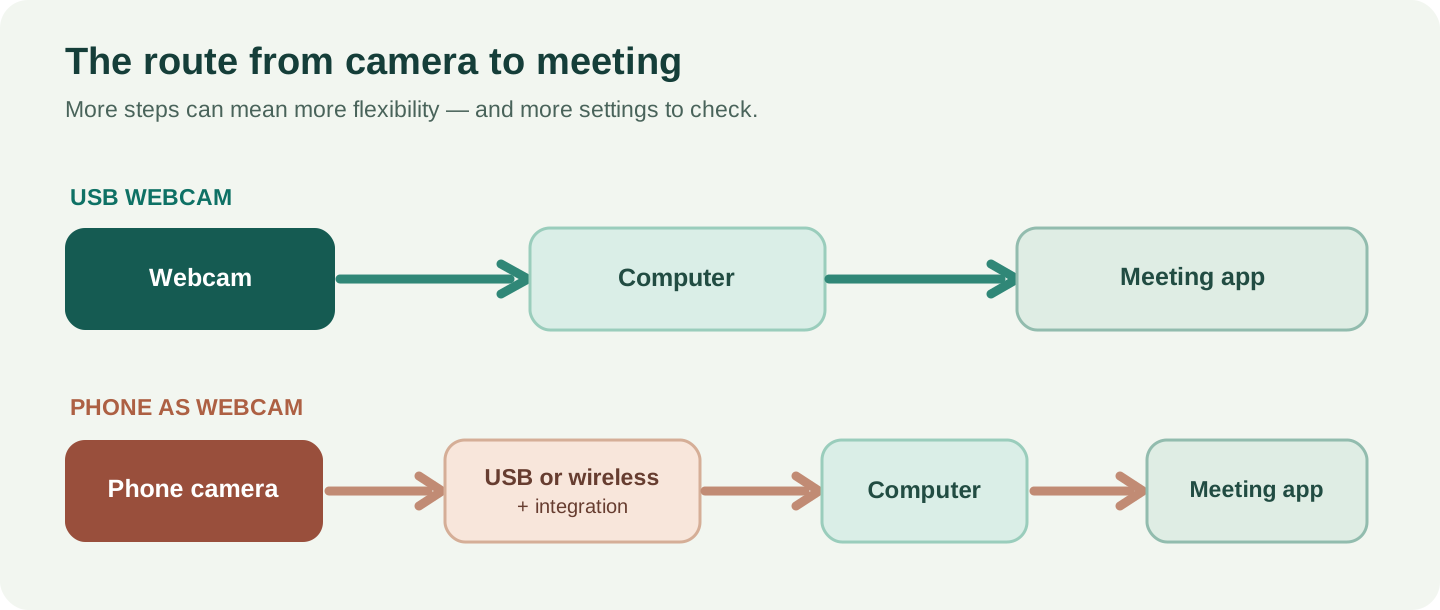
A traditional webcam usually has a short signal path: camera → USB cable → meeting application. This simplicity reduces the number of things to configure, although a faulty USB hub, cable, driver, or conflicting application can still interrupt it.
A phone webcam arrangement adds a conversion step. The camera feed may travel through a native operating-system feature, a USB video class (UVC) interface, or a third-party program that presents the phone as a virtual camera. The exact route determines how the devices discover one another and what happens when the phone is locked, disconnected, or contacted by another app.
USB phone connections
Where officially supported, USB is a sensible first test for an important meeting. It avoids relying on a wireless video link and may also power the phone. Google describes a native USB webcam feature on supported Pixel phones, while Apple supports wired Continuity Camera and Camo supports various wired connections. However, a USB-C socket alone does not guarantee native webcam support: the phone software has to implement the appropriate mode.
Wireless phone connections
Wireless placement is appealing when you want a camera above the monitor or on a stand across the desk. It can work well, but adds possible interference, pairing, power-management, and network-discovery issues. Camo's own getting-started guide recommends USB initially for lower latency and a more stable link; its Android-on-Windows setup guidance notes that Wi-Fi may be easier than USB because the wired method can require additional debugging configuration. See Camo's official setup instructions.
One caution: not every wireless camera system streams over your ordinary home Wi-Fi in the same way. Avoid assuming that a phone webcam always consumes mobile internet data; the transport depends on the specific feature. The meeting application separately needs internet bandwidth to send the final call to other participants.
Practical rule: If you have never used your phone as a webcam, do not make your first test a job interview or an important client presentation. Set it up, join a private test call, and leave it running long enough to reveal interruptions.
Convenience during a normal workday
A webcam's greatest advantage is that it can remain clipped to the screen. Open Zoom, Teams, or Meet, select the camera once, and the desk is ready. For someone who joins frequent short meetings, the consistency can be more valuable than small improvements in sharpness.
With a phone, you may need to find the stand, connect a cable, unlock or pair the device, choose the virtual camera, and align the lens. Native integrations can automate several steps, but cannot remove the need for a secure mount. Your daily phone may also become awkward to access while it is filming your face.
Consider two hypothetical schedules. Worker A has a 20-minute video call twice a week and already owns a capable phone. A simple phone stand could be entirely sufficient. Worker B joins six short calls most weekdays and regularly reads authentication prompts or text messages on the same phone. A webcam prevents that friction. Neither schedule proves that one camera is objectively better; they demonstrate why workflow matters.
Battery use and temperature
Continuous video capture, image processing, transmission, and charging create work for a phone. Device temperatures can rise depending on the app, ambient heat, brightness, and charging conditions. Apple notes that high temperatures can affect battery aging and that iPhone charging may slow or pause when the device becomes too warm. Apple's battery guidance provides the underlying recommendations.
For long meetings, position the phone away from sunlight, use a stable stand, and avoid covering it with materials that trap heat. If the phone becomes unusually hot or displays a temperature warning, stop the camera session and let it cool. The existence of a webcam mode does not mean the phone will inevitably overheat, nor does charging while filming automatically damage a battery.
Audio quality matters more than camera specifications
People can follow a meeting with merely acceptable picture quality, but clipped speech, echo, and background noise make collaboration difficult. This is why a headset with a decent microphone is often a more useful upgrade than a higher-resolution camera.
Many USB webcams have microphones, but their quality and pickup patterns vary. A microphone above a distant monitor may capture typing, fan noise, and room reflections. A phone may also have capable microphones, yet a phone-webcam connection does not necessarily transfer its microphone signal. Check the meeting application's audio-input list instead of assuming the phone is your active mic.
A useful default is to use the chosen camera for video and a headset for voice. Select the headset both as the microphone and as the speaker when appropriate; this reduces the risk of echo from a nearby loudspeaker. For a shared office, test noise suppression as well. Audio and video can be upgraded separately, so there is no reason to tie both choices to the camera.
How to use an iPhone as a Mac webcam
Apple's Continuity Camera is the most straightforward native route for many iPhone-and-Mac owners. Its published compatibility baseline is an iPhone XR or later with iOS 16 or later and a Mac running macOS Ventura 13 or later, subject to additional requirements. Both devices need the same Apple Account with two-factor authentication, and supported wireless use requires nearby devices with Wi-Fi and Bluetooth enabled. Apple's compatibility and instructions are the authority if your software has changed.
- Confirm the requirements. Check the iPhone model, iOS, Mac software, and Apple Account settings.
- Enable the feature. On the iPhone, go to Settings → General → AirPlay & Continuity and ensure Continuity Camera is enabled. Some older software versions may label the menu differently.
- Mount the phone. Put the iPhone securely in landscape orientation near the Mac, with its rear camera pointing toward you. A proper mount keeps the shot stable.
- Open the video application. In a supported app, select the iPhone from the available camera sources. Exact menu locations differ by application.
- Check the frame and microphone. Make a test call and confirm that the correct microphone and speakers are selected.
- Consider a cable. A compatible USB cable provides a wired option and helps with power; approve any required trust or accessory prompts.
Some Apple camera effects, including Center Stage and Desk View, have additional model or software requirements. They can help with reframing or showing the desk, but are not essential for a basic meeting. If the phone fails to appear, recheck proximity, Wi-Fi/Bluetooth, software updates, trust prompts, and whether another Continuity feature is active.
Best fit: an iPhone owner who uses a Mac, particularly for occasional meetings or when rear-camera quality is more important than keeping the phone in hand.
How to use an Android phone as a webcam on Windows 11
Microsoft supports a feature that exposes a compatible linked Android phone camera to Windows applications. Microsoft's documented minimum requirements include Windows 11, Android 10 or later, and Link to Windows version 1.24022.0 or later. The phone also needs to be properly linked and permitted to share its camera. Microsoft's connected-camera guide explains the feature.
- Open Windows Settings → Bluetooth & devices → Mobile devices.
- If the Android phone is not already linked, select Add device and follow the pairing instructions.
- Grant the required phone-side permissions when prompted.
- Select the linked device and enable Use as connected camera.
- Open Teams, Zoom, Google Meet, or another compatible camera application on the PC.
- Select the linked Android camera from the application's camera list, then test the feed.
The phone and PC must satisfy the applicable linking and connectivity conditions; Microsoft's mobile-device management guide explains the Wi-Fi requirement for linking. If no camera appears, update both devices, revisit permissions, and verify the device is linked. Do not assume that all Android handsets expose the same camera features.
This Windows integration is a linked-device solution, not the same thing as a phone's native USB webcam mode. Choose the implementation available on your own device rather than treating every Android setup guide as interchangeable.
How to use a supported Pixel phone over USB
Some Pixel phones implement a native USB webcam mode. Google says the mode makes the phone behave like a camera for a compatible host with USB Video Class support. It does not require that the user install a third-party virtual-camera program on the computer. Google's Pixel guide provides the current steps.
- Connect the Pixel to the computer with a USB cable that supports data, not just charging.
- On the phone, tap the USB charging notification.
- Under Use USB for, choose Webcam.
- Open the meeting application and select the newly available camera.
- Use the phone's webcam notification to preview or adjust the feed where supported.
Google notes that the phone can still be used normally, but a video call or another app requiring its camera can temporarily pause the webcam feed. That interruption is worth remembering before relying on the phone during interviews. This Pixel procedure does not prove that an arbitrary Android phone has the same menu; manufacturer support varies.
What about an iPhone on Windows or Android on a Mac?
When the built-in ecosystem options do not match your devices, third-party software can bridge the gap. One example is Camo, which provides a phone-side camera application and desktop Camo Studio software. Its setup documentation covers iPhone and Android sources with Windows and macOS destinations, via supported USB or Wi-Fi workflows.
The general process is to install Camo Studio on the computer, install the phone app, connect or pair the devices, check the video inside Camo Studio, and choose the resulting camera in the conferencing application. Setup details vary by platform. In particular, Android-to-Windows USB connection can demand additional configuration; Camo's documentation suggests wireless pairing as an easier first approach in that case.
Use an official download source, read the application's privacy and permission information, and check whether your desired controls require a paid plan. Corporate-managed computers may block virtual-camera software. Third-party tools can provide excellent flexibility, but they add another piece of software that must be installed, updated, and allowed by the employer.
Zoom, Teams, and Google Meet: what viewers actually see
The camera preview on your computer is not the same as the video other people receive. Video meetings adapt quality to platform policy, available bandwidth, device performance, screen layout, and account configuration.
Zoom: HD and Full HD have specific requirements, and a 1080p camera alone does not guarantee Full HD sending. The official Zoom HD setup documentation describes plan eligibility, enabled settings, hardware, and bandwidth considerations.
Google Meet: The Meet video guidance explains 360p, 720p, and 1080p sending options and eligibility. Sending 1080p requires a compatible camera, adequate computing resources, and an eligible edition; it is not supported in every browser.
Microsoft Teams: Teams lets users select a preferred camera and preview it in device settings. Transmission quality still depends on the meeting and environment, so verify the feed from a second participant rather than only trusting your self-view.
To make an honest comparison, keep the meeting app, lighting, and network constant while switching the camera source. Recording a local preview can reveal lens differences, but it cannot by itself prove that remote participants receive identical quality.
Which setup makes sense for your kind of work?
Daily developer standups and recurring calls
A developer may spend the day in an IDE and switch repeatedly into short standups, code reviews, and client discussions. A permanently mounted webcam is a good fit because it is immediately available. A simple 1080p model is often enough for a face-sized meeting tile. Spend more on lighting or audio only if those are the weak points.
Freelance client calls a few times each week
If you already own a recent phone, a stand and a tested phone-camera connection may avoid a new webcam purchase. A freelancer who joins two calls a week may value picture quality over the time saved by an always-attached USB camera. Keep a laptop's built-in camera as a backup in case pairing fails.
Job interviews and formal presentations
Reliability matters more than an unproven visual improvement. Use whichever setup you have previously tested over a full-length call. If you choose the phone, enable appropriate notification controls, mount it securely, charge it as needed, and keep a backup camera available. Make sure the microphone does not unexpectedly switch when you change video sources.
Online teaching and physical demonstrations
A phone can be useful when pointed at a notebook, component, instrument, or whiteboard. Depending on the workflow, a separate webcam might continue showing the instructor's face while the phone acts as a secondary angle. Apple offers Desk View on eligible hardware, but avoid assuming it is available on every iPhone. Clear handwriting often depends more on lighting and stable framing than on 4K capture.
Shared home-office or hot-desk setups
A fixed webcam may be easiest for people who share a PC because each user can log in and join a meeting without connecting a personal handset. In a workplace with strict policies, built-in USB camera support can also be easier to manage than a third-party app. Confirm permissions and company rules before deploying any new software.
Portable travel workstation
When packing a laptop for a short trip, a smartphone can eliminate one extra electronic device, but a mount may still take space. A tiny USB webcam might be easier to use in a hotel room when the phone is needed for hotspot access or authentication. The better option depends on what equipment you already carry.
The real cost: what should you buy?
If you already own an eligible phone, first calculate the total cost of making it usable. You may need a secure stand, a USB data cable, charging access, a desk light, or optional software. Do not assume a phone solution is free simply because the camera is already in your pocket.
When evaluating a dedicated webcam, prioritize the following over vague marketing promises:
- 1080p output: a useful baseline for video calls; 4K is optional, not mandatory.
- Mounting quality: a stable clip or tripod thread matters every day.
- Autofocus behavior: decide whether your distance changes enough to need it.
- Field of view: favor natural framing rather than the widest possible picture.
- Low-light samples: look for credible independent examples under office lighting.
- Privacy shutter or cover: useful for a permanent monitor-mounted setup.
- Driver and operating-system support: confirm that your apps recognize the camera.
- Cable length and connector: check the real distance to your computer or dock.
Avoid treating a list of unverified affiliate products as a buying guide. A camera recommended for streaming may have different priorities from one intended for an office call. Similarly, price alone is not evidence of better image quality, and a physical privacy shutter is a practical convenience rather than a substitute for software permissions.
Where an accessory can help more than a new camera
A stable phone mount fixes shaky positioning. A soft LED desk light can reduce noise and harsh facial shadows. A headset improves intelligibility. A good USB cable reduces connection problems. All four can solve real meeting issues without paying for a premium 4K webcam. If your video already looks sharp in natural light, spending more on the camera may create little noticeable benefit.
A fair eight-step camera test
You can compare two available cameras without expensive measuring equipment. The goal is not a scientific laboratory benchmark but a repeatable decision for your own desk.
- Match the angle. Position both lenses at approximately eye level and similar distance from your face.
- Control the light. Keep curtains, lamps, and display brightness unchanged while testing.
- Use the same application. Switch camera sources inside one meeting app rather than comparing unrelated apps.
- Compare detail and color. Look at natural skin tone, the edges of glasses, hair detail, and background grain.
- Test movement. Lean slightly forward, turn your head, and see whether autofocus hunts or motion becomes smeared.
- Stress the connection. Continue for the length of a typical meeting while watching for lag or disconnections.
- Ask a remote observer. The received image may look different from your preview, especially over a limited network.
- Rate the friction. Time how many steps are needed to start another meeting tomorrow and how inconvenient the setup is between calls.
If the phone looks clearly better and behaves reliably, keep using it. If the difference is small but setup is irritating, the ordinary webcam has won on total experience. You do not need to create a numeric score or pretend a subjective visual test is a benchmark.
Mistakes worth avoiding
Mistake 1: Buying 4K solely for video meetings. The meeting service may transmit substantially less. Confirm your platform's requirements and whether you also need high-resolution recording.
Mistake 2: Using the phone's front camera by default. The rear camera can be stronger on many handsets, but the exact result depends on the device and app. Compare both when the software allows it.
Mistake 3: Choosing a charging-only USB cable. A cable without data transfer may not work for a native USB webcam mode. Check the cable's capability.
Mistake 4: Assuming every Android phone has the Pixel webcam menu. Google documents this explicitly for supported Pixels; other manufacturers and Android versions differ.
Mistake 5: Ignoring privacy and notifications. Keep confidential messages from interrupting a phone-camera session and review the permissions of any virtual-camera software. Close the app when finished.
Mistake 6: Judging the camera in darkness. Turn on a soft light in front of the face before declaring the sensor inadequate.
Mistake 7: Forgetting audio. Always check the microphone and speaker after switching camera sources; they may remain set to another device.
Mistake 8: Testing only the preview. A good-looking local preview is not proof of reliable remote delivery. Test with another participant.
Frequently asked questions
Can I use my phone as a webcam for Zoom or Teams?
Yes, when a supported native or third-party connection makes the phone appear as a usable camera on the computer. Select that camera in Zoom or Teams and check the microphone separately. Platform and organizational restrictions may apply.
Can I use an iPhone as a webcam on Windows?
Yes, through a compatible third-party solution such as Camo. Apple's native Continuity Camera webcam feature is designed for supported iPhone-and-Mac combinations, not as a universal Windows camera driver.
Is a phone better than a 1080p webcam?
Sometimes. A modern phone's rear camera may have better imaging hardware than a basic webcam, but processing, lighting, lens quality, and the phone-to-computer connection can change the outcome. Compare the actual devices rather than categories.
Does a phone webcam use my mobile data?
Not necessarily. Local wireless or wired camera transport is different from the conferencing app's internet traffic. Specific platforms may have exceptions, so consult the connection method's documentation and monitor mobile-data use if it matters.
Will keeping the phone plugged in ruin its battery?
Not automatically. Heat, battery management, and usage conditions influence aging. Use appropriate power equipment, avoid hot surroundings, and respond to temperature warnings. For prolonged daily use, the convenience of an independent webcam may be preferable.
Can I use the phone while it is a webcam?
Some systems allow partial or normal phone use, but interruptions depend on the implementation. Google documents that a Pixel USB webcam feed pauses when another activity needs its camera. Test incoming calls and app behavior if your phone is essential during work.
Is 60fps worth paying extra for?
Usually not for ordinary talking-head meetings. Thirty frames per second is sufficient for most remote calls. Consider 60fps when your workflow specifically benefits from smoother movement and your capture software and lighting can take advantage of it.
Should I use a headset even if my camera has a microphone?
For important calls, often yes. A properly placed headset mic typically keeps your voice closer to the pickup point and can reduce room noise. Always verify the sound from the far end before relying on a new audio setup.
Final verdict: prioritize the whole meeting experience
A smartphone webcam is an excellent first experiment for someone who already owns a capable phone and wants sharper-looking video without an immediate camera purchase. It offers flexible placement and, with the right rear camera and lighting, can produce an impressive image. But it may also occupy your phone, add setup time, and require attention to power and connectivity.
A dedicated USB webcam is generally a more convenient permanent tool for frequent meetings. It can stay mounted and connected, works independently of your phone, and usually makes joining the next call simpler. A dependable 1080p model with appropriate field of view and good exposure behavior is a rational choice for most remote workers.
The Practical Byte recommendation: Start with what you own. Test a modern smartphone against your laptop camera, improve your lighting, and verify the received video in a real call. Keep the phone solution if it works. Buy a dedicated webcam when repeated setup, reliability, phone availability, or mounting becomes the real problem. The best remote-meeting camera is the one that lets people see you clearly whenever the call starts.
Sources and further reading
These links support the platform-specific requirements and explanations above. The overall buying judgments are editorial recommendations, not claims of hands-on camera benchmarks.
- Apple Support — Continuity Camera: iPhone as a Mac webcam
- Microsoft Support — Use your mobile device's camera
- Microsoft Support — Manage mobile devices in Windows
- Google Pixel Camera Help — Use your Pixel phone as a webcam
- Camo Support — Getting started with Camo
- Zoom Support — Enabling HD video for meetings
- Google Meet Help — Improve your video and audio experience
- Microsoft Teams Support — Manage your device settings
- Apple Support — Charge and maintain your iPhone battery
Editorial disclosure: This is a research-based guide. No hands-on measurements or brand-specific product performance tests were conducted for this article. Product availability, software features, and eligibility can change; confirm current compatibility before purchasing equipment.