

A used business laptop can be one of the most sensible technology purchases in Pakistan. A carefully chosen Dell Latitude, Lenovo ThinkPad, or HP EliteBook may give a student, office worker, or programmer a comfortable keyboard, solid connectivity, and enough performance for everyday work without the cost of a comparable new machine. But the keyword is carefully. Two laptops with the same processor sticker may be completely different purchases once you consider their batteries, displays, storage, repair history, firmware, and previous ownership.
The mistake is to spend twenty minutes comparing CPU generations and only twenty seconds inspecting the actual machine. An attractive exterior is not evidence that the battery is healthy. A Windows desktop is not proof that the BIOS is unrestricted. And a shop's “A+ grade” label is not an industry-standard technical assessment.
This guide gives you a repeatable, shop-counter inspection: what to bring, what to run in Windows, what to ask the seller, and which problems are negotiable versus reasons to walk away. The aim is not to guarantee a fault-free used laptop—no short test can do that—but to reduce preventable buying mistakes.
Quick verdict: Buy the specific machine's verified condition, not a model's reputation. Before payment, confirm the full processor model and RAM, inspect the screen and hinges, generate a battery report, test the SSD and charger, run vendor diagnostics, and verify that no unknown BIOS or corporate-management lock will restrict ownership.
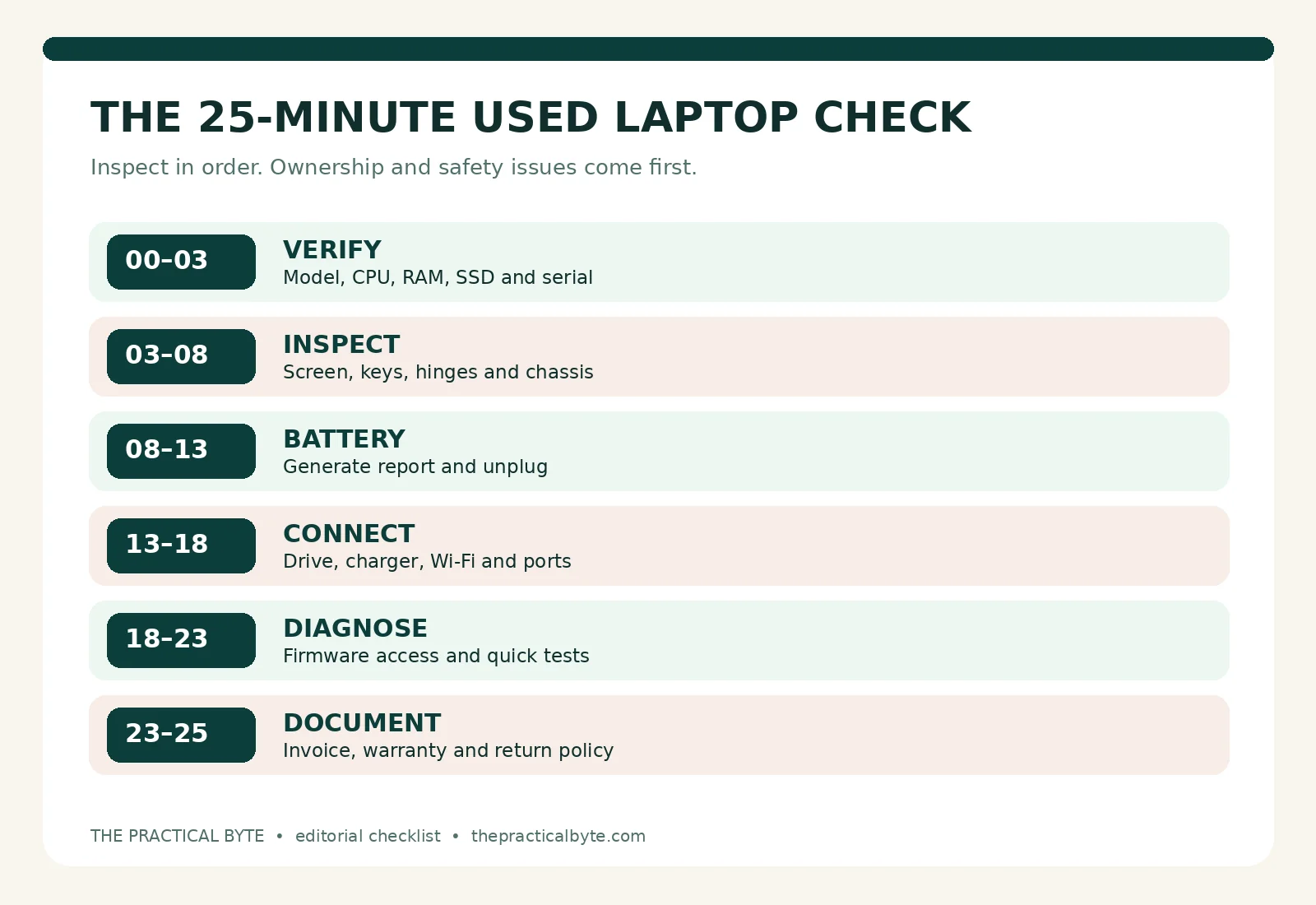
The 25-minute inspection plan
If the seller allows only a short inspection, use this order. Safety and ownership issues outrank cosmetic condition.
| Time | Action | Why it matters |
|---|---|---|
| 0–3 minutes | Match model, serial number, CPU, RAM, SSD and display | Confirms you are buying what was advertised |
| 3–8 minutes | Examine body, hinges, screen, keys and touchpad | Reveals common physical defects |
| 8–13 minutes | Run the Windows battery report; unplug and test | Identifies worn or unstable batteries |
| 13–18 minutes | Test storage status, charger, Wi-Fi and needed ports | Catches practical everyday failures |
| 18–23 minutes | Check BIOS access and run a quick vendor diagnostic | Detects restrictions and certain hardware faults |
| 23–25 minutes | Review invoice, return policy and ownership declaration | Protects you if a problem appears later |
A complete stress test, extended memory test, or clean Windows setup can require much longer. Arrange those beforehand rather than expecting the seller to permit destructive changes at the counter. If the seller refuses ordinary non-destructive checks, treat that refusal as a warning in itself.
1. Choose the right class of laptop first
Business notebooks are designed for organizational use, but they are not all equally powerful or repairable. Dell Latitude, Lenovo ThinkPad T/L/X series, and HP EliteBook or ProBook machines are common examples. Dell Precision, Lenovo ThinkPad P-series, and HP ZBook models often target professional workstation work and may cost more to maintain. These are product families, not guarantees of quality; individual generations and configurations differ dramatically.
Match the hardware to your actual workload
| Intended use | Practical memory target | Storage starting point | What to prioritize |
|---|---|---|---|
| Classes, writing, browsing, video calls | 8 GB usable; 16 GB more comfortable | 256 GB SSD | Working webcam, clear screen, dependable battery |
| Office work and heavy browser multitasking | 16 GB | 256–512 GB SSD | Keyboard, display and multiple ports |
| Programming with IDEs and local databases | 16 GB minimum; 32 GB when workload demands | 512 GB SSD | Upgradeability, CPU, cooling and storage |
| Several virtual machines or containers | Often 32 GB or more | 512 GB–1 TB SSD | RAM ceiling, CPU cores, SSD capacity and thermals |
These are buying recommendations, not minimum requirements issued by Microsoft or laptop manufacturers. Applications vary: simple web development is lighter than running Visual Studio, SQL Server, Docker containers, and virtual machines together. A machine with soldered 8 GB RAM may be fine for studying yet frustrating for heavier workloads two years later.
Do not compare processors using only “Core i5” and “Core i7.” Record the full CPU identification—such as Core i5-8350U—and look up the specific model. Generation, core count, processor limits and cooling all matter. A newer i5 may be more suitable than a substantially older i7. The suffix can also indicate the processor's intended power class, but actual performance varies by laptop design.
Windows support is a purchase condition in 2026
Normal Windows 10 support ended on 14 October 2025. Microsoft offers Extended Security Updates routes for eligible installations, but that should not be mistaken for an indefinitely supported everyday setup. Before buying, check official Windows 11 eligibility using the exact CPU model and Microsoft's PC Health Check. Windows 11 compatibility is affected by more than the processor: TPM 2.0, firmware and Secure Boot capability, memory and storage requirements also matter. Microsoft: Windows 10 support · Microsoft: Supported Intel processors
The fact that Windows 11 is installed does not prove official support. An installation may have been performed using workarounds. For a Windows-first purchase, prefer a machine whose exact configuration is supported, rather than relying on an unsupported installation remaining trouble-free.
2. Confirm the model, specifications and upgrade options
Ask the seller to leave the machine powered on and let you inspect the system information yourself. In Windows, open Settings → System → About to review CPU and installed RAM. Press Windows + R, enter msinfo32, and check System Manufacturer, System Model, processor and BIOS details. Open Task Manager → Performance to see memory, CPU and disk information. Record the model number in your notes; the marketing series alone is too vague.
For the SSD, compare the disk capacity with the seller's promise. Note that manufacturers advertise decimal capacities: a 512 GB disk normally appears at roughly 476 GiB before partitions and other deductions. That does not indicate missing storage. Do check for unexpected drive substitutions, missing capacity, or a hard disk being advertised as an SSD.
For memory, determine if the model has replaceable SO-DIMM slots, soldered RAM or a mixture. Do not assume every ThinkPad or Latitude can be upgraded. Search the exact model's official maintenance or platform specifications before accepting “RAM upgradeable” as a selling point. The same applies to SSD form factor, number of storage slots and battery replacement accessibility.
Check the service tag or serial in BIOS and on the chassis label. Manufacturer support sites can help identify the model and original configuration, though they cannot prove present-day components are original or establish legal ownership. A missing or mismatched identifier warrants an explanation, not a rushed purchase.
3. Inspect the chassis, hinges and signs of previous repair
Examine the machine under bright, angled light. Small scuffs and shiny keycaps are expected on used equipment. Structural cracks around hinges, unusually wide chassis seams, sharp dents near ports, missing screws, liquid residue and corrosion are different: they may signal damage beyond ordinary wear. Open and close the lid slowly while watching the plastic or metal around both hinge mounts. The lid should not lift the surrounding frame apart, grind, or produce loud cracking sounds.
Place the laptop on a flat counter. Look for a bottom cover that does not sit level or a touchpad that is being pushed upward. Those can be signs of battery swelling, although other damage can also cause a distorted chassis. If swelling is suspected, stop charging and testing; do not buy it as-is. A swollen lithium-ion battery is a safety issue, not a bargaining opportunity. Do not attempt to puncture, flatten, or dismantle it at the shop.
Examine the screws for evidence of repeated opening and ask whether the motherboard, screen, charging circuit or battery has been replaced. A legitimate repair is not automatically a reason to reject a laptop. What matters is the quality, traceability and cost of future repairs. Ask for written disclosure of major repairs instead of relying on “never opened.”
4. Test the display properly
A display is expensive enough to turn a cheap laptop into an expensive one. Check Settings → System → Display → Display resolution. On a 14-inch or 15.6-inch work laptop, 1920 × 1080 is often a much more comfortable target than older 1366 × 768 panels, especially for code and spreadsheets. Resolution alone does not determine quality: brightness, panel type, viewing angles and uniformity also influence daily comfort.
Open full-screen white, black, red, green and blue images saved locally or supplied by a trusted testing utility. White reveals discoloration, bright pressure marks and uneven regions; black may reveal unusual bright patches or backlight problems; solid colors help show stuck or dead pixels. A little variation in LCD glow is not automatically a defect, but obvious stains, thick vertical lines or patches should influence your decision.
Change brightness from low to high. Look for flicker and sudden dimming. Gently adjust the lid's angle while keeping an image open; if the screen cuts out or changes color during movement, there may be a problem with the display cable, hinge area or panel. Do not force the hinges beyond their intended travel. If the screen is touch-enabled, test touch only if advertised. Ask explicitly whether the original panel was replaced and whether brightness control functions normally.
5. Measure battery condition, not the charge percentage
A battery can say 100% charged while holding far less energy than when new. Windows includes a useful diagnostic report. Open Command Prompt or Windows Terminal and run:
powercfg /batteryreport
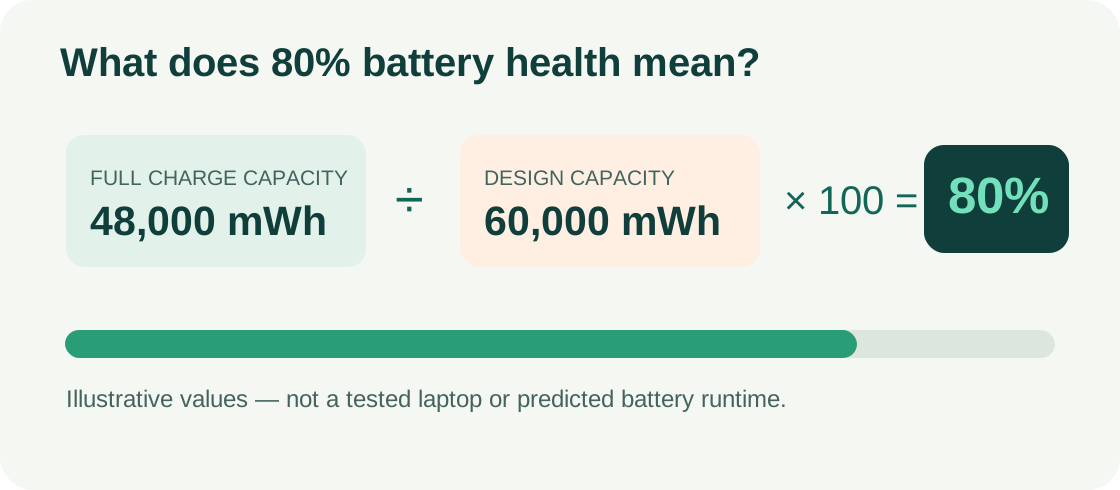
Windows will print the path to an HTML report. Open it and find DESIGN CAPACITY and FULL CHARGE CAPACITY under Installed batteries. Microsoft's documentation describes /batteryreport as a report of battery usage characteristics. Microsoft Powercfg documentation
Calculate a rough capacity-retention percentage:
Capacity retention (%) = Full Charge Capacity ÷ Design Capacity × 100
If the design figure is 60,000 mWh and the reported full-charge figure is 48,000 mWh, retention is approximately 80%. These are hypothetical figures illustrating the calculation, not measurements of a laptop tested by this publication. Retention is not the same as remaining runtime: a power-hungry machine with an 80% battery may still last fewer hours than a more efficient machine with a smaller battery.
| Reported retention | Practical interpretation |
|---|---|
| 85–100% | Encouraging if the battery also behaves normally |
| 70–84% | Consider how often you need to work unplugged |
| 60–69% | Noticeable wear; seek a realistic replacement quotation |
| Under 60% | Strong reason to budget for replacement or avoid |
These bands are editorial heuristics, not manufacturer-certified health grades. Reports can be incomplete or inaccurate after battery replacement or firmware changes. Check the manufacturer's own battery test, if available. Unplug the charger and use the laptop for at least ten minutes. Look for sudden percentage collapses, an unexpected shutdown, or a battery that never charges properly. A short unplugged trial cannot predict hours of endurance, but it can reveal obvious instability.
Finally, verify replacement availability by exact model. Some imported laptops use less common battery designs, and a seller's verbal estimate is not a reliable quotation. Record the required part identifier and ask a repair shop for a written estimate if battery replacement seems likely.
6. Check SSD health and loading behavior
A laptop with an SSD can feel fast even when the processor is old. But a drive nearing failure may freeze, disconnect, produce file errors or fail without much warning. Begin with non-destructive checks. Open PowerShell and run:
Get-PhysicalDisk | Select-Object FriendlyName, MediaType, Size, OperationalStatus, HealthStatus
This lists physical disk objects exposed through Windows storage providers. The HealthStatus field may say Healthy, but that is not a comprehensive SSD-life assessment. A storage provider might expose only limited information. Microsoft: Get-PhysicalDisk
If the seller permits, use the manufacturer-recommended utility or a reputable SMART reader to inspect available diagnostic attributes. For NVMe drives, pay attention to critical warnings, media/data-integrity errors and percentage used where the drive exposes them; interpretation varies by manufacturer and device. Do not treat a single “health percentage” from third-party software as a scientific prediction of remaining lifespan.
Copy a modest non-sensitive file from a trusted USB drive, open several applications and watch for storage-related freezes or read errors. Avoid destructive benchmarks, filesystem repairs, firmware updates or erase commands before you own the computer. Ask whether the SSD is the original component, whether the seller has replacement records, and whether its capacity is enough for your workload.
After purchase, set up regular backups from day one. A healthy SSD is not a substitute for having copies of important files.
7. Test the keyboard, touchpad, webcam and audio
Open Notepad and test every row of keys, not only a few letters. Include Enter, Backspace, Tab, the space bar, both Shift keys, Ctrl, Alt, the Windows key, number keys and arrows. Test function keys such as volume and brightness with the appropriate Fn combination. Check for repeated characters, stuck keys and inconsistent pressure. A replacement keyboard may be relatively straightforward on one model and require major disassembly on another.
Move the touchpad pointer to all four corners. Try left- and right-click, two-finger scrolling and dragging a window. If the laptop includes a pointing stick or separate trackpad buttons, test them individually. Ask for a quick demonstration of the fingerprint reader or smart-card reader only if those features are important and the seller can do so without exposing private accounts.
Use the Camera app to verify the webcam. Make a local short voice recording and play it back to confirm the microphone and speakers. Check the headset jack with your own earphones. Test speaker audio at both modest and reasonably high volume: distorted, crackling audio may indicate damage. Verify the privacy shutter, if fitted, opens and closes properly.
These details matter more than they first appear. For remote work, an intermittent microphone or unreliable webcam can be a daily problem even when the CPU passes every benchmark.
8. Test charger, ports and wireless connectivity
Bring a small inspection kit: your smartphone with hotspot enabled, a known working USB drive, headphones, and, if relevant, a USB-C device or display adapter. Do not connect devices containing sensitive data to an unknown computer. A simple empty test drive is safer. If practical, ask the shop to provide a monitor and appropriate cable for video testing.
| Component | Sensible non-destructive test |
|---|---|
| USB-A | Read and copy a small test file |
| USB-C | Test actual data transfer; do not presume charging/video support |
| HDMI / DisplayPort | Connect an external screen and select the appropriate display mode |
| Wi-Fi | Connect to a phone hotspot and open a normal website |
| Bluetooth | Pair a known device and confirm connection |
| Ethernet | Connect to a working network where the port exists |
| Audio jack | Use headphones and check both channels |
| Charger and socket | Confirm charging stays connected while cable is gently positioned normally |
USB-C is a connector shape, not a universal feature guarantee. A particular USB-C socket may support data but not charging or display output. Check the manufacturer's documentation for that exact laptop. Thunderbolt support also varies by model and revision.
Read the charger's label and compare output voltage, power rating, plug type and manufacturer guidance. A lower-than-required wattage charger may trigger warnings, slower charging or power throttling. Look for exposed wires, burning smell, visibly damaged insulation and loose plugs. Stop testing if any electrical damage is evident. Genuine or reputable electrically compatible adapters are preferable to unbranded units with uncertain ratings.
A practical Pakistan-specific consideration: power reliability
If you regularly use the laptop during load shedding or power fluctuations, battery condition and a suitable adapter deserve extra weight. A laptop that functions only when plugged in may still be useful as a desk computer, but it is not an equivalent replacement for a genuinely portable machine. Also check whether the seller is bundling the correct power cable and plug arrangement; do not assume a generic travel adapter is an adequate long-term solution.
9. Check thermals and stability without abusing the machine
A fast boot is useful, but it tells you very little about behavior after ten minutes of work. Run an ordinary moderate workload: browser tabs, a video, a large document, or a development application if installed. Observe whether the fan ramps smoothly, the system becomes unresponsive, or performance drops to an unusable level.
Warm air from ventilation slots is normal. So is a burst of fan noise while Windows updates or scans. Worry about grinding fans, frequent crashes, repeated shutdowns, conspicuous heat around the battery, or severe performance collapse under modest work. Dust-clogged cooling systems, worn thermal materials and fan failure are possible explanations, but a shop-counter test cannot diagnose the precise cause.
Ask the seller to let you restart the laptop once after the workload. Verify that the machine boots without unusual warnings. Extended stress testing can reveal additional problems, but it may take time and generate heat; use manufacturer-supported tests and agree on it with the seller rather than running prolonged heavy loads on an unknown device.
10. Use the manufacturer's preboot diagnostic tools
Business laptops often include built-in hardware checks that run before Windows. These are useful because they are not dependent on the seller's installed applications. The exact screens vary with model and BIOS revision.
| Laptop family | Common access method | What to do |
|---|---|---|
| Dell Latitude / Precision | Tap F12 at the Dell logo | Select Diagnostics, run a quick test and note any reference codes |
| Lenovo ThinkPad / ThinkBook | Tap F10 at startup on supported models | Open UEFI Diagnostics, select available tests and review the results |
| HP EliteBook / ProBook | Press Esc at startup, then F2 on many models | Launch HP PC Hardware Diagnostics UEFI, run the relevant quick tests |
These key paths are documented by Dell, Lenovo and HP. Some models need a different path or downloadable diagnostics. A passing quick test is encouraging, not a guarantee of future reliability. A reported failure should be photographed or written down and addressed before purchase.
Do not change BIOS passwords, storage modes, Secure Boot settings or TPM settings merely to inspect a machine. Such changes can prevent Windows from booting or trigger BitLocker recovery. Observation is enough for a pre-purchase check.
11. Do not overlook BIOS and corporate ownership restrictions
Business laptops frequently begin life in companies or institutions. That is not a problem by itself; legitimate organizations routinely retire and sell equipment. The problem is when a machine has not been properly released from administrative control.
Ask the seller to demonstrate that BIOS/UEFI setup is accessible and no unknown administrator or supervisor password blocks necessary settings. A password-protected BIOS may prevent you from changing certain configuration options or performing servicing. A legitimate seller should be able to explain any restriction and arrange authorized removal before payment. Do not buy on a promise that an unknown firmware password can “easily be bypassed.”
Windows Autopilot and Intune: what buyers need to know
Some former corporate Windows machines remain registered with Windows Autopilot, Microsoft Intune or another organization's management system. They may show an organization's branding or demand a work account during a fresh Windows setup. Reinstalling Windows is not guaranteed to clear a cloud-side corporate registration. Microsoft says devices permanently leaving an organization should be deregistered from Autopilot. Microsoft's registration and deregistration guidance
Ask for evidence of legitimate decommissioning. Where possible, have the seller demonstrate a normal consumer setup after a properly authorized reset and internet connection. This must be scheduled with permission because resetting erases the current installation. If the device insists on an unknown organization's credentials, decline the purchase until the original owner or authorized administrator completes the appropriate release. An apparently normal Windows desktop is not enough to prove the device is unrestricted.
Also check that the seller can provide a proper receipt identifying the machine. No software-only test can establish legal title, so documentation and the seller's credibility remain important.
12. Confirm Windows licensing, drivers and privacy
Open Settings → System → Activation on Windows 11 (the Windows 10 path differs) and review the installed edition and activation information. Activation indicates something about the current installation state; it does not alone prove the seller owns a transferable license or that former corporate licensing applies to you. Ask whether the machine has an appropriate OEM or transferable Windows license.
Open Device Manager and check whether essential components show warning icons. Missing drivers can affect wireless connectivity, sound, fingerprint readers or power management. Where possible, download drivers later from the laptop maker's official support page rather than accepting suspicious utility bundles.
When you take ownership, reinstall Windows using official media if appropriate, update firmware and drivers using trusted vendor methods, set up your own account and backup plan, and avoid keeping the seller's unknown software image. Before any reset, confirm device de-registration and determine whether you have the proper license, recovery key and installation media. Protect your data by using strong sign-in security and encryption where suitable.
13. Understand the Pakistan used-laptop market
Shops and listings may describe equipment as imported, used, refurbished, A grade, A+ grade, 9/10 or like new. These labels are not universal testing standards. In practice, they may refer only to cosmetic appearance, and meanings can vary by seller. A glossy shell and polished keyboard do not verify storage health, battery capacity or ownership status.
Ask the seller to define “refurbished.” Was it simply cleaned? Was the battery replaced? Was the cooling fan serviced? Were the SSD and memory tested? Are replacement parts genuine, compatible or third-party? Written answers help compare competing offers far more effectively than a subjective grade.
Physical market, online shop or classified listing?
A physical shop gives you the chance to test the exact unit being sold and to inspect competing machines side by side. An online store may offer documented returns, but photographs can represent a model rather than the serial-numbered unit you receive. A classified marketplace such as OLX may provide more direct access to individual sellers, but inspection, payment and after-sales arrangements may fall largely on the buyer. These are general channel trade-offs, not guarantees or claims about any individual business.
For in-person purchases, meet in a safe, suitable commercial location, keep the invoice and record the serial number. For deliveries, get the precise return and inspection terms in writing beforehand, especially deadlines, who pays shipping and what constitutes an accepted defect. Avoid transferring deposits to an unfamiliar seller without a trusted buyer-protection arrangement. Do not provide copies of personal documents unnecessarily.
Why a written warranty matters
“Seven-day checking warranty,” “shop warranty” and “replacement warranty” may cover different conditions. Ask whether the battery, SSD, screen, ports and motherboard are included, and whether the remedy is repair, replacement or refund. Clarify exclusions, return shipping and whether accidental damage is excluded. A shop warranty is not the same thing as a remaining manufacturer warranty.
A useful invoice records: manufacturer, full model, serial number, CPU, RAM, SSD, screen specification, charger, disclosed defects, total paid, payment date and warranty terms. If the seller will not document the most important promises, that uncertainty has a cost.
14. Compare total cost, not just the displayed price
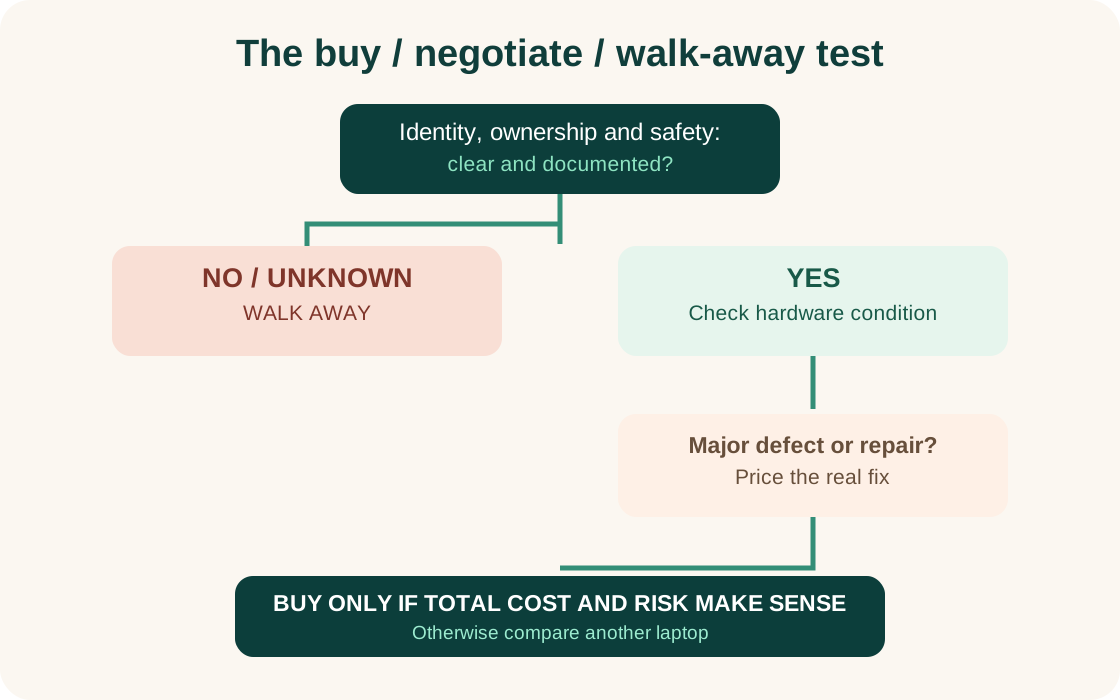
The sticker price is only one part of the deal. A replacement battery, proper charger, SSD upgrade or hinge repair can quickly erase an apparent bargain. Before committing, write down the specific defects you found and get repair quotes rather than assuming low costs. Import availability, brand, part number and quality of replacement parts can change what a repair actually costs in Pakistan.
Consider two hypothetical options. Laptop A is advertised for PKR 55,000 but requires a PKR 8,000 battery, a PKR 3,500 charger and a PKR 6,500 SSD upgrade. Its illustrative total would be PKR 73,000. Laptop B, already equipped with acceptable components and a healthier battery, costs PKR 69,000. If all else is comparable, the latter may be better value. These amounts are arithmetic examples only, not verified October 2026 market quotations.
| Purchase factor | What to compare |
|---|---|
| Hardware | Full CPU model, RAM, SSD, panel and ports |
| Battery | Capacity-retention report plus unplugged stability |
| Condition | Hinge, keyboard, screen and chassis repairs |
| Future use | RAM/SSD expansion, Windows support and spare parts |
| Seller terms | Written warranty, returns, accurate invoice |
| Total cost | Asking price plus realistic immediate repairs |
A low-priced laptop may still be appropriate as a permanently plugged-in spare. It is simply not the same product as a reliable, mobile daily-work machine. Decide what compromises you can accept before the seller starts negotiating.
15. Red flags: negotiate, repair first, or walk away?
| Finding | Recommended response |
|---|---|
| Minor scratches and paint wear | Accept if the price reflects condition |
| Battery capacity around 70–80% | Decide based on runtime and replacement cost |
| Small SSD but supported replacement available | Consider upgrade expense |
| One nonessential broken port | Disclose and price accordingly; confirm no larger issue |
| Cracked hinge mount or flickering screen cable | Prefer repair and retesting before purchase |
| Storage error or unexplained shutdown | Do not buy until diagnosed and corrected |
| Suspected swollen battery | Stop charging/testing and reject as-is |
| Unknown firmware password | Walk away unless legitimately cleared |
| Unresolved Autopilot or corporate login lock | Walk away until authorized deregistration |
| Inconsistent serial numbers or no ownership evidence | Strong reason to reject the deal |
| Seller prevents reasonable verification | Find another seller |
A seller's confident explanation is not a replacement for a test result. Be willing to leave without buying; the goal is a dependable computer, not winning an argument at the counter.
Final checklist: save this before visiting the shop
- Exact model and serial number match the invoice and advertisement.
- Full processor model, RAM and SSD verified in Windows.
- Windows 11 support and RAM upgrade options checked.
- Screen resolution, pixels, uniformity and flicker tested.
- Hinges, chassis seams and battery-swelling signs inspected.
- All keys, touchpad, webcam, mic, speakers and audio jack tested.
- Battery report generated and unplugged test completed.
- SSD status and vendor diagnostics reviewed.
- Charger rating, power connection, Wi-Fi and required ports tested.
- Machine remains stable under ordinary workload and after restart.
- BIOS access verified without an unknown supervisor restriction.
- No unresolved organizational setup or enrollment demand.
- Seller provides documented defects, warranty and return conditions.
- Repair costs considered before agreeing on final price.
Frequently asked questions
Is an older Core i7 better than a newer Core i5?
Not automatically. Compare the full CPU model, processor generation, cores, cooling and your intended applications. Marketing tiers without model numbers can conceal very different performance levels.
Is 8 GB RAM enough for a used laptop?
It can be sufficient for basic browsing, classes and documents. Sixteen gigabytes is generally a more comfortable buying target for heavier multitasking. For local databases, containers or virtual machines, 32 GB or more may be worthwhile. Check whether the laptop permits upgrading before buying an 8 GB model.
Is 70% battery capacity acceptable?
Possibly, if the price fairly reflects wear, replacement is feasible and you mostly work near a socket. If mobility is essential, prioritize a healthier battery. The Windows number is a report, not a guarantee of runtime.
Is a refurbished machine automatically better than a used one?
No. “Refurbished” describes a seller's process only when that process is documented. Ask what was tested or replaced and what the warranty actually covers. A well-maintained used laptop can be the better option.
Can a Windows reinstall remove a company lock?
Not necessarily. Organization-side Autopilot registration can remain even after reinstalling Windows. The responsible organization or authorized administrator must properly release the device. Do not pay for a restricted machine in the hope that reinstalling will solve it.
Should I replace the SSD immediately?
Only if its condition, capacity or performance justifies it. A healthy, appropriately sized SSD may be worth keeping. Regardless of the drive's condition, make routine backups after purchase.
Final verdict
For a used business laptop, reliability is a collection of small facts: a healthy-enough battery, clear screen, dependable input devices, stable storage, correct charger, supported software and unrestricted ownership. None can be inferred from a laptop's advertised grade or a glowing processor sticker.
Take your inspection checklist, allow enough time to test, and compare the full cost of ownership. It is better to skip an uncertain bargain than to discover a locked BIOS, broken hinge or exhausted battery after paying. Choose the specific laptop that passes your tests and suits your work—not merely the most impressive model name you can afford.
Sources and further reading
- Microsoft — Windows 10 end of support.
- Microsoft — Windows 11 supported Intel processors.
- Microsoft — Powercfg battery report command.
- Microsoft — Get-PhysicalDisk.
- Microsoft — Windows Autopilot registration and deregistration.
- Dell — Preboot diagnostics.
- Lenovo — UEFI diagnostics on ThinkPad and ThinkBook.
- HP — PC Hardware Diagnostics UEFI.
Editorial methodology: This guide is based on manufacturer and platform documentation plus clearly labeled buying recommendations. It does not represent personal hands-on testing of the laptops mentioned. Market examples are hypothetical and no shop, seller, product or affiliate program is endorsed.