
USB-C, USB4, and Thunderbolt Explained: What to Look for Before Buying a Laptop
One reversible plug can hide dramatically different capabilities. Learn which port, charger, cable and dock actually fit your next laptop.
Reviewed and approved by Syed Shuja Haider

Two laptops sit side by side in a shop. Each has two small, oval USB-C ports. On the first laptop, one port handles ordinary accessories and charging. On the second, a single port can connect a sophisticated dock, high-speed storage, monitors and a wired network. From the outside, the connectors look almost identical.
That is the problem with shopping for laptop ports: the shape is easy to recognize, but the capabilities are not. The terms USB-C, USB4, Thunderbolt 4 and Thunderbolt 5 describe related but different things. A higher number can matter a great deal for a video editor or docking-station user, yet make almost no difference to someone who only plugs in a mouse and phone.
This guide gives you a practical way to read the specifications, choose the right cable or dock, and avoid paying for features you do not need. The aim is not to memorize every USB generation. It is to leave with a checklist you can use against the exact laptop model you are considering.
The quick answer: four names, different promises
USB-C describes the connector. It is the reversible oval plug and receptacle, not a promise about transfer speed, charging or video output. USB4 describes a high-speed USB connection architecture that can transport data and display traffic through compatible USB-C equipment. Thunderbolt 4 and Thunderbolt 5 describe certified connection technologies with defined minimum capabilities and use the same physical USB-C shape.
| Label on a laptop | What it tells you | What you still need to check |
|---|---|---|
| USB-C or USB Type-C | The port's physical connector | Data rate, video output, charging, protocols |
| USB 10Gbps / USB 20Gbps | The advertised USB signaling rate | Whether the port outputs video or accepts laptop charging |
| USB4 20Gbps / 40Gbps / 80Gbps | A USB4 implementation at that advertised speed | Display limits, dock compatibility, power and PCIe details |
| Thunderbolt 4 | A certified 40Gbps Thunderbolt connection | Laptop-specific monitor limits and charging wattage |
| Thunderbolt 5 | Certified 80Gbps Thunderbolt, with 120Gbps directional boost support | Whether your devices benefit, and exact power/display limits |
Our buying rule: choose your ports based on your planned monitors, storage, charging and docking setup. Never decide from a port's shape—or a retailer's one-word "USB-C" description—alone.
USB-C: a connector, not a speed rating
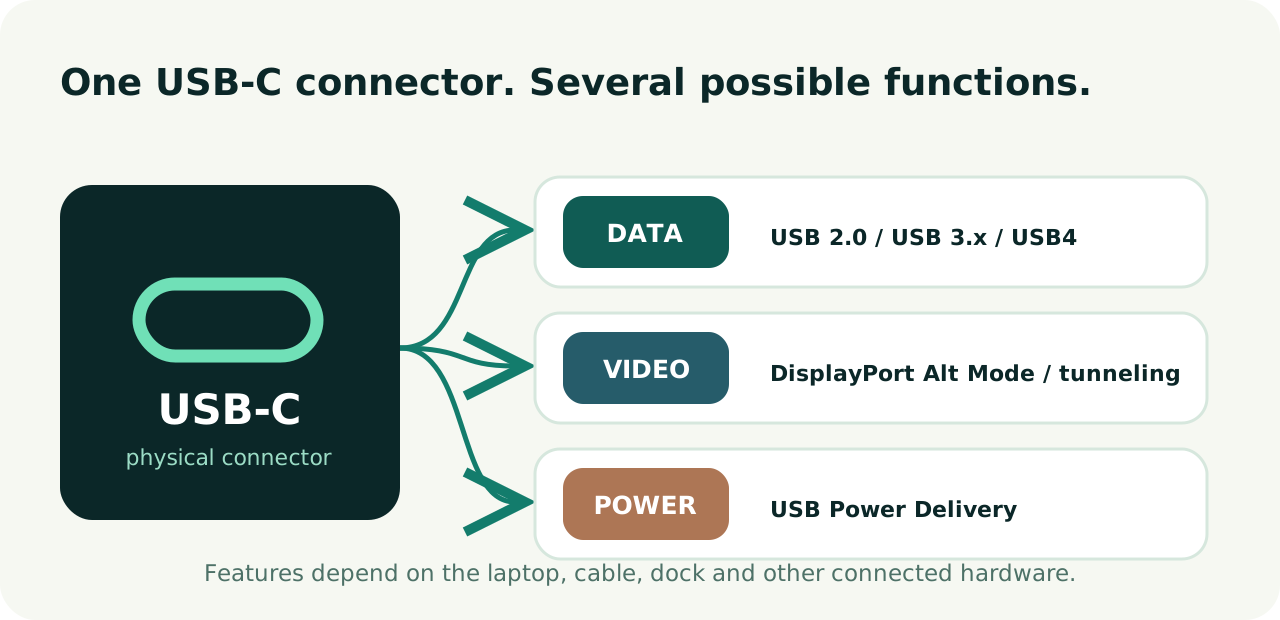
USB Type-C was designed to replace many older USB connector shapes with something compact and reversible. It appears on smartphones, monitors, laptops, chargers, external drives, microphones and docking stations. This common shape is useful: you no longer have to turn the plug around to get it into the receptacle.
However, USB-C was designed to support different combinations of features. Depending on the product, a USB-C port might offer basic USB 2.0 data, faster USB 3.x data, USB4, charging, DisplayPort video or Thunderbolt. The manufacturer chooses which capabilities to implement. The small connector itself does not reveal them.
Consider a thin laptop with two USB-C sockets. The first may support USB 10Gbps data and USB Power Delivery input, while the second supports USB4 40Gbps, charging and external display output. A photograph of the laptop cannot establish these differences. In some products the ports also have different power limits, so the positioning of your charger can matter.
Symbols beside a port can provide clues: a lightning symbol commonly identifies Thunderbolt; a DisplayPort symbol indicates video capability; and some products use USB speed labels. But symbols are not consistently present, and a lightning icon can also be used in contexts unrelated to a certified Thunderbolt port. The manufacturer's specification sheet is the stronger evidence.
USB-A versus USB-C
USB-A is the familiar rectangular connector found on many older peripherals. USB-C is smaller and reversible. Both are connector types. Neither connector label alone identifies its maximum data rate. A USB-A port can be reasonably fast; a USB-C port can be unexpectedly slow. If you already own a USB-A keyboard, do not reject a perfectly suitable laptop simply because it needs a small adapter or hub.
Decoding USB speeds without getting lost in names
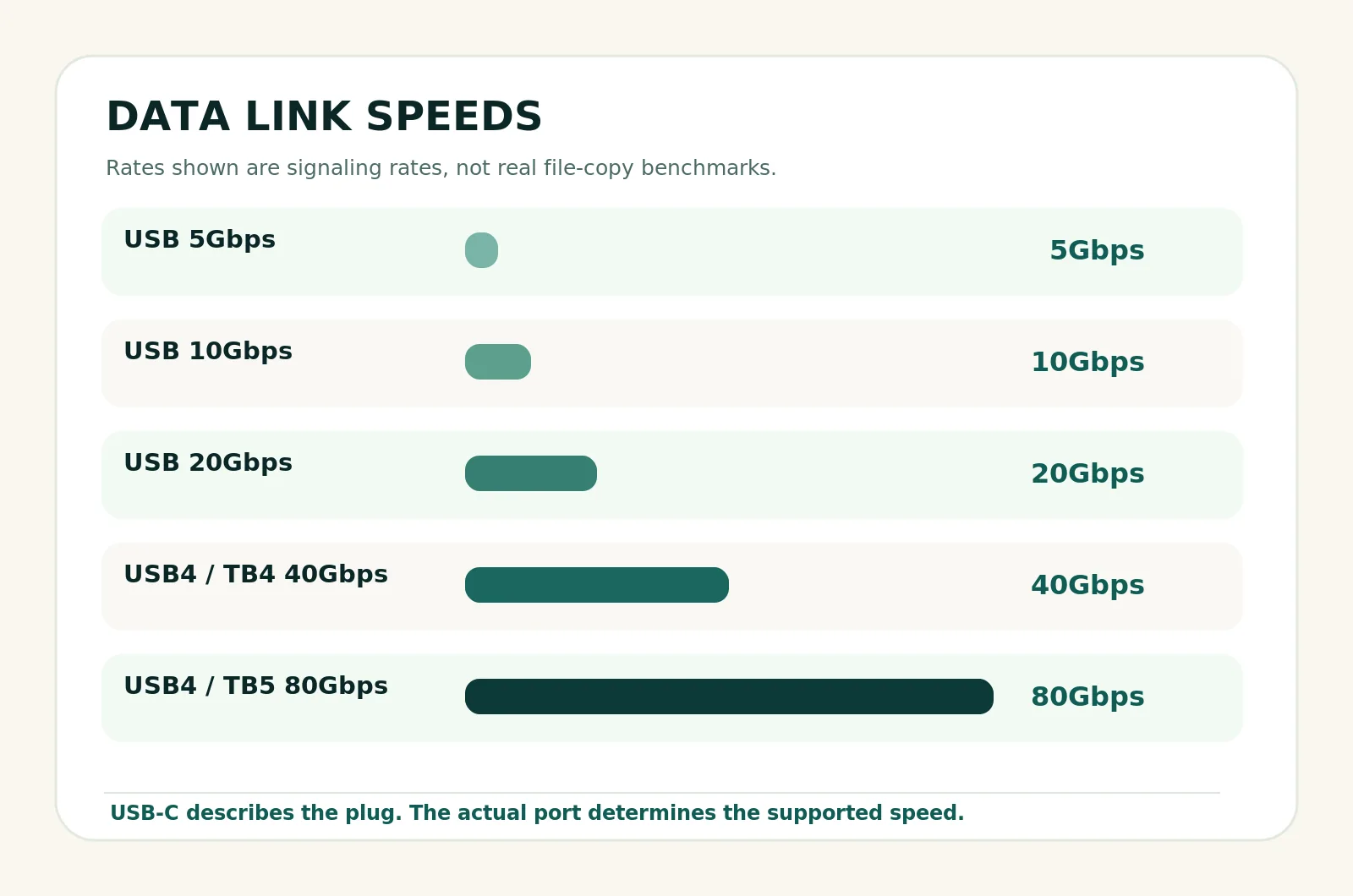
The USB industry has used multiple overlapping generation names. You may see USB 3.2 Gen 1, USB 3.2 Gen 2, Gen 2x2, USB 5Gbps, USB 10Gbps and USB4. For most buyers, the advertised Gbps figure is the simplest comparison point.
| Marketing-friendly speed | Common technical label | Typical reason to care |
|---|---|---|
| 480Mbps | USB 2.0 | Keyboard, mouse, basic accessories; limited storage speed |
| 5Gbps | USB 3.2 Gen 1 | Everyday external drives and hubs |
| 10Gbps | USB 3.2 Gen 2 | Fast USB external SSDs |
| 20Gbps | USB 3.2 Gen 2x2 or USB4 20Gbps | Supported high-speed SSDs; implementation matters |
| 40Gbps | USB4 40Gbps or Thunderbolt 4 | Fast docks, high-bandwidth peripherals |
| 80Gbps | USB4 80Gbps or Thunderbolt 5 | Next-generation high-bandwidth devices and display-heavy setups |
These are link signaling rates, not guaranteed copy speeds. A 10Gbps interface has a theoretical raw equivalent of 1.25GB/s because eight bits make one byte, but transfers include overhead and depend on the drive and protocol. It would be misleading to promise that every 10Gbps SSD copies files at 1.25GB/s.
An important naming trap is USB 20Gbps: an older USB 3.2 Gen 2x2 device and a USB4 20Gbps connection are not equivalent designs merely because both advertise 20Gbps. A USB4 port or dock does not automatically provide the USB 3.2 Gen 2x2 mode that a particular SSD expects. When choosing external storage, check the drive's protocol and the host's supported modes—not just the matching number on the box.
When speed becomes noticeable
A basic printer or keyboard barely challenges even older USB rates. A portable SSD containing hundreds of gigabytes can benefit from a faster connection, as can a dock sharing its link between displays, storage and networking. Even then, the slowest component in the path governs much of the result: host controller, cable, enclosure, SSD, dock or software workload.
For example, moving a large video file is largely sequential work. Opening a development project with many tiny files stresses storage in a different way. Buying a higher-bandwidth cable will not fix poor random-access performance, and a Thunderbolt logo will not accelerate a slow external hard drive.
What USB4 actually changes
USB4 is more than another speed upgrade. According to the USB Implementers Forum, its architecture can efficiently share a high-speed link among supported data and display protocols. A capable USB4 dock can therefore carry a combination of USB devices, display traffic and PCI Express-related traffic over one host cable, when the particular host and device support those functions.
A useful mental model is a shared highway. A fast external drive needs part of the highway; monitors consume part of it; networking and peripherals need their share as well. USB4 manages compatible traffic across that link rather than giving each device a completely independent external cable. That flexibility is exactly why a compact laptop can become a desktop workstation by connecting a dock.
USB4 is not one fixed speed
USB4 systems can advertise 20Gbps, 40Gbps and, with newer implementations, 80Gbps. The USB4 Version 2.0 family expanded the architecture for higher-speed operation, and USB-IF describes operation up to 80Gbps with suitable certified cables. It is incorrect to assume that an unqualified "USB4" description means 40Gbps or 80Gbps.
Some 80Gbps-capable systems can use asymmetric operation, where a heavily display-oriented workload gets up to 120Gbps in one direction and 40Gbps in the other. That is not the same as two independent 120Gbps directions and is not available on every USB4 device.
What USB4 does not automatically guarantee
USB4's architecture supports protocol tunneling, but laptop vendors still differ in display implementation, PCIe support, controller resources and charging arrangement. Do not infer the number of external monitors, maximum display refresh rate, external GPU suitability or laptop charging wattage from the USB4 label alone.
USB4 also has interoperability rules for older connections. Microsoft documents Thunderbolt 3 peripheral interoperability requirements for externally available USB4 host ports on Windows systems. That does not mean every older Thunderbolt accessory will expose all of its functions across every host, operating system and dock. Product-specific support remains important.
Thunderbolt 4: why certification matters
Thunderbolt 4 uses USB-C and operates at 40Gbps. Rather than merely claiming a headline speed, certified Thunderbolt 4 equipment must meet a defined set of requirements. Intel's comparison material describes requirements that include 40Gbps minimum PC connection performance, 32Gbps PCIe data bandwidth, support for two 4K displays at 60Hz on a suitable PC configuration, and 15W minimum computer-port power for accessories.
Thunderbolt 4 certification also covers interoperability and features such as waking a compatible computer from a supported Thunderbolt dock. These are useful assurances when you plan to connect multiple devices every day.
Here is the practical distinction: a specific USB4 40Gbps laptop might be just as useful as a Thunderbolt 4 laptop for your setup. But the Thunderbolt 4 badge narrows the uncertainty about certain minimum capabilities, provided the product is genuinely certified. You still need to confirm the display capabilities of the complete laptop, not just the port controller.
Does Thunderbolt 4 guarantee two monitors on every laptop?
No. The certification's display requirements should not be converted into a universal promise that every laptop can run any pair of monitors, at any resolution, from any dock. Your integrated or discrete graphics, the operating system, available display streams, dock technology, refresh rates and color settings all matter.
On some Macs, Apple specifies lower external display limits for particular chip generations despite the presence of capable Thunderbolt-family ports. Apple explicitly notes that a hub or daisy chain does not raise the Mac's maximum supported external display count. Always consult the exact model's display support documentation.
Is Thunderbolt 4 useful if you do not own a dock?
It can be, especially if you use high-speed storage or plan a desk setup later. But for a laptop used mostly on its internal screen, Thunderbolt 4 may be less important than sufficient RAM, battery life, repairability, a comfortable keyboard or a better display. A standard USB-C 10Gbps port with confirmed video and charging support can be perfectly adequate.
Thunderbolt 5: when more bandwidth earns its keep
Thunderbolt 5 raises the normal connection bandwidth to 80Gbps and supports Bandwidth Boost with up to 120Gbps in one direction and 40Gbps in the other. Intel lists higher minimum PCIe bandwidth requirements than Thunderbolt 4—64Gbps rather than 32Gbps—in its technology comparison.
The most persuasive case for Thunderbolt 5 is not ordinary web browsing. It is a workstation carrying demanding external displays while also using fast storage or other high-bandwidth devices. An editor using multiple high-resolution, high-refresh-rate displays may be able to make better use of the increased transport capacity than a student using one 1080p monitor.
Do not confuse transport bandwidth with SSD throughput. Even with an 80Gbps link, actual file transfers depend on the SSD enclosure, PCIe bridge, storage medium, overhead and competing traffic. Likewise, a 120Gbps directional mode does not make CPU calculations or the laptop's internal SSD twice as fast.
Is Thunderbolt 5 automatically better than USB4 80Gbps?
Not for every task. Both can offer an 80Gbps-class connection when properly implemented. Thunderbolt 5 brings its certification requirements and ecosystem assurances; USB4 80Gbps may deliver the necessary functionality for a specific workstation at a different price. Compare verified features, port layout, available docks, and your actual devices instead of ranking logos in isolation.
USB-C, USB4 and Thunderbolt: meaningful comparison
| Buying question | Ordinary USB-C port | USB4 port | Thunderbolt 4 | Thunderbolt 5 |
|---|---|---|---|---|
| Same reversible connector? | Yes | Yes | Yes | Yes |
| Fixed data rate? | No | No; check 20/40/80Gbps | 40Gbps | 80Gbps; directional boost to 120Gbps |
| Monitor output guaranteed by connector shape? | No | Check exact host implementation | Certified baseline, plus host-specific limits | Certified baseline, plus host-specific limits |
| Laptop charging input from this port? | Check specification | Check specification | Depends on applicable laptop requirements and actual wattage | Depends on applicable laptop requirements and actual wattage |
| Suitable for advanced one-cable docks? | Sometimes | Often, with compatible hardware | Yes, with compatible docks | Yes, with compatible docks |
| Best general fit | Everyday accessories | Capable mainstream workstations | Predictable advanced docking | Highly demanding external setups |
A clarification on power: a port providing 15W to a connected accessory is not the same as the laptop receiving 15W or 100W from a charger. Manufacturer specifications must distinguish host output power from USB PD input for laptop charging.
External monitors: the capability buyers overlook
One of the costliest mistakes is buying a laptop and then discovering that its USB-C socket cannot connect to the intended monitor. The solution is to understand the main ways video travels over USB-C.
DisplayPort Alt Mode
DisplayPort Alternate Mode, defined by VESA, allows compatible USB-C equipment to carry DisplayPort video signals. It can appear on laptops with ordinary USB 5Gbps or 10Gbps ports; USB4 and Thunderbolt are not prerequisites for a USB-C monitor output. A USB-C-to-DisplayPort cable or suitable USB-C-to-HDMI adapter may work when the host provides the right video mode.
VESA notes that the product documentation should state DisplayPort Alt Mode support; some devices also use a DP symbol beside the port. If the laptop merely says "USB-C 10Gbps," monitor output has not been established.
Video through USB4 or Thunderbolt
These connections can transport display traffic alongside other supported protocols through a compatible dock. The dock may expose HDMI and DisplayPort connectors even though the laptop's upstream connection is USB-C. The resulting monitor setup still has to fit the host's graphics capabilities, available bandwidth, and the dock's design.
A phrase like "dual 4K" is incomplete until you know whether that means 4K at 30Hz or 60Hz, whether both screens can run together, and whether the laptop's operating system supports the dock's display method. Resolution, refresh rate, bit depth and compression can all affect what is possible.
Two 1440p monitors: a realistic example
Imagine a remote worker wants two 2560×1440 screens at 60Hz, wired Ethernet, a headset, a keyboard and single-cable charging. A well-designed USB4 40Gbps or Thunderbolt 4 dock is a logical starting point. But before buying, verify the laptop's maximum external displays, the dock's dual-display claims for that operating system, its host power output, and the included cable.
Some docks rely on DisplayPort Multi-Stream Transport (MST) to split one display stream; others use Thunderbolt display tunneling or USB graphics solutions such as DisplayLink. These approaches have different driver, operating system and performance implications. A dock that works with two Windows monitors may not provide the same native arrangement on macOS.
A Mac-specific caution
Never treat "MacBook with Thunderbolt" as a complete display specification. Apple publishes external display counts by exact chip and model, and they can vary substantially. For example, Apple's MacBook Air guidance describes support by chip and states that a compatible hub does not increase the overall native limit. If your plan depends on two or three external displays, read Apple's specification for the precise Mac you plan to buy.
USB-C charging, USB Power Delivery and wattage
USB Power Delivery (USB PD) lets compatible power sources and devices negotiate their requirements over USB-C. It is the reason a single suitable charger can power different classes of equipment—but only within the profiles each device supports.
USB-IF explains that USB PD 3.1 Extended Power Range expanded the specification to up to 240W and introduced higher voltage levels including 28V, 36V and 48V. It does not mean that every laptop with USB-C can accept 240W, and it does not mean that every 240W-rated charger supports the exact output profile your laptop wants.
Three things must match
First, the laptop must support USB-C PD input and accept the available power level. Second, the charger or docking station must advertise a compatible power profile and sufficient wattage. Third, the cable must be appropriately rated. A 240W cable alone does not upgrade a laptop's charging circuitry, and a 140W charger cannot make a laptop draw 140W if it is designed to accept less.
For perspective, some ultraportables charge using adapters in the 45–65W range, while more demanding systems may use 90W, 100W or considerably more. Those are illustrative categories, not a specification for any particular model. Gaming laptops may still require their proprietary high-power adapter for full performance even if they also permit limited USB-C charging.
Dock power is not always laptop power
If a dock includes a 100W wall adapter, some of that power may be consumed by the dock itself. The specification you need is upstream or host USB PD output, not merely the adapter's wattage. If the dock provides 85W to the laptop and the laptop normally uses a 100W adapter, charging could be slow or constrained during intensive workloads, depending on the laptop.
Can a lower-wattage charger damage the laptop?
A compliant USB PD device negotiates supported power rather than blindly forcing the charger's headline wattage into the laptop. An inadequate charger may charge slowly, not charge at all, or allow the battery to discharge during heavy work. Use reputable, appropriately specified equipment and the manufacturer's recommendations.
The cable can quietly become the bottleneck
A cable with two USB-C ends tells you surprisingly little about what it can do. One cable might support 240W charging but only USB 2.0 data. Another might carry 40Gbps data yet have a different power rating. A third might be designed for the high-speed signaling required by an 80Gbps connection.
USB-IF's cable guidance emphasizes that not all cables have the same capabilities and describes certified speed and power labeling. To support an intended setup, all of the host, accessory and cable need a compatible intersection of features.
| You are connecting… | Cable characteristic to verify |
|---|---|
| A laptop to a charger | Correct USB PD power rating and supported charging profile |
| A USB 10Gbps SSD | Cable explicitly supporting at least the required USB data mode |
| A USB4 40Gbps dock | USB4/Thunderbolt-compatible cable specified for 40Gbps operation |
| An 80Gbps device | Suitable certified 80Gbps-capable cable and host/device support |
| A USB-C monitor | Video compatibility, plus charging/data requirements if applicable |
Cable length can matter at high signaling rates, and certified active cables may be needed for particular long connections. Do not assume that a long generic cable will maintain the same performance as the short cable bundled with an advanced dock.
Simple purchase advice: use the included cable first when a reputable dock or monitor supplies one. For a replacement, check the stated speed, power rating, certification and length requirements. Descriptions such as "premium," "fast charging" or "universal" are not enough.
Hub versus dock: buy for the desk you actually own
A basic USB-C hub is often the lowest-cost answer to a simple problem: you need a few USB-A ports, an HDMI output or a card reader. It can be ideal for a student who occasionally connects one monitor and accessories. But check that the laptop supports video through its USB-C port and that the hub's HDMI capability matches your target resolution and refresh rate.
A USB4 docking station makes more sense when you expect a multi-device desk. It can use its shared high-speed connection for supported monitors, storage, networking and peripherals. Some USB4 docks also expose additional high-speed downstream connections. Carefully read each dock's compatibility chart instead of assuming all USB4 docks are identical.
A Thunderbolt 4 dock is a compelling option for someone who frequently docks an approved Thunderbolt laptop. The 40Gbps connection and certification framework make advanced setups more predictable. A Thunderbolt 5 dock becomes worth investigating when the host and accessories can truly use its greater transport bandwidth.
Do not buy a Thunderbolt 5 dock to "future-proof" a laptop whose only suitable port is ordinary USB 10Gbps, unless you have separately verified its backward-compatible features and consider those features worth the cost. A more advanced dock cannot upgrade the underlying host port.
Plan for ports you will use, not ports you will count
Check the dock's upstream connection, downstream USB-C/USB-A speeds, Ethernet speed, display connectors, audio needs, SD reader, monitor matrix, host charging output and cable length. A dock with fifteen connectors can be less useful than a smaller one if its only HDMI output is limited below your monitor's preferred refresh rate.
External storage, editing and optional external graphics
For a conventional external hard drive, even basic USB 5Gbps can be adequate because the drive may be the performance bottleneck. Portable SSDs make faster ports more interesting. A good USB 10Gbps SSD may be the best value for backups and regular file transfers; a suitable USB4 or Thunderbolt NVMe enclosure is more attractive for large media libraries and demanding workflows.
Do not assume every advertised "USB 20Gbps" SSD will operate at 20Gbps through every USB4 or Thunderbolt port. The USB 3.2 Gen 2x2 distinction matters here. Read the enclosure's compatibility table, and search for verification with your intended host mode.
Some Thunderbolt and USB4 setups can connect external PCIe equipment, including supported external graphics enclosures. But eGPU compatibility is a particularly poor thing to infer from a port label. It depends on PCIe tunneling, firmware, operating-system support and the enclosure. Traditional Thunderbolt eGPU support on Macs has historically been associated with compatible Intel-based systems rather than Apple silicon Macs. Confirm support for your exact laptop before budgeting for an enclosure.
Three realistic laptop-buying scenarios
Scenario A: a student buying an affordable laptop
You use online classes, browsing, documents, video calls and a USB drive. You might connect one Full HD monitor at home. A laptop offering USB-C 10Gbps with clearly documented DisplayPort Alt Mode and laptop charging could serve you very well. Spending substantially more only to obtain Thunderbolt 5 would not be justified by this workload.
Before purchase, confirm whether the port is used to charge the laptop and whether your monitor connection works without additional drivers. The quality of the screen, battery, keyboard and RAM may affect everyday satisfaction much more.
Scenario B: a developer creating a two-monitor workstation
You run an IDE, containers, a local database and communication apps. At your desk you want two monitors, Ethernet, external storage and charging through one cable. Here USB4 40Gbps or Thunderbolt 4 becomes a genuinely helpful feature, assuming the exact display setup is supported.
The more expensive connection will not compile code faster by itself. Allocate your budget to suitable memory and internal SSD space first. Then treat connectivity as a workflow improvement: one plug-in action instead of a pile of adapters. If you plan to use a dock daily, confirm its host charging output and the precise operating-system display behavior.
Scenario C: a creator with demanding external displays
You edit large files from a fast external SSD and use multiple high-resolution displays, perhaps at elevated refresh rates. This is where a well-implemented Thunderbolt 5 or USB4 80Gbps system deserves consideration. Extra bandwidth may help carry video and storage traffic without an avoidable bottleneck.
Even here, do not overlook the rest of the system. Your application, processor, GPU, internal storage and external drive still determine much of the experience. Demand a documented monitor configuration and compatible high-speed storage rather than assuming that 80Gbps or 120Gbps solves everything.
How to decode a retailer's port listing
| Spec-sheet wording | Reasonable conclusion | Unsafe assumption |
|---|---|---|
| "2 × USB-C" | Two USB-C-shaped ports exist | Both can charge or output video |
| "USB-C 3.2 Gen 2 (10Gbps)" | A 10Gbps USB mode is offered | DisplayPort video is included |
| "USB-C 10Gbps, DP 1.4, PD" | A port supports data, a DP video path and some PD function | Any 4K refresh rate or charging wattage you choose |
| "USB4 40Gbps" | A 40Gbps USB4-class connection exists | A particular dock supports every advertised display mode |
| "Thunderbolt 4" | Certified Thunderbolt-family 40Gbps capabilities | Unlimited displays or guaranteed 100W input |
| "Thunderbolt 5" | High-bandwidth Thunderbolt capabilities | Every attached device transfers at 80Gbps |
A detail worth checking is whether all ports offer the listed capabilities. A brochure may say "Thunderbolt 4 + USB-C" even when only one of two similar-looking ports supports Thunderbolt. Also, regional variants and processor configurations can affect the port layout. Use the exact model or stock-keeping unit rather than a family-level product page when the difference matters.
Seven questions worth asking before buying
- Which exact ports support which speeds? Record each USB-C port separately.
- Which ports support video output? Look for DisplayPort Alt Mode, USB4 or Thunderbolt details and documented resolution/refresh rates.
- How many external displays can the complete laptop drive? This is not always the same as the dock's capacity.
- Can a USB-C charger power the laptop? Check accepted USB PD input wattage and any performance limitations.
- Will a planned dock work on your operating system? Look at the manufacturer compatibility matrix.
- What protocol does your SSD or other accessory need? Similar Gbps numbers do not always indicate the same USB mode.
- Is the cable part of the specification? Confirm rated speed, video support where relevant, power and length.
If a listing cannot answer a question that is essential to your setup, request the detailed manufacturer's technical sheet. An ambiguous feature is not a reason to assume the most generous interpretation.
Common misconceptions that cost buyers money
"Every USB-C port charges a laptop." False. Some ports are data-only, some supply power to peripherals, and some accept USB PD input. These are different directions and capabilities.
"USB4 always means 40Gbps." False. USB4 implementations have multiple speed classes. Look for 20Gbps, 40Gbps or 80Gbps in the actual specifications.
"Thunderbolt 4 is automatically faster than all USB4." False. Thunderbolt 4 is 40Gbps, while newer USB4 implementations can advertise 80Gbps. Certification and speed are related but not identical questions.
"A 240W cable charges every USB-C laptop at 240W." False. It only describes a cable's power capability. The charger and laptop must negotiate compatible power.
"A Thunderbolt dock fixes a laptop's display limit." False. A dock cannot override the host's fundamental graphics limitations. Some USB display technologies are alternatives, but they may require drivers and behave differently from native outputs.
"The 40Gbps number is an SSD's copy speed." False. Link rates and real application throughput are not the same thing.
"Every USB-C-to-HDMI adapter works with every USB-C port." False. A conventional video adapter generally requires a compatible video source mode at the host. A data-only USB-C port will not magically develop DisplayPort output.
Frequently asked questions
Is USB-C the same thing as USB4?
No. USB-C identifies the physical connector. USB4 is a high-speed transport architecture that runs over USB-C. A device can have USB-C without USB4.
Is USB4 better than Thunderbolt 4?
A specific USB4 40Gbps implementation can be an excellent alternative for a particular workstation. Thunderbolt 4 has a more defined certification baseline. The better choice depends on the host, dock, monitors and other accessories, not just their labels.
Is Thunderbolt 5 twice as fast as Thunderbolt 4?
Its normal headline link bandwidth is 80Gbps versus Thunderbolt 4's 40Gbps. That is twice the quoted link rate, but it does not guarantee doubled application performance. Thunderbolt 5's 120Gbps mode is directional and workload-dependent.
Can I connect a 4K monitor without Thunderbolt?
Yes. A USB-C port supporting a suitable DisplayPort Alt Mode can drive a 4K display when the laptop, adapter, cable and monitor support the desired settings. Thunderbolt is not a universal requirement for 4K.
Can I use a Thunderbolt dock with a USB4 laptop?
Possibly, and many combinations are designed for broad compatibility. But verify the exact dock's supported host modes and features. A dock can fall back to a different mode and may offer fewer monitors, ports or less bandwidth than when connected to a Thunderbolt host.
Can a Thunderbolt 5 cable work with older USB-C devices?
A properly designed compatible cable can generally be used with older USB modes, with the connection falling back to mutually supported capabilities. Check the cable's specific certification and accessory requirements; it cannot give an older device a faster controller.
Does the lightning symbol always mean Thunderbolt?
It is a useful clue on correctly labeled products, but not a substitute for the manufacturer saying "Thunderbolt 4" or "Thunderbolt 5" in the exact technical specifications. Icons vary, and power-related lightning symbols can cause confusion.
Should I choose a laptop with more USB-C ports or faster ones?
Choose based on your devices. Two suitable ports can be more practical than one very fast port if you need to charge and connect a monitor independently. For an all-in-one desk dock, one capable 40Gbps USB4 or Thunderbolt port may offer a cleaner solution.
Does using a dock reduce external SSD speed?
It can when devices share limited upstream bandwidth, when the dock has slower downstream ports, or when the enclosure uses a different protocol. A good dock does not guarantee the same throughput as a direct connection for every workload.
Is Thunderbolt 5 worth paying extra for in 2026?
It is worth evaluating when your planned monitors and high-bandwidth devices can use its capabilities, or when you have a clearly defined near-term upgrade path. For everyday study, office work and many programming setups, a verified USB4 40Gbps or Thunderbolt 4 system may be the better allocation of money.
Final verdict: buy the capabilities, not the connector label
The easiest way to get this purchase right is to begin with your desk, not with the laptop's marketing page. Write down the monitors you will connect, their target resolution and refresh rate, whether you want one-cable charging, and any external SSDs or specialist devices. Then compare that plan against the exact computer's documented capabilities.
For everyday use, a properly equipped USB-C 10Gbps port may be enough. For a professional docking setup, USB4 40Gbps and Thunderbolt 4 are sensible starting points. For unusually demanding display and storage configurations, Thunderbolt 5 and USB4 80Gbps are worth evaluating—but only when the rest of the system can take advantage of the extra bandwidth.
Most importantly, do not let a reversible connector make the decision for you. USB-C tells you what fits. The specifications tell you what works. When those specifications match your real workflow, you can buy the laptop with confidence—and avoid an expensive chain of replacement cables, adapters and docks.
Sources and further reading
These primary-source references support the technical explanations above. Product configurations can change by model and region; verify the latest specifications before purchasing.
- USB Implementers Forum — USB4 overviewUSB4 architecture, supported high-speed operation and bandwidth sharing
- USB-IF — USB4 specification v2.0USB4 Version 2.0 specification reference
- Intel — Thunderbolt overview and comparisonThunderbolt 4 and Thunderbolt 5 minimum requirements, bandwidth and PC power distinctions
- Intel — Thunderbolt 4 versus USB-CConnector differences, certification, 40Gbps requirements and PCIe
- USB-IF — USB Power DeliveryPD 3.1 Extended Power Range, 240W capability and voltage levels
- USB-IF — Cables and connectorsCertified cable labeling and different speed/power capabilities
- VESA — DisplayPort FAQDisplayPort Alt Mode over USB-C and adapter compatibility
- Microsoft — Fix USB-C problems in WindowsCable, dock, charging and video feature compatibility troubleshooting
- Microsoft Learn — USB4 system designUSB4 tunneling and Thunderbolt 3 interoperability
- Apple Support — External displays with MacBook AirModel- and chip-specific external display restrictions
This is a researched buying guide, not a claim of hands-on product testing. Examples and recommendations are illustrative. No unverified performance benchmarks, prices or advertiser endorsements are presented.