
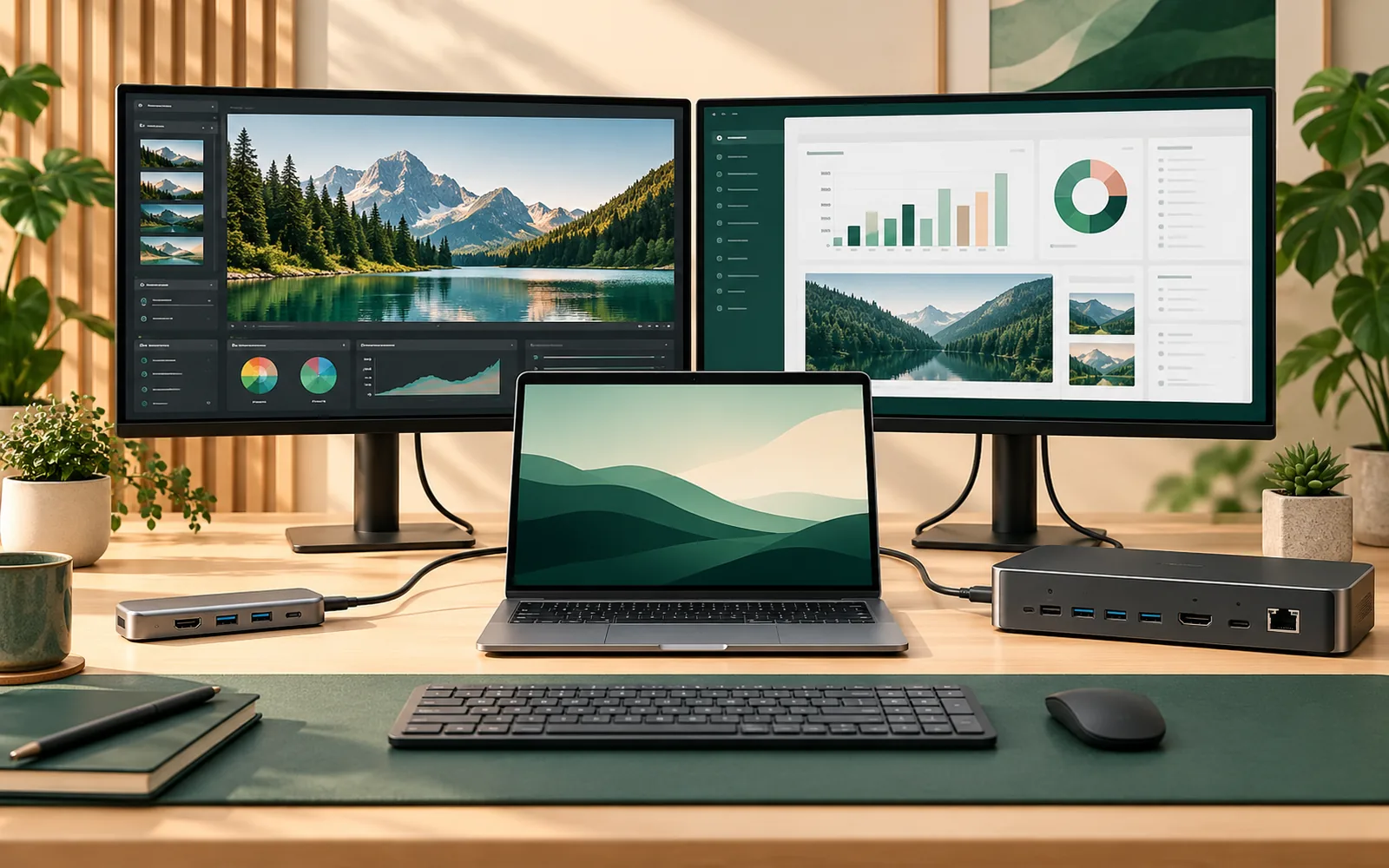
A second monitor makes a laptop easier to use. With two external displays, you can keep a document open beside a spreadsheet, move debugging tools away from your code, or join a video call without covering everything else. Yet the accessory that connects those monitors can be surprisingly difficult to choose.
A compact USB-C hub might advertise two HDMI sockets and laptop charging. A desk-sized docking station might promise dual 4K, Ethernet, and a dozen ports. Both connect through a single USB-C-shaped cable, so why are they so different—and which should you buy?
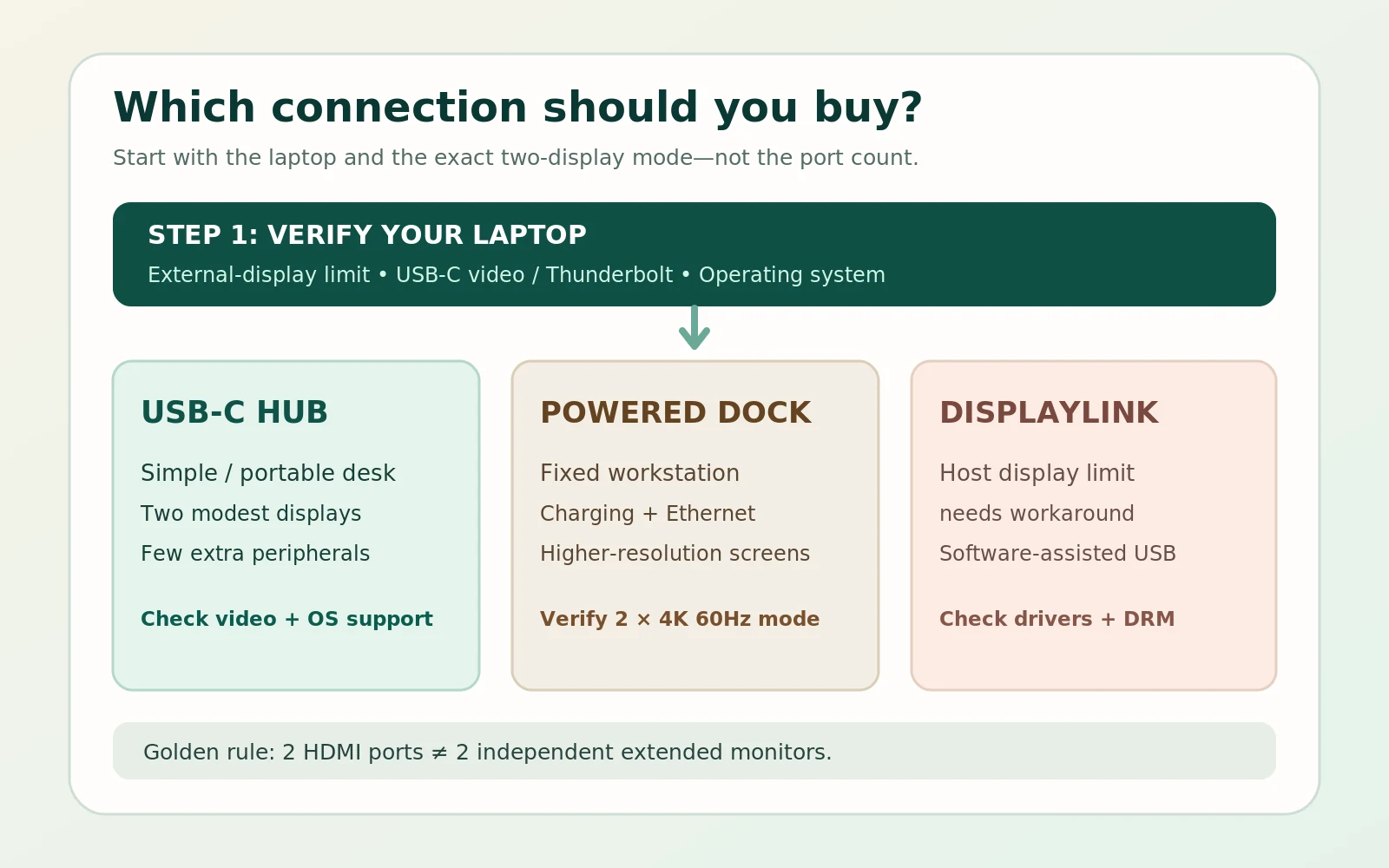
The short answer: Choose a compatible USB-C hub for a simple, portable workstation with two ordinary displays and a few accessories. Choose a well-matched docking station when your desk needs reliable single-cable charging, more peripherals, wired networking, or a demanding display combination. Neither name guarantees that two monitors will work: the laptop's display limits, operating system, video transport, and dock specifications decide that.
If you remember one buying rule, make it this: Two HDMI ports do not guarantee two independent extended monitors. Verify the complete laptop–adapter–monitor combination before paying.
The 30-second decision
| Your situation | Best starting point | What to verify first |
|---|---|---|
| Two 1080p office monitors, basic peripherals | Dual-display USB-C hub | Laptop DP Alt Mode or equivalent; extended mode on your OS |
| Two 1440p productivity displays | Capable hub or powered dock | Simultaneous resolution and refresh rate |
| Two 4K displays at 60Hz, charging, Ethernet | Higher-bandwidth powered dock | Exact dual-4K mode with your host |
| Frequent travel and occasional desk work | Compact hub | Cable, power, portability, display support |
| Base M1 or M2 MacBook Air and two external screens | Carefully selected DisplayLink solution | Software permissions and trade-offs |
| High-refresh-rate gaming | Direct display outputs or explicitly compatible dock | Refresh, DSC, VRR, cable and GPU path |
Recommendations are conditional on the laptop and dock specifications.
What is a USB-C hub?
A USB-C hub is a small expansion accessory. It typically connects to one laptop USB-C port and provides a combination of USB-A, HDMI, DisplayPort, USB-C, Ethernet, or memory-card connections.
Some hubs have only a few ports; others resemble miniature docks. In retail listings, “hub” and “dock” are used loosely. Technically, USB and DisplayPort standards distinguish a USB-only hub from a device handling DisplayPort Alt Mode, but store labels are not reliable specifications. A premium Thunderbolt hub can outperform a budget dock.
For monitors, a common native-video USB-C hub receives a DisplayPort signal from the laptop through DisplayPort Alternate Mode (DP Alt Mode). The hub can convert that signal to HDMI, expose DisplayPort connectors, or—in certain devices—use Multi-Stream Transport (MST) to distribute display streams among outputs.
A hub with a USB-C charging input may also pass power from an attached charger to a supported laptop. But the device's advertised charger input is not necessarily the amount delivered to the computer. Inspect the actual host output specification.
What a hub does well
- Easy to carry: A compact adapter is convenient for travel, hybrid work, and switching between desks.
- Lower commitment: Basic hubs are often less costly than fully powered docking stations, although there are exceptions.
- Enough ports for simple work: Two compatible screens, a keyboard, a mouse, and perhaps a card reader may be all you need.
- Minimal setup: Native-video hubs generally do not need a special USB graphics driver on compatible Windows hardware.
Where a hub may disappoint
A small hub can have limitations in monitor bandwidth, power delivery, USB port count, or simultaneous device performance. Some multiport adapters also reduce the available USB data speed when more connector lanes are assigned to video. The exact trade-off depends on how the product was engineered; you cannot infer it solely from the number of USB sockets.
If the hub's documentation says “dual HDMI” but not “two independently extended monitors on Windows/macOS at X resolution and Y Hz,” treat the product description as incomplete.
What is a docking station?
A docking station connects a laptop to a mostly permanent desktop environment. It can serve as a central connection point for monitors, a keyboard, mouse, wired internet, storage drives, audio equipment, and power. Many full-sized docks have their own power adapter and are intended to stay on the desk.
A dock may use ordinary USB-C with DP Alt Mode, USB4, Thunderbolt, or a USB graphics system such as DisplayLink. That distinction is more important than whether the box says “dock.” A low-cost USB-C dock is not automatically more powerful than a well-designed hub, and a Thunderbolt dock does not override every laptop's native display restrictions.
Why people prefer a dock at a fixed desk
You can often plug in one host cable and restore a familiar workspace: monitors awaken, Ethernet reconnects, desktop peripherals become available, and the laptop starts charging. For someone moving between meeting rooms and a primary workstation, this convenience can justify a larger device.
Powered docks also tend to provide more room for USB ports and sustained accessory power, although the specifications still vary.
Where a dock may be the wrong purchase
Docks are often larger, less travel-friendly, and more expensive than compact adapters. Some require an external power brick; some depend on drivers; and some promise advanced Thunderbolt functions that your laptop cannot use. If you only need two modest monitors and a mouse, paying for many unused ports may not provide any practical advantage.
USB-C hub vs docking station: the differences that actually matter
| Consideration | Compact USB-C hub | Typical powered docking station |
|---|---|---|
| Desk footprint | Usually small | Usually larger |
| Travel use | Often ideal | Less convenient |
| Host charging | Sometimes pass-through; check watts | Common, but still check delivered watts |
| Ethernet and audio | Model-dependent | Often available |
| Peripheral count | Usually limited | Often more connections |
| External power supply | Frequently absent | Common on full-size docks |
| Two independent monitors | Only on suitable designs and hosts | Common on compatible designs and hosts |
| Dual 4K 60Hz | Possible, not universal | Possible on suitable higher-bandwidth models |
| Driver requirement | Usually none for native video | Depends on native video vs USB graphics |
| Upgrade headroom | Product-specific | Potentially greater, not guaranteed |
Do not shop by category alone. Shop by specific display modes, charging output, USB data speed, operating-system support, and the vendor's compatibility notes.
First understand what “two monitors” means
A seller may say a product supports dual screens without saying how those screens behave. There are three common arrangements.
Mirrored displays
Both external monitors show the same desktop. Mirroring works for presentations, but it does not provide extra workspace. Two HDMI outputs that mirror each other should not be counted as two independent productivity displays.
Extended displays
Each monitor has its own desktop area. You can drag a window from the left screen to the right screen, keep different applications visible, and arrange monitors to match their physical positions. This is what most people mean by a dual-monitor workstation.
Two external monitors plus the laptop screen
This is sometimes called a three-screen arrangement. The laptop's internal display remains active while two external monitors show their own content. Some systems support it natively and others support only one external screen or require the lid to be closed for a second. Do not confuse “two total screens” with “two external screens plus the built-in panel.”
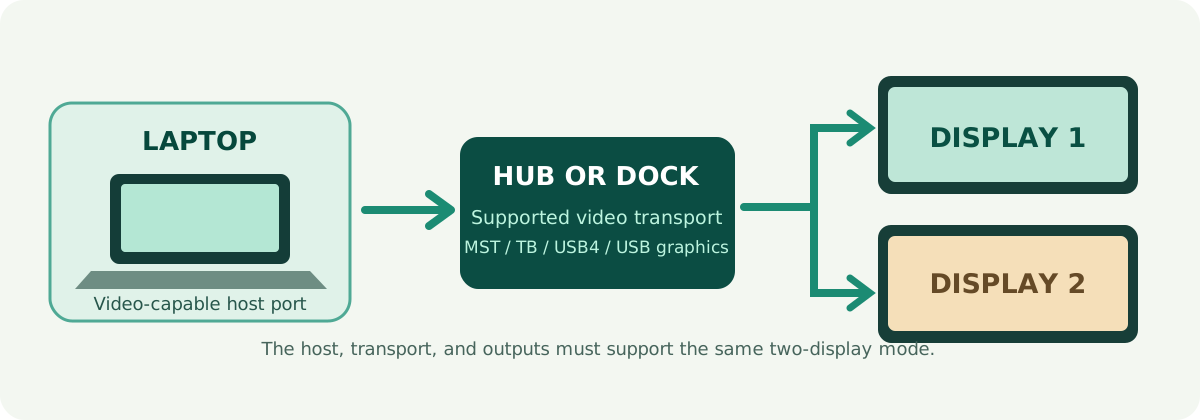
The illustrations below show a typical native dual-display path and why the laptop's limits must be checked before choosing the accessory.
Why USB-C, DisplayPort, USB4, and Thunderbolt get confused
USB-C is a connector shape, not a promise of display performance. Identically shaped ports may offer different combinations of USB data, charging, DP Alt Mode, USB4, and Thunderbolt support. VESA explains the distinction in its DisplayPort FAQ.
DisplayPort Alternate Mode
DP Alt Mode allows a compatible USB-C connection to carry DisplayPort video. A hub can then provide HDMI or DisplayPort monitor outputs. But a charging-only or data-only USB-C port does not magically gain video capability when you attach an HDMI adapter.
The available video bandwidth depends on the host's DisplayPort capabilities, how the connection allocates lanes, and whether techniques such as Display Stream Compression (DSC) are available. Some devices reserve lanes for USB data, leaving less bandwidth for video. This helps explain why a hub may support one 4K 60Hz display but reduce the second display's refresh rate.
DisplayPort MST
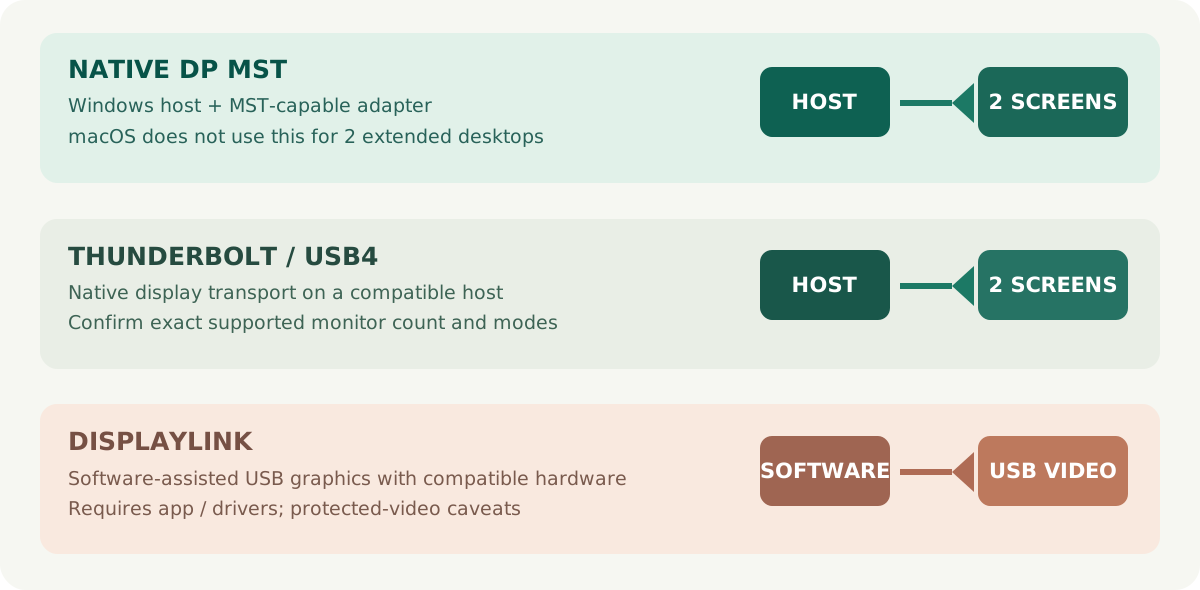
Multi-Stream Transport divides a compatible DisplayPort link into multiple independent video streams. On supported Windows systems, an MST hub can enable two extended monitors through a single DP Alt Mode host connection.
MST is not a magic display-count upgrade: the computer must support the technology and have enough video bandwidth. Most importantly, macOS does not support MST for independent extended desktops in the way common Windows MST hubs use it. An MST-based dual-HDMI accessory may deliver two different desktops on Windows but mirrored screens on a Mac. Plugable's MST compatibility guidance explains the distinction.
USB4
USB4 uses the USB-C connector and supports transporting data and display protocols over a shared connection. The USB Implementers Forum explains how USB4 allocates bandwidth across protocols. Real products vary in supported speeds and features, so the “USB4” label does not replace a simultaneous-display compatibility table.
Thunderbolt 4
Thunderbolt 4 establishes more demanding minimum requirements than ordinary USB-C. Intel documents support for up to two 4K displays at 60Hz through a suitable Thunderbolt 4 connection; some host and display configurations have additional requirements, including DSC. Thunderbolt 4 is an attractive option for a high-resolution permanent workstation, but your specific laptop must still support its intended display count. See Intel's Thunderbolt 4 explanation.
Thunderbolt 5
Thunderbolt 5 targets more demanding displays and peripherals through greater available bandwidth. It can make sense for demanding multi-monitor setups, high-refresh-rate use, or substantial external storage traffic. However, two standard office monitors are not enough reason by themselves to buy the newest and most expensive docking technology.
Which connection is enough for your resolution and refresh rate?
Do not buy a hub based only on a large maximum-resolution number. Advertisements may quote what a single port supports under ideal circumstances. Your real question is what both monitors do simultaneously.
Two 1080p monitors at 60Hz
For spreadsheets, web browsing, writing, and ordinary programming, two 1920 × 1080 monitors at 60Hz are a manageable target for many compatible video-capable Windows laptops and MST hubs. A small hub can be a reasonable starting point. Verify that both screens can operate in extended mode and that any required laptop charging is actually provided.
Two 1440p monitors at 60Hz
Two 2560 × 1440 screens create a larger, sharper workspace without necessarily requiring an expensive dock. Capable USB-C hubs may support this configuration. The exact combination can be constrained by the host's DP version, MST support, lane allocation, and USB data features. If your chosen hub cannot document dual 1440p 60Hz, choose a different device rather than guessing.
Two 4K monitors at 60Hz
Dual 3840 × 2160 output is a more demanding target. Choose a hub or dock that explicitly lists 2 × 4K at 60Hz simultaneously for your operating system and host connection. Thunderbolt 4 docks are a useful product category to examine; suitable USB4 and high-spec USB-C devices may also work. A “4K HDMI” logo or a “4K 60Hz single display” bullet is not sufficient evidence.
High-refresh-rate or gaming monitors
A pair of monitors at 120Hz, 144Hz, or above requires more careful checking. The output standards, DSC, cable, graphics capabilities, and features like variable refresh rate all matter. A product capable of dual 4K 60Hz may not provide dual 4K 120Hz, and a docking station can sometimes restrict gaming-specific features even when the image appears correctly.
For a demanding gaming setup, use direct GPU video outputs when that is the most reliable route to the desired refresh and adaptive-sync support. If you prefer a dock, obtain manufacturer-confirmed support for the full display combination.
A mixed-resolution example
Suppose you own a 4K 60Hz screen for detailed editing and a 1440p 60Hz screen for communication. The two displays need not match, but they still share whatever video and transport resources the host and adapter make available. Check a manufacturer's simultaneous-display matrix for the mixed configuration rather than estimating compatibility from total pixel counts.
What MacBook owners must check before buying
MacBook display compatibility deserves its own buying step because Apple silicon generations have different native external-display limits, and macOS does not extend multiple screens through ordinary DP MST.
Base M1 and M2 MacBook Air
Apple lists one native external display for the base M1 MacBook Air and M2 MacBook Air. A conventional dual-HDMI MST hub cannot turn those models into native dual-extended-display systems. You can use one native display and explore an additional USB graphics display with a compatible DisplayLink adapter or dock, subject to software and content-protection limitations.
Apple's M2 MacBook Air specification explicitly lists one external display. Always identify the exact Mac chip; the number of USB-C-shaped ports is not a substitute for Apple's display specification.
M3 MacBook Air
Apple supports two external displays on the M3 MacBook Air in a closed-lid arrangement with the required macOS version, power, and external keyboard and pointing device. Apple's setup instructions explain that opening the lid with two external displays connected disconnects or darkens the second external screen. This is not the same as having the laptop's own screen active alongside both external monitors.
M4 and M5 MacBook Air
Apple's newer M4 and M5 MacBook Air models support up to two native external displays while the built-in screen remains active, within the stated resolution and refresh-rate combinations. Apple also notes that supported hubs or daisy-chaining may provide both displays through one Thunderbolt port without increasing the computer's maximum display count. See the current MacBook Air display-support page.
That is good news, but it does not mean any dual-HDMI MST hub will work. Look for a compatible Thunderbolt-based arrangement or another dock explicitly validated for that Mac and display combination.
MacBook Pro models
MacBook Pro display support varies by generation and chip tier. Base, Pro, and Max chips may have different external-display counts and resolution limits. Verify the exact model in Apple's technical specifications before ordering. Avoid broad promises such as “all MacBooks support dual monitors.”
DisplayLink: useful workaround, different technology
DisplayLink is software-assisted USB graphics technology used by compatible adapters and docking stations. Rather than relying entirely on the laptop's native external-display signals, it uses software and USB transport to create additional display output.
This can help when a laptop has fewer native external-display outputs than the number of screens you want. For example, an M1 or M2 MacBook Air owner who needs two independent external screens can consider a compatible DisplayLink solution.
There are trade-offs. On macOS, DisplayLink Manager requires permissions, including Screen Recording access, so it can send the necessary display pixels to the USB graphics device. According to DisplayLink's documentation, granting this permission is required for its operation. The software does not thereby turn the hardware connection into a native GPU output.
Protected streaming content is another consideration. DisplayLink warns that certain HDCP-protected services can show black video while DisplayLink displays are connected. Read its protected-video guidance if streaming is important to your setup.
For office applications, email, coding, and static documents, DisplayLink can be a practical workaround. For latency-sensitive gaming, special graphics workflows, or reliably playing protected media, prefer a compatible native-video path where possible.
Power delivery: can one cable charge the laptop too?
A one-cable desk is not truly convenient if you still have to connect a separate charger every time. Both hubs and docks may support USB Power Delivery (USB PD), but you must read the actual numbers.
A portable hub often has a PD input. You attach the laptop's charger to the hub, which negotiates and passes a supported amount of power onward. An advertised 100W input may yield less than 100W delivered to the laptop after the hub's own power use and documented output limit. Look for the manufacturer's host charging output, not just the charger-input rating.
Powered docking stations commonly include their own power brick and may provide higher, more convenient host charging. Still, a power-hungry workstation or gaming laptop may require its original charger for full performance. Some laptops do not accept USB-C charging at all, even if their ports support data and video.
Example: If a laptop normally uses a 90W adapter and a dock supplies only 45W to the host, it may charge slowly at idle and lose battery power under sustained load. This example illustrates a power mismatch; it is not a benchmark for a specific model.
Before buying, check the laptop's charging input, supported USB-C/Thunderbolt power behavior, the dock's delivered wattage, and whether the power adapter comes in the box.
Other dock features worth evaluating
Ethernet and network performance
Wired networking can be handy for large downloads, remote work, or a stable home network connection. Gigabit Ethernet is common; faster options exist on selected docks. A network socket is only useful if the network and the dock's host data path support your needs.
USB ports and external SSDs
Port count is less useful than knowing what each port can actually do. Ask whether the dock offers 5Gbps, 10Gbps, or faster USB paths as appropriate, and whether heavy display usage affects simultaneous storage transfers. Bandwidth-sharing behavior varies significantly among products.
Cables, length, and desk layout
USB-C cables can look identical while supporting different data and video modes. Use a host cable specified for the chosen dock and sufficient for the full connection. Avoid assuming a basic charging cable supports high-bandwidth video. Consider the location of monitor outputs, whether cables will pull on a travel hub, and whether the docking station can be placed discreetly at the back of the desk.
Drivers and operating-system updates
Native-video docks generally have simpler software requirements than DisplayLink-based USB graphics. Nevertheless, manufacturers may provide firmware updates, Ethernet/audio drivers, or compatibility instructions. On employer-managed laptops, verify that installing required USB graphics software is permitted.
Five realistic buying scenarios
1. Small home office: two 1080p displays
Setup: Windows laptop, two 1080p 60Hz monitors, keyboard, and mouse.
Good first choice: Compact USB-C hub with explicitly documented dual extended-display support. This setup does not necessarily benefit from an expensive full-size dock. Add the dock only if charging, wired Ethernet, or extra ports matter to your daily routine.
2. Developer desk: two 1440p displays
Setup: Windows laptop, two 1440p 60Hz monitors, USB keyboard, headset, external SSD, and Ethernet.
Good first choice: A capable powered USB-C, USB4, or Thunderbolt dock. A hub could drive the displays, but a dock may simplify peripheral management and charging. Confirm native extended-display compatibility and the desired USB transfer speeds.
3. Dual 4K knowledge-work station
Setup: Windows laptop, two 4K 60Hz screens, USB peripherals, wired networking, laptop charging.
Good first choice: A verified dual-4K docking station, potentially Thunderbolt 4. Check the product's simultaneous-display matrix and supported host technologies. “Supports 8K” as a single-display maximum is not enough.
4. Traveling consultant
Setup: Lightweight laptop, changing desks, hotel monitor, occasional pair of office monitors.
Good first choice: Small, lightweight USB-C hub that supports your primary laptop and the specific displays you expect to use. Portability and fewer accessories in the bag matter more than a large number of unused connectors.
5. Base M1 or M2 MacBook Air with two external screens
Setup: MacBook Air, two external office monitors, no need for gaming performance.
Good first choice: Investigate a documented DisplayLink adapter or dock, understanding the required software, permissions, and protected-video limitations. Ordinary MST dual-HDMI hubs are not a solution for independently extending two displays on macOS.
The pre-purchase compatibility checklist
Use this list before choosing a particular device:
- Identify the laptop model and chip. For Macs, identify the exact M-series generation and tier. For Windows laptops, look up the official display outputs and USB-C capabilities.
- Count external displays accurately. Do you need two external screens with the laptop lid open, or two with the built-in display disabled?
- Write down each monitor's mode. Include resolution, refresh rate, and whether features like HDR or adaptive sync are essential.
- Check the host port. Confirm DP Alt Mode, supported Thunderbolt/USB4 capability, or another explicitly supported video path.
- Check the display transport. Is it native DP Alt Mode, MST, Thunderbolt/USB4, or DisplayLink? Do not mix them up.
- Check your operating system. A Windows MST arrangement does not imply equivalent macOS extended-display behavior.
- Read the simultaneous-display table. Look for the exact two-monitor mode—not just the maximum advertised resolution.
- Check laptop charging output. The dock's power adapter wattage is not always the wattage delivered to the host.
- Check the remaining ports. Confirm USB data rates, Ethernet speed, and whether required accessories can run together.
- Check the cable and return policy. Ensure the correct host cable is supplied or specified and that a compatibility-related return is feasible.
The question worth asking a manufacturer is: “With this exact laptop and operating system, can this product extend two independent external monitors at the resolutions and refresh rates I need, while providing my required charging and USB functions?”
How to configure two monitors in Windows 11
Once you have verified compatibility, connect the dock or hub to the correct laptop port, power the dock if required, and attach both displays with suitable cables. Choose the correct input on each monitor.
- Open Settings → System → Display.
- Select Identify to see which numbered display is which.
- Under multiple-display options, choose Extend these displays or use Windows + P → Extend.
- Drag the display rectangles into the same left-to-right arrangement as your physical desk.
- Select each display and inspect its resolution and refresh rate in the relevant display settings.
- Move a window between monitors to confirm they are truly independent.
Microsoft's multiple-monitor instructions explain the differences among PC screen only, Duplicate, Extend, and Second screen only. If Windows detects only one monitor, test each monitor and cable separately before concluding the hub is faulty.
Troubleshooting: when the second display does not work
Only one monitor is detected
Begin with the laptop's native display limit and the hub's simultaneous-output specification. Then confirm the USB-C port supports video, check power to the dock, test each screen separately, and verify the cable. If your accessory uses DisplayLink, confirm the driver and operating-system support.
Both external monitors show the same picture
Make sure the system is set to Extend, not Duplicate. If the laptop uses macOS and the adapter relies on MST to split one native video signal, the hardware may be incapable of offering two different desktops on that system. No Windows-style display toggle can repair an incompatible transport design.
A 4K screen is stuck at 30Hz
Examine the entire path: laptop DisplayPort/HDMI capability, hub output version, lane sharing, cable, monitor input, and the two-monitor operating mode. Try each monitor alone at 4K 60Hz; if both work individually but not together, the combined configuration may exceed the supported bandwidth or product mode.
Displays flicker, blank, or reconnect
Reseat the connectors, try manufacturer-recommended cables, avoid unnecessary adapter chains, and review manufacturer firmware guidance. Testing one display at a time and temporarily lowering resolution or refresh rate can reveal a bandwidth or signal-quality problem. Persistent failures may justify replacing or returning the device.
The laptop battery falls while docked
Check the dock's host charging wattage against the laptop's required input. The dock may have a large power adapter but deliver less power to the computer. A gaming or workstation laptop may need its dedicated charger even while connected to a USB-C dock.
Streaming services show a black picture with DisplayLink
Protected content can behave differently over USB graphics. DisplayLink documents potential HDCP-related playback restrictions on macOS. Try a supported native display connection for protected media instead of assuming a second cable or monitor will eliminate the issue.
Common buying mistakes
Mistake: “Dual HDMI” automatically means dual extended desktops. It may mean two mirrored outputs or a feature that only works on certain hosts.
Mistake: A USB-C-shaped port must support video. Some ports offer charging or data only; the connector does not establish DP Alt Mode, USB4, or Thunderbolt support.
Mistake: A Thunderbolt dock removes all laptop display limits. Thunderbolt provides capabilities, but host graphics limits and the exact macOS/Windows display architecture still matter.
Mistake: A single-display 8K claim guarantees two 4K 60Hz screens. It does not; look for the simultaneous-display specification.
Mistake: 100W PD input guarantees 100W to the laptop. Read the actual host-output rating and laptop charging requirements.
Mistake: More ports automatically mean faster ports. Multiple peripherals may share bandwidth. Check supported transfer rates and combined-use limitations.
Mistake: DisplayLink is identical to a native GPU display. It is a useful USB graphics option with specific software, resource, and protected-video trade-offs.
Mistake: Buying without checking cable specifications. The wrong host cable may support basic charging but not the desired display/data features.
Frequently asked questions
Is a docking station better than a hub for two monitors?
For a permanent workstation needing charging, Ethernet, and several peripherals, a compatible powered dock is often more convenient. For two ordinary monitors and a small number of accessories, a verified USB-C hub may offer better value. The labels alone do not determine video capability.
Can one USB-C cable drive two independent monitors?
Yes, on compatible systems through appropriate native display transport, an MST arrangement, or a software-assisted USB graphics solution. The answer depends on host capabilities and operating system as well as the accessory.
Can a USB-C hub run two 4K monitors at 60Hz?
Certain models can, provided the connected laptop supports the required mode and bandwidth. Check a documented dual 4K 60Hz simultaneously specification. Do not rely on a single “4K supported” statement.
Do I need Thunderbolt 4 for dual 1440p monitors?
Not necessarily. A compatible USB-C DP Alt Mode hub or another dock may handle the monitors. Thunderbolt 4 may be attractive if you also want reliable one-cable docking, advanced peripherals, and higher connection bandwidth.
Why do two HDMI ports mirror on my Mac?
The hub may rely on DisplayPort MST, which macOS does not use to extend multiple independent desktops through a conventional MST splitter. Use a Mac-compatible native Thunderbolt display arrangement or a suitable DisplayLink solution, accounting for your Mac's native display limit.
Can I run two external monitors and keep my laptop screen on?
Sometimes. Compatible Windows and Mac models can do this, but exact display counts depend on the device. For example, base M1/M2 MacBook Air models natively support one external display, the M3 MacBook Air has specific closed-lid dual-external-display requirements, and M4/M5 MacBook Air models support two external displays alongside the built-in screen within Apple's published limits.
Does a dock always charge the laptop?
No. Some docks do not support host charging, while others deliver less power than a particular laptop needs. Check the host charging specification, the laptop's power requirements, and whether the docking station includes a suitable power adapter.
Is DisplayLink a good choice for gaming?
Usually not the first choice when native GPU outputs are available. USB graphics adds different software and transport behavior, and gamers should verify latency, refresh, adaptive-sync, and content-protection requirements rather than assuming equivalence.
Is HDMI or DisplayPort preferable?
Either may be appropriate. Evaluate the actual display standards, supported modes, cables, and host/dock combinations. The connector name alone is not a reliable measure of performance.
Final verdict: buy the simplest verified solution
A USB-C hub is the sensible starting point for travel, simple workspaces, and two modest monitors when the laptop supports the required extended-display mode. Compact size and fewer unused connections can be genuine advantages.
A powered docking station is typically the stronger long-term desk choice for dual 4K productivity, several peripherals, Ethernet, and convenient laptop charging. Thunderbolt 4 and suitable USB4 devices can be attractive, but neither should be purchased without checking the full host/display specification.
For older base-chip MacBook Air models that lack two native external outputs, DisplayLink can be a practical alternative—with software and protected-content trade-offs. For newer Macs, confirm the chip's native monitor support and choose a dock that works with macOS's actual display architecture rather than assuming every dual-HDMI accessory extends two screens.
The best accessory is not the one with the most sockets. It is the one that drives your two actual displays at the settings you need, on your actual laptop, without sacrificing the power and peripherals your day requires.
Sources and further reading
- VESA — DisplayPort FAQ — DP Alt Mode, MST and bandwidth.
- USB-IF — USB4 — Data and display transport.
- Intel — What Is Thunderbolt 4? — Thunderbolt 4 dual 4K display support.
- Plugable — MST on Windows and macOS — MST and OS differences.
- Apple — MacBook Air external-display support — M4/M5 support.
- Apple — M3 dual-monitor setup — Closed-lid requirements.
- Apple — M2 MacBook Air tech specs — One external monitor.
- Apple — M1 MacBook Air tech specs — One external monitor.
- DisplayLink — macOS configuration — Required software permissions.
- DisplayLink — Protected video limits — Protected content playback.
- Microsoft — Multiple monitors in Windows — Windows display setup.
Editorial transparency: This documentation-based guide does not claim hands-on product testing. Recommendations depend on the exact laptop and accessory. Approved future affiliate links must be disclosed.