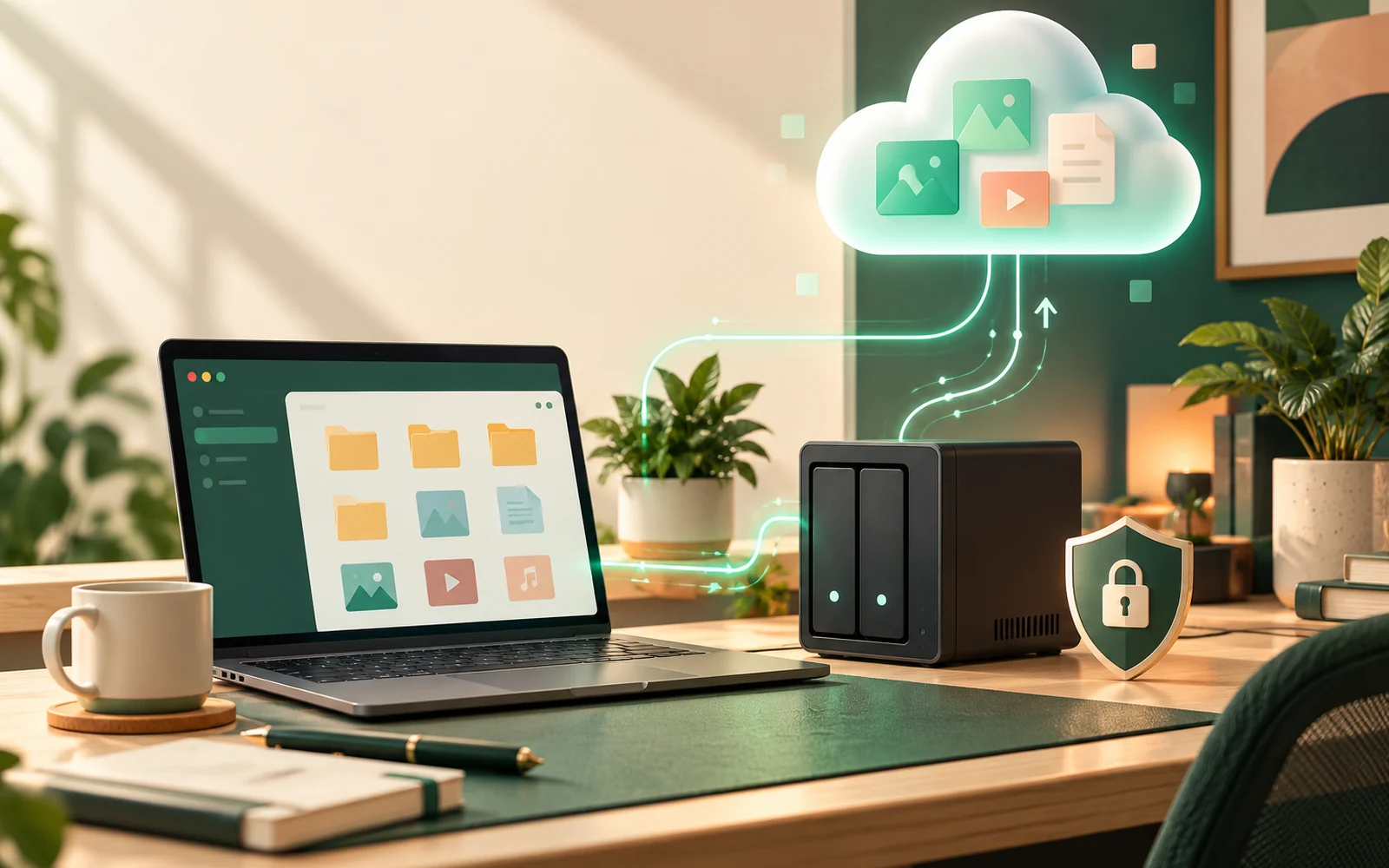
A laptop failure rarely arrives at a convenient time. It might happen the evening before a client delivery, after months of photographs have accumulated, or when the only copy of a project database lives on one computer. The natural response is to look for more storage. But storage capacity and data protection are not the same thing.
You can put files on a network-attached storage (NAS) device in your office, pay for cloud storage such as Google Drive or OneDrive, use a dedicated cloud backup service, or combine them. Each option solves a slightly different problem. NAS makes large local libraries accessible across your network. Cloud sync simplifies access and collaboration. Backup preserves recoverable copies when the working data is damaged, deleted, or unavailable.
This guide compares those choices from the perspective of someone who relies on a home office for real work. We will examine five-year cost, ownership, encryption, internet and power outages, speed, ransomware, collaboration, and the recovery plan you should have before anything fails. The goal is not to convince every reader to buy a NAS. It is to help you spend money on protection that actually addresses your risks.
Quick verdict: Choose cloud storage for straightforward document synchronization and collaboration. Consider NAS for several terabytes, fast local transfers, or shared storage across computers. For irreplaceable business files, add an independent, tested backup, ideally off-site, whichever option you choose.
The three jobs people confuse: storage, sync, and backup
Understanding these jobs makes the rest of the decision much easier.
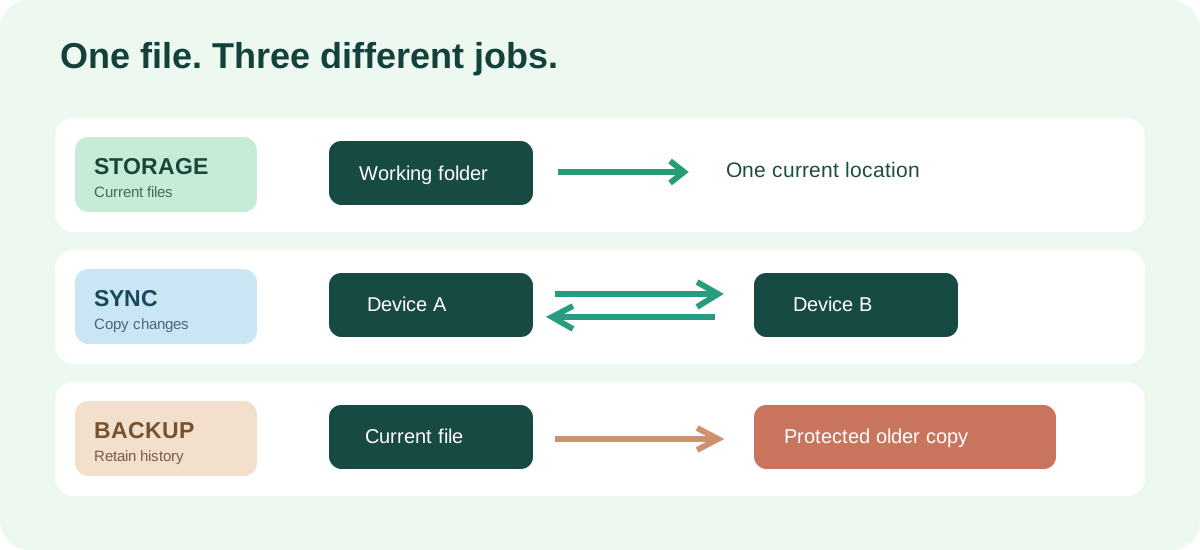
Storage is where your current files live. Your laptop SSD, a NAS shared folder, and a cloud drive can all serve this role. Synchronization copies or reflects changes so multiple devices see current versions. Backup deliberately retains recoverable copies according to a schedule and retention policy, ideally protected against changes to the originals.
Imagine a spreadsheet is accidentally overwritten with incorrect information. Sync works as designed when it sends the new, incorrect version to the other devices. A backup works as designed when it lets you recover the earlier spreadsheet. Some cloud sync platforms provide version histories and trash recovery, but those features have limits and should not be assumed to satisfy every backup need. For example, Microsoft describes a OneDrive restoration capability for eligible Microsoft 365 subscribers that can undo changes during the preceding 30 days; Google Drive's ordinary Trash also has a limited retention period. Microsoft recovery guidance and Google Drive recovery guidance explain those specific behaviors.
A fourth idea is availability: whether you can keep working after part of a system fails. Mirrored drives can improve NAS availability after one disk fails. That does not ensure recovery from deletion, malware, fire, or an administrator error. Do not buy redundancy and mistake it for a backup policy.
What a NAS actually does
A NAS is a small computer dedicated mainly to serving data over a network. It usually includes a processor, memory, an operating system, one or more drive bays, and an Ethernet connection. Depending on the model and software, it can host shared folders, individual user permissions, scheduled computer backups, media libraries, snapshots, and synchronization tools.
A practical example is a remote worker with a laptop, a desktop, and a second family computer. Instead of manually moving large folders among USB drives, each machine can save appropriate files or backups to a NAS on the local network. The NAS may be reachable without the public internet as long as the local network, devices, and power remain functional.
A two-bay NAS containing two 2 TB drives can be configured as a RAID 1 mirror. Both drives hold copies of the same logical data, producing roughly 2 TB of nominal storage capacity, before filesystem and operating-system overhead—not 4 TB. The mirror ordinarily keeps the array usable if one drive fails, provided the remaining drive and system still function. Replacing the failed drive then starts a rebuild, which takes time and introduces its own risk. Mirroring also means that an accidental deletion is reflected on both drives.
What NAS ownership asks of you
The purchase is the beginning, not the end. Somebody must install security updates, handle alerts, manage accounts and permissions, replace defective disks, maintain the UPS, check backup jobs, and occasionally practice a restore. Some NAS software makes this approachable; a custom-built server can provide more flexibility but usually demands more technical attention.
NAS also creates another device that needs to be secured. Leaving its web management panel or file-sharing ports open to the internet is not an acceptable substitute for a thoughtful remote-access setup. A suitable VPN or another carefully reviewed, authenticated remote-access method is generally safer than broad public exposure. CISA's internet exposure reduction guidance stresses patching, strong authentication, and minimizing unnecessary internet-facing services.
What cloud storage actually buys you
Cloud file storage relocates the server maintenance problem to a provider. You sign in, install an app or open a browser, and organize files into folders. Services such as Google Drive, OneDrive, and Dropbox are designed around access from different devices, sharing, and synchronization. Plans and features differ by geography, account type, and tier.
For a freelancer creating proposals, spreadsheets, presentations, or invoices, this is often the easiest workflow. A document can be updated from a desktop, reviewed on a laptop, and shared with a client through a restricted link. The provider handles hardware replacement, operating infrastructure, and much of the service's physical security.
But you still manage the things most closely tied to your own data: account recovery, multifactor authentication, sharing permissions, devices that synchronize files, and deciding what should be backed up independently. A cloud service can be operationally sophisticated while an incorrectly shared folder remains publicly accessible.
Cloud backup is a different product category. A backup destination such as Backblaze B2 stores objects that compatible backup software can upload and later restore. It does not automatically behave like a consumer shared-document drive. Conversely, a shared-document drive does not automatically provide the retention, independent credentials, and recovery controls you would expect from a dedicated backup setup. Compare the actual features, not just the word cloud on the pricing page.
NAS vs cloud storage: the decision at a glance
| Decision factor | NAS at home | Cloud file storage |
|---|---|---|
| Startup expense | Hardware, drives, often UPS | Usually small or none |
| Ongoing expense | Electricity, upkeep, replacement, backup | Subscription and possibly higher tiers |
| Local access to large files | Often strong over wired LAN | Best when files are cached or internet is fast |
| Working without internet | Usually possible on an operating local network | Depends on offline copies |
| Remote access | Requires an appropriate setup | Normally built in |
| Hardware responsibility | Yours | Provider's |
| Data-location control | Stronger physical control | Subject to service terms and options |
| Collaboration | Varies by NAS platform | Often a primary strength |
| Independent backup included | No, you must arrange it | Do not assume so |
| Best fit | Large local libraries and multi-PC backups | Documents, mobility, sharing and convenience |
A useful distinction is control versus convenience. NAS provides more control over the storage hardware and its configuration. Cloud provides a managed service that usually requires less day-to-day administration. Neither automatically guarantees privacy, safety, or lower cost.
The real five-year cost: an apples-to-apples warning
Subscription prices are easy to see. NAS ownership costs are less obvious because they arrive at different times. To illustrate the difference, consider one home office that wants around 2 TB of nominal storage capacity for five years. Prices are expressed in US dollars for a global comparison; local prices, tax, availability, electricity rates, and currency conversion will differ.
Example A: a mirrored two-bay NAS
The following are hypothetical hardware budget assumptions, not current retailer quotations. We include a modest UPS because an always-on NAS benefits from orderly shutdown during short power interruptions.
| NAS expense | Assumed amount |
|---|---|
| Two-bay NAS enclosure | $250.00 |
| Two 2 TB compatible hard drives | $160.00 |
| UPS | $100.00 |
| Electricity over five years | $131.40 |
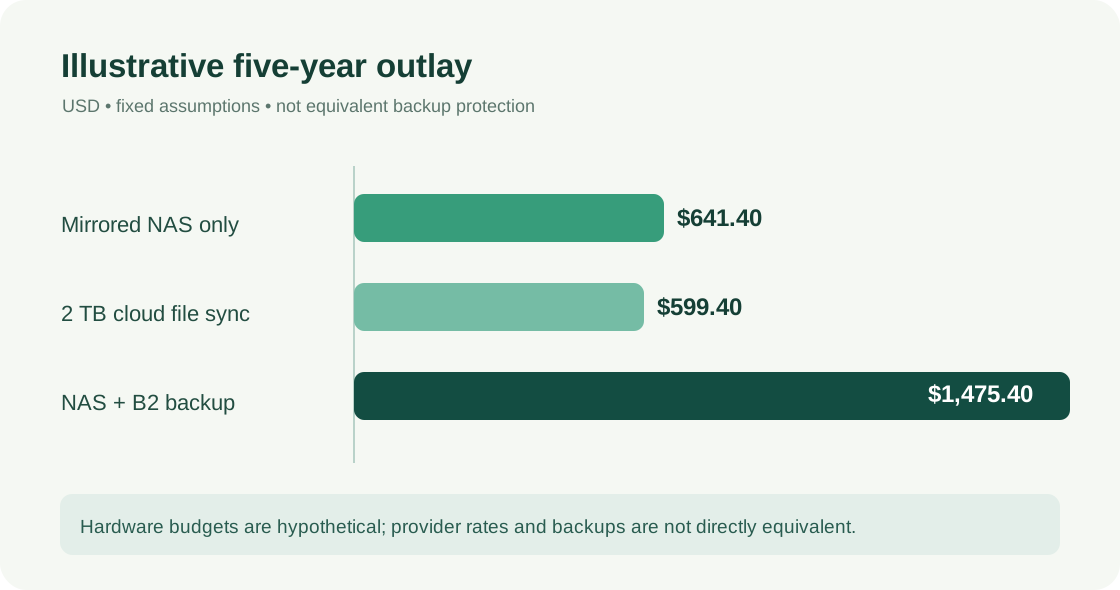
| Five-year illustrative total | $641.40 |
For power, assume an average draw of 15 W, operation 24 hours per day for 365 days a year, and a tariff of $0.20/kWh. The calculation is 0.015 kW × 24 × 365 × 5 × $0.20 = $131.40. Actual draw varies with workload, hard disks, device model, and standby behavior. As one manufacturer reference point rather than a universal estimate, Synology lists 16.31 W during access for the DS223j under its stated test conditions. See the DS223j specifications.
That $641.40 does not include an independent off-site backup. It also omits taxes, maintenance labor, drive failures, replacements, future capacity upgrades, and the possibility that the NAS or UPS needs replacement during the period. Some NAS software features may depend on the model or license. The usable capacity is lower than the two drives' combined raw capacity because the mirror retains a second copy and filesystems have overhead.
Example B: a 2 TB cloud file-storage plan
At the time this article's source prices were checked, the US Google One pricing page displayed a 2 TB Google AI Plus plan for $9.99 per month. At a constant monthly price over 60 months, that would cost $599.40. This is an example of consumer cloud file storage, not a backup service with the same capabilities as a versioned NAS-to-cloud backup system. The published price and plan branding can change; other regions may have different terms.
What this comparison actually tells us: On these assumptions, cloud file storage and a basic mirrored NAS have similar five-year cash costs. It does not prove they provide equivalent capacity after overhead, equivalent backup protection, identical collaboration features, or identical recovery speed.
Example C: the NAS plus a separate off-site backup
If you protect a NAS by sending a constant 2 TB to an independent cloud backup destination, the calculation changes. Backblaze B2 displayed starting storage pricing of $6.95 per TB per month when checked. At exactly 2 TB billed every month for 60 months, the illustrative storage charge is $834.00. Add the $641.40 NAS model and the resulting five-year example becomes $1,475.40.
Do not treat $1,475.40 as a quote. Backup versions and growth may increase billable stored data. Taxes and provider-specific conditions may apply; applications may incur separate licensing or transfer-related costs. Also, a properly configured off-site backup adds protection that the earlier NAS-only and sync-only scenarios did not include. Comparing those totals without acknowledging the difference in recoverability would be misleading.
| Five-year approach | Example cost | Critical qualification |
|---|---|---|
| Mirrored NAS only | $641.40 | No independent backup included |
| 2 TB cloud file-storage subscription | $599.40 | Sync plan, not a guaranteed independent backup |
| Mirrored NAS + 2 TB B2 backup storage | $1,475.40 | Backup retention, growth, and other costs excluded |
When can a NAS become cheaper?
A NAS starts to look financially attractive when multiple computers share the same capacity, local large-file traffic is substantial, or you need several terabytes that would demand higher cloud tiers. It may also be economical when you already own suitable hardware, can operate it efficiently, and keep it in service for many years.
However, compare the cost of meeting the same requirements. If cloud collaboration is essential, a NAS may not remove your subscription. If off-site disaster recovery is essential, the NAS needs a backup destination. If your home-office billable time is valuable, maintenance hours and recovery delays can outweigh the subscription difference. A decision based on cost alone is frequently incomplete.
Privacy: who can access the data and the keys?
The phrase my files are local feels reassuring, and there is a real benefit to keeping a NAS within your own network. You control the physical devices, local users, data-sharing rules, and whether specific services connect to the internet. But local ownership does not provide security automatically. An unpatched NAS, stolen administrator password, or infected laptop can expose the same sensitive folders you intended to keep private.
With cloud storage, encryption is common, but the important question is who controls the decryption keys. In a typical provider-managed arrangement, files may be encrypted in transit and at rest while the provider manages relevant encryption systems. In contrast, with correctly implemented client-side encryption, data is encrypted before upload and the service does not receive the keys needed to decrypt that encrypted layer. Google describes that distinction in its client-side encryption documentation.
Client-side encryption involves trade-offs. Web previews, server-side search, automated collaboration, and password recovery may work differently or be unavailable. You must also protect your keys: losing the only usable decryption key can mean permanently losing access to your data. For businesses with sensitive customer information, evaluate contractual obligations, retention rules, and permitted storage regions instead of relying on generic promises of privacy.
A practical privacy checklist
- Identify the folders that contain confidential contracts, customer information, source code, passwords, or financial records.
- Use individual accounts and the minimum folder permissions needed; avoid sharing one administrator account with everyone.
- Enable multifactor authentication wherever supported, particularly for remote access and cloud sign-in.
- Check whether storage and backups are encrypted, and document who controls and can recover the keys.
- Review file-sharing links and external collaborators periodically.
- Protect every synchronized computer: compromised endpoints can defeat strong storage-side controls.
The better privacy option is the configuration that realistically meets your needs and that you can keep secure—not simply the one whose hard drives you physically own.
Ransomware, accidental deletion, and the limits of RAID
Consider four failure events: a disk fails, a user deletes the wrong folder, a computer encrypts shared files, and the building suffers a fire. Different protective features address different events.
RAID mirroring can help with a single-drive failure but normally mirrors deletions and corrupted writes as well. Snapshots can preserve point-in-time filesystem states on supported systems; they can be valuable against accidents, though they may remain vulnerable if attackers gain enough administrative access or the entire device is destroyed. Version history may recover earlier file versions but is subject to service-specific retention and access rules. Off-site backups reduce dependence on a single physical location. Offline or immutable backups add protection against an attacker modifying or deleting all accessible copies.
The US Cybersecurity and Infrastructure Security Agency recommends maintaining offline, encrypted backups and testing them regularly, noting that ransomware often tries to delete accessible backups. See the CISA ransomware guidance. The point is not that every small home office needs enterprise infrastructure; it is that an attacker should not be able to destroy the working files and every recovery copy with the same account.
| Failure | NAS mirror | Cloud sync | Independent versioned backup |
|---|---|---|---|
| One NAS drive fails | Can maintain access | Not relevant to local disks | Can restore if necessary |
| Accidental deletion | Usually replicated | May synchronize deletion | Previous copy may be recoverable |
| Ransomware encrypts accessible files | Not sufficient alone | May sync encrypted files | Can recover clean retained versions |
| Theft or fire at the office | Not sufficient | Cloud-held files can remain | Off-site copy can remain |
| Cloud account locked or unavailable | Local NAS may continue working | Cloud access may fail | Separate protected copy helps |
The table describes general behavior, not guarantees. The real outcome depends on configuration, account security, retention policies, available credentials, and whether recovery has been tested.
Build a practical 3-2-1 backup plan
The traditional 3-2-1 rule calls for three copies of important data, on two storage media or systems, with at least one copy off-site. Modern approaches also emphasize immutability, offline isolation, and restore verification. For a modest home office, the principle can be implemented without an elaborate rack server.
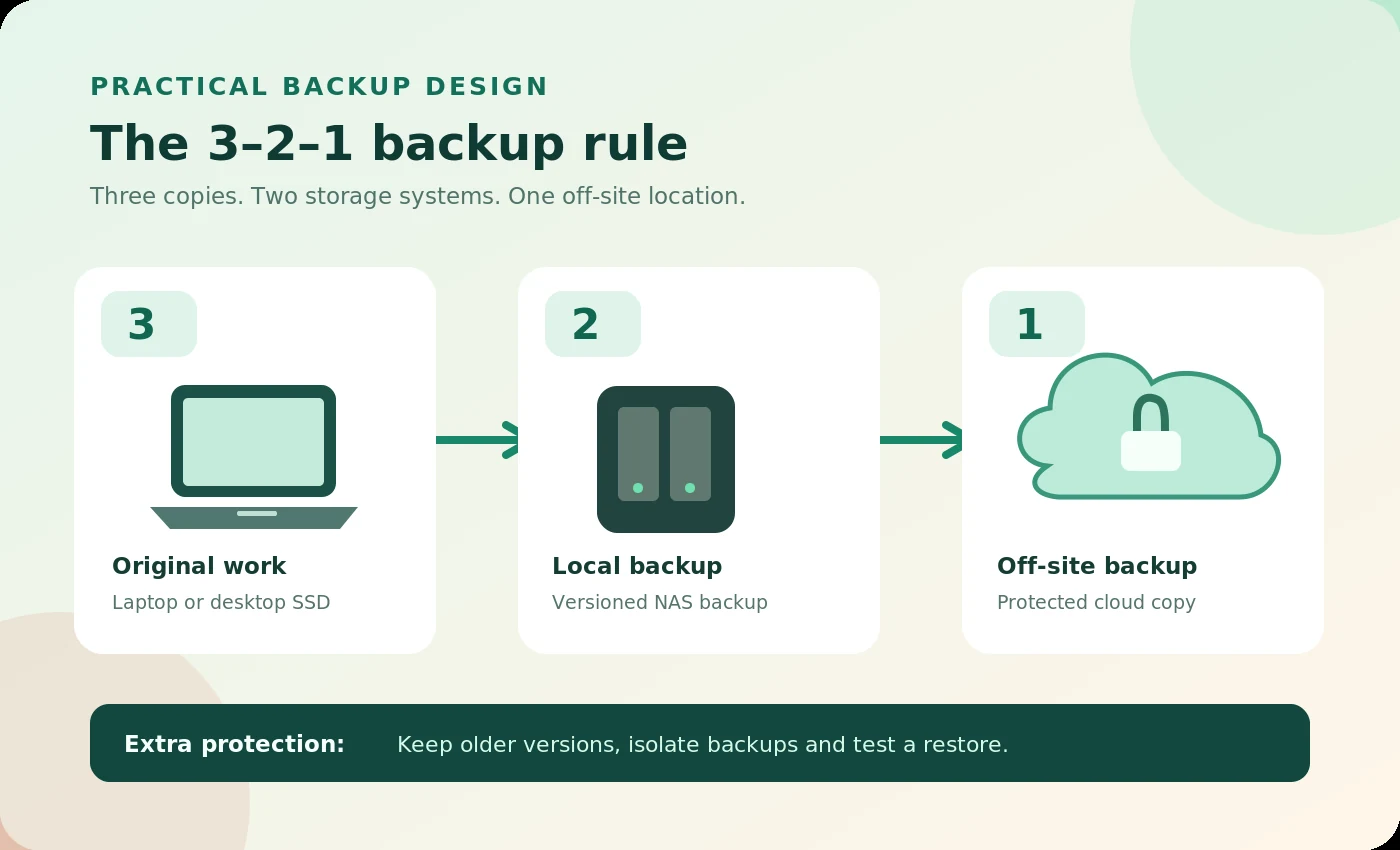
Example: Keep active projects on a desktop SSD. Run scheduled, versioned backups to a NAS over your local network. Send encrypted backups to a separate off-site destination using credentials that are not freely available to every everyday computer. If a NAS is unnecessary, the local backup can be an external drive that is disconnected and stored safely between backup sessions.
[See the illustrated backup architecture below.]
Choose recovery objectives before choosing hardware
Your recovery point objective (RPO) is the amount of recent work you can tolerate losing. If losing a full day of work is unacceptable, daily backups alone may not meet your objective. Your recovery time objective (RTO) is how soon the files or system must be usable again. A person whose income depends on a workstation may need a same-day recovery plan; a family photo archive may accept a slower restore.
A straightforward policy could be frequent local versioned backups of active work, daily off-site backup uploads, and longer retention for completed projects. But a frequency is useful only if the destination has enough capacity, the job succeeds, and the versions remain retrievable. Retention should reflect business and legal needs, not a random number selected by an app.
A small restore drill you can actually do
- Create a test folder containing a document, photograph, and small archive file; confirm they are included in backup selections.
- Edit one document, then wait for the configured backup and versioning cycle to finish.
- Restore the older document version to a separate folder without overwriting the current copy.
- Pretend the primary machine is lost and restore the test folder onto another machine or a clean location.
- Confirm the files open correctly, note how long retrieval took, and record the steps and recovery credentials securely.
Repeat periodically and after major changes to the backup software. The most reassuring backup dashboard in the world is less persuasive than a successful restore.
Local-network speed versus internet speed
Fast transfers are an excellent reason to consider NAS, especially for RAW photos, video, large archives, virtual-machine images, and system backups. A 1 Gigabit Ethernet link has a theoretical ceiling of 125 MB/s before protocol overhead. Actual speed depends on disk performance, processor capability, SMB or other protocols, network congestion, client hardware, and access patterns. A faster 2.5 GbE or 10 GbE setup helps only when the other components can keep up.
Cloud performance depends on available upload and download bandwidth, any provider limits, local caching, and network reliability. If your cloud documents are mirrored on the laptop SSD, reading the local copy can feel instant. If a 200 GB folder is cloud-only, opening it after a reinstall can be a very different experience.
How long might 2 TB take to move?
Using decimal units and assuming a continuously sustained transfer rate with no overhead: uploading 2 TB at 20 Mbps takes approximately 9.3 days. Downloading 2 TB at 100 Mbps takes approximately 44.4 hours. These are mathematical lower-bound examples, not measured performance or provider guarantees. Protocol overhead, connection interruptions, throttling, file counts, and bandwidth shared with other users increase real completion time.
This is why an initial cloud migration can be painful on a slow upload link even when normal daily synchronization is comfortable later. Small incremental changes may need only minutes, while a full disaster restore could still take days. For high-volume work, consider both your upload speed and the time it would take to recover everything after a failure.
What changes when the internet or power fails?
A locally reachable NAS can keep serving files during an internet outage if the router or switch and the computers still have power. Cloud-only files ordinarily cannot be fetched without connectivity, although selected files marked for offline use or cached on the device may remain accessible. Shared cloud collaboration will also be limited until service returns.
Power failures expose a different weakness. Your NAS, switch, router, and desktops may all stop without electricity. A UPS can bridge a short interruption and, when compatible and configured, instruct the NAS to shut down cleanly. It is not an indefinite power source, a guarantee against corruption, or a replacement for backup. In regions with frequent outages, include power reliability in the plan rather than looking solely at storage subscription prices.
Collaboration, version control, and who actually uses the files
For distributed teams, cloud collaboration often wins on day-to-day simplicity. Office documents can be shared through restricted links, edited by authorized colleagues, and accessed from personal or work devices without setting up your own remote-access infrastructure. A NAS can support multi-user permissions and some collaboration applications, but experiences differ substantially among products.
Developers have another useful distinction: source-code version control is not a complete workstation backup. A Git repository is excellent for tracking committed code history and collaboration. It does not necessarily contain your uncommitted changes, local databases, credentials, large test assets, virtual machines, or workstation settings. Keep secrets out of Git, maintain a remote repository for appropriate code, and separately back up the other things needed to rebuild the working environment.
Five real home-office scenarios
1. One laptop, documents, and occasional remote work
If you mostly handle email attachments, PDFs, spreadsheets, and relatively small client files, start with cloud storage and an independent backup for irreplaceable data. You are buying convenient access, not maximizing raw terabytes. An expensive always-on NAS is unlikely to improve everyday productivity unless you have another requirement.
2. Developer with a desktop, laptop, and local databases
A NAS can centralize machine backups, installers, database exports, and project archives. Keep active source code on fast local storage if network latency affects your development tools, and use Git for version control. Back up local databases and uncommitted work separately; encrypt any client-sensitive off-site copies.
3. Photographer, designer, or video editor
Large media libraries can benefit from centralized capacity and fast wired access. Do not assume an entry-level NAS can edit high-bitrate video smoothly over a slow network. Test the required throughput and use local SSD scratch space where appropriate. Off-site protection is especially important because client masters and original photographs may be impossible to recreate.
4. Small team in different locations
A business cloud collaboration platform often makes more sense than asking every colleague to connect to a NAS in someone's home. Look at access management, offboarding, sharing controls, version history, and independent backup options before buying more storage capacity. The cost of administration may exceed the price difference between systems.
5. Privacy-focused user with unreliable connectivity
NAS can reduce daily reliance on remote storage and keep selected files on your local network. Configure accounts and permissions carefully, keep management interfaces private, update the system, and encrypt independent backups. You still need an off-site copy for theft or disaster, and remote availability is limited by the home internet connection.
Choosing a NAS without wasting money
Start by measuring your current data. A system containing 350 GB of files does not necessarily need 16 TB of drives. On the other hand, two mirrored 2 TB disks may be inadequate if your photography archive grows by 1 TB each year. Forecast useful capacity rather than adding raw disk sizes.
Check the enclosure's supported drive sizes, compatible media, memory, network speed, and operating-system support. Verify backup software support for your intended destination and whether snapshots are available on the filesystem and model you plan to use. Confirm the device continues receiving security updates and that you can obtain replacement drives where you live.
Remember the surrounding costs: a quiet location with ventilation, suitable power protection, network cabling or a switch, and time spent maintaining the system. If you want faster-than-Gigabit performance, both the NAS and the connected computer may need matching network interfaces and cabling. Buying a nominally fast NAS while leaving every path on a slower link may provide no practical benefit.
Common mistakes to avoid
Mistake 1: Counting mirrored disks as two independent backups. They are members of one storage system and commonly reflect the same changes. Keep separate recoverable versions elsewhere.
Mistake 2: Assuming cloud synchronization cannot lose data. Synchronization may copy mistakes and malicious changes. Read retention and version-history rules, and keep independent backups for important files.
Mistake 3: Comparing a NAS without backup against a fully protected cloud design. Match the recovery standard first, then compare total cost.
Mistake 4: Ignoring upload speed. Two terabytes may take many days to seed at slow residential upload speeds. Test realistic transfer rates before moving everything.
Mistake 5: Exposing NAS sharing services directly to the internet. Treat remote access as a security design problem. Minimize exposure, require strong authentication, and update firmware.
Mistake 6: Failing to protect the backup credentials. If the everyday compromised account can delete both originals and every backup version, nominally separate storage may not be meaningfully independent.
Mistake 7: Buying too much infrastructure too early. External drives and well-configured cloud services can be entirely reasonable for smaller workloads. A NAS should solve a need, not become another project to maintain.
A 15-minute decision worksheet
Ask yourself the following questions before making a purchase:
- Capacity: How many gigabytes do I actually use today, and how quickly is it growing?
- File type: Are these small collaborative documents or multi-gigabyte media and backup images?
- Access: Do I need files mainly at home, across devices, or with remote colleagues?
- Security: Are there client contracts, confidentiality requirements, or data-location restrictions?
- Connectivity: What are my real sustained upload and download speeds, and how reliable is electricity?
- Recovery: What is the longest acceptable downtime, and how many hours of lost work can I tolerate?
- Maintenance: Am I willing to monitor a NAS, replace disks, apply updates, and troubleshoot restores?
- Budget: Have I counted backup destinations, electricity, power protection, hardware refreshes, and admin time?
If most answers point to modest data, remote collaboration, and low maintenance, start cloud-first. If they point to large local files, several devices, and a desire for physical control, evaluate NAS. If they point to irreplaceable data, plan an independent backup regardless of the first choice.
Frequently asked questions
Can a NAS replace Google Drive or OneDrive?
It can replace many file-hosting and local-sharing tasks, and some NAS platforms offer synchronization and browser access. But collaborative editing, external sharing, mobile experience, and app integration may not work the same way. Decide which functions you use before cancelling cloud subscriptions.
Is RAID 1 enough for a home-office backup?
No. RAID 1 ordinarily improves the chance of continued access after one disk fails. It does not independently recover deleted files, protect against a stolen device, or guarantee recovery from ransomware or fire.
Can I use Backblaze Computer Backup to back up a NAS?
Not as a network-mounted NAS drive under its ordinary Computer Backup product. Backblaze documents that exclusion and identifies Backblaze B2 as a separate service compatible with supported NAS backup tools. See Backblaze's NAS documentation.
Are cloud files encrypted?
Major providers commonly use encryption in transit and at rest, but that does not mean every plan is end-to-end encrypted with keys controlled only by you. Review the provider's actual encryption model and use client-side encryption when your requirements justify the additional key-management responsibility.
Will a NAS still work if the internet goes down?
Usually, local file access can continue when your LAN and equipment remain powered and functioning. Features that depend on vendor relay services, online accounts, external DNS, or remote users may be affected. Test your own configuration before relying on it during an outage.
What if I have only one computer?
An external drive with automated versioned backups, plus an independent off-site copy, may be simpler and less expensive than a NAS. You need the recovery outcome, not necessarily a dedicated network appliance.
How often should I test a backup restore?
There is no universal interval. Test after significant configuration changes and on a recurring schedule appropriate to the importance and rate of change of your data. At minimum, establish that you can restore both an earlier file version and an entire essential folder to a separate location.
Final verdict: choose a recovery plan, not just a storage box
For a small home office, cloud file storage is generally the easiest starting point for shared documents and work across devices. For a workstation handling large files or backing up several computers, NAS can be an excellent local storage component. For highly valuable files, an independent, tested backup is essential whether the working copies live on NAS or cloud.
Our preference is a pragmatic hybrid where the need supports it: local files or NAS for speed, cloud collaboration for the work that genuinely needs it, and versioned off-site backups for recovery after a serious incident. But do not build a complex setup just because it is technically possible. The most effective system is one you understand, can afford, and can restore from.
Before buying anything, imagine losing your main computer tomorrow. Then imagine losing the office itself. Finally, imagine discovering that an important folder was deleted three weeks ago. If your proposed system can recover from those events within your time and budget limits, you have made a defensible storage decision.
Sources and further reading
- Synology — How can I back up my Synology NAS? — backup principles and available tools.
- Synology — DS223j specifications — manufacturer-published power consumption reference.
- CISA — #StopRansomware guidance — isolated backups and ransomware preparedness.
- CISA — Internet exposure reduction — minimizing exposed services and strengthening authentication.
- Microsoft — Restore your OneDrive — capabilities and limits of OneDrive recovery.
- Google Drive — Recover a deleted file — Trash retention behavior.
- Google Cloud — Client-side encryption keys — key custody and encryption model.
- Google One — US plan pricing — 2 TB subscription reference.
- Backblaze — B2 pricing — backup object-storage price reference.
- Backblaze — NAS backup compatibility — B2 versus Computer Backup eligibility.
Editorial disclosure: This guide is independently written for educational purposes and has not been based on hands-on benchmark testing of the devices discussed. Hardware purchase amounts and transfer scenarios are clearly labeled estimates. Source pricing was checked on October 27, 2026, and may change. No affiliate relationship or commission is claimed in this article; any future paid links must be approved, clearly disclosed, and appropriately labeled.
Author: Shuja Haider. This is an original independent editorial guide, not a hands-on product review. Numerical examples are labeled as estimates; check prices, compatibility, and terms before purchasing. This article was reviewed before publication.