

A home lab does not have to look like a server room. It might be a small computer running Home Assistant and a few Docker containers, a machine hosting several virtual servers, or a workstation that experiments with local AI and stores family backups. The right hardware depends less on what looks professional and more on what you intend to run, how long it will stay on, and how far you expect to expand.
That is why the mini PC vs desktop decision is more complicated than a comparison of size or processor speed. A compact mini PC can be ideal for a quiet, always-on lab. A conventional desktop tower can accommodate more storage, memory, expansion cards, and graphics hardware. There are also useful compromises: small-form-factor desktops, used business PCs, and a mini PC paired with separate network storage.
This guide compares both approaches without pretending that one form factor wins every category. It explains the bottlenecks worth checking, provides transparent electricity calculations, and offers practical starter configurations. No performance measurements or hands-on testing are claimed here; recommendations are based on documented requirements and hardware design considerations.
The short answer
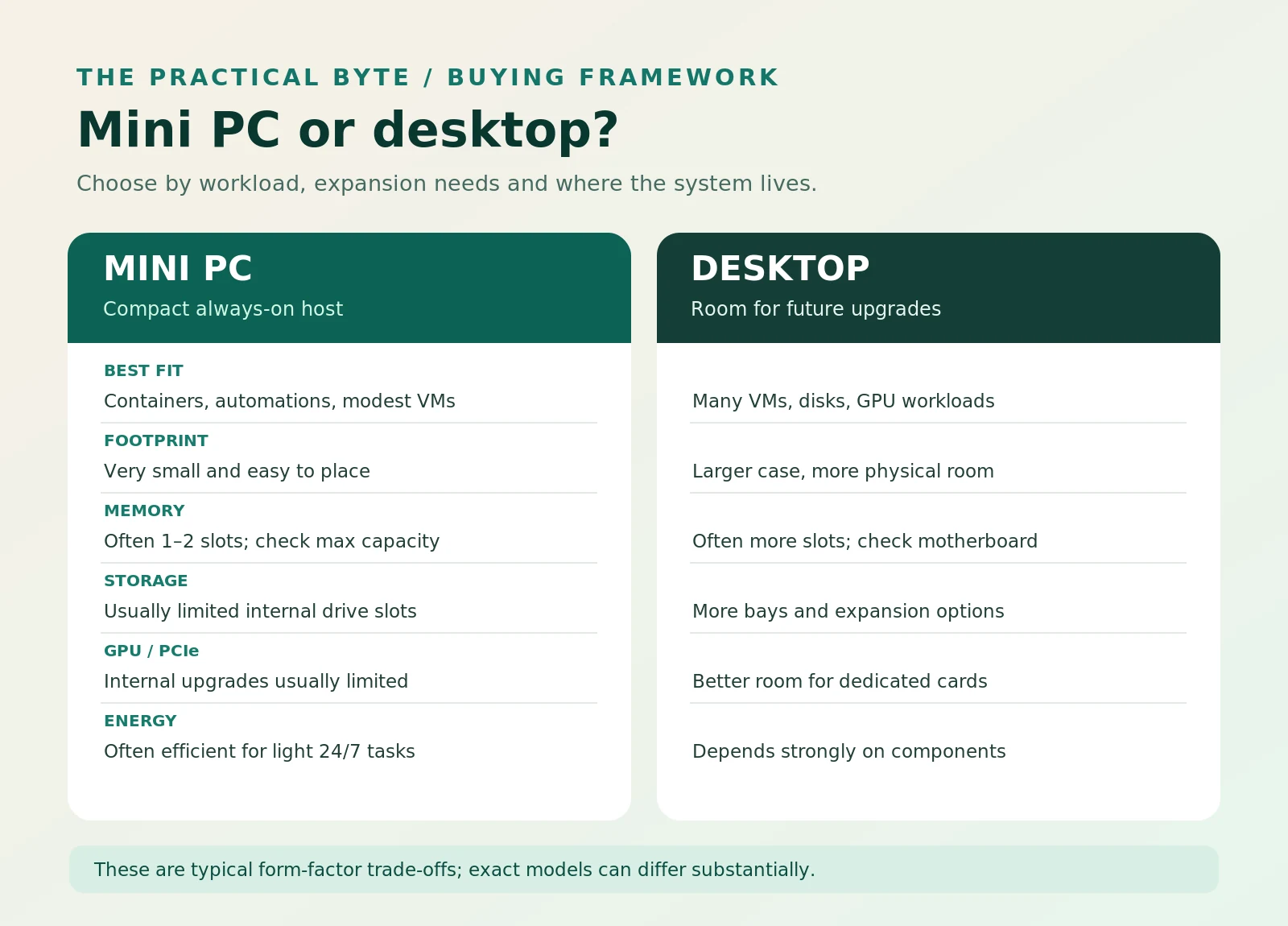
Choose a mini PC when you want a compact, generally low-power host for Docker, Home Assistant, lightweight services, a small number of VMs, and experimentation that can run quietly near a desk. Prioritize upgradeable RAM, sufficient SSD slots, wired networking, and good firmware support.
Choose a desktop when you expect many concurrent VMs, several internal hard drives, a dedicated GPU, high-speed networking cards, or continuous hardware changes. Its larger chassis and standardized parts often make upgrades and repairs easier, although individual models vary.
Keep or repurpose an existing machine first if you are still exploring your needs. A used desktop or an older laptop can teach you a great deal before you commit to a new purchase.
The essential question is: What is the first resource your intended workload will run out of—memory, storage bays, CPU, GPU, network bandwidth, or physical space?
At a glance: mini PC vs desktop
| Decision factor | Mini PC | Desktop tower |
|---|---|---|
| Desk and shelf space | Usually excellent | Requires more room |
| Light 24/7 workloads | Often well suited | Capable, but may carry more idle overhead |
| CPU choice | Mobile, embedded, and some desktop-class options | Wide range of replaceable desktop CPUs, depending on platform |
| RAM expansion | Frequently one or two SO-DIMM slots; sometimes soldered | Often more DIMM slots and higher practical capacity |
| Internal storage | Usually one or two SSDs, with exceptions | More room for SATA drives, NVMe drives, and storage cards |
| Dedicated GPU | Usually limited or impossible internally | Much easier if the case, PSU, and motherboard allow it |
| Networking upgrades | Built-in ports and sometimes USB/Thunderbolt adapters | Built-in ports plus PCIe network cards |
| Noise | Can be nearly silent at idle; tiny fans may become audible under load | Larger fans can run slowly, but some towers are noisy |
| Repairs | Proprietary components can complicate service | Standard components are often easier to replace |
| Travel or relocation | Easy to move | Less portable |
These are common design tendencies, not rules. A high-end mini workstation may outperform an entry-level desktop; a compact tower may have fewer expansion options than expected. Always compare the exact specifications of the candidates.
What counts as a home lab?
A home lab is a personal environment for learning, testing, or running technology services. It can be an educational sandbox or a genuinely useful part of a household network. Common projects include a private Git service, a small web server, DNS filtering, a VPN, home automation, network monitoring, file sharing, and virtualization.
Your choice of hardware becomes easier once you separate three workload types.
Lightweight, always-on services
A DNS service, monitoring agent, small website, or Home Assistant installation may need modest processor resources. The important qualities are stability, low noise, predictable power use, and support for your chosen operating system. Home Assistant itself identifies mini PCs and virtual machines as viable ways to run its platform [6].
Virtualization and learning labs
A virtualization host may run several independent operating systems. Each VM needs memory, storage, and an allowance of CPU time. You can often overcommit CPU resources for lightly used lab VMs, but memory pressure quickly becomes disruptive when all guests are active. Proxmox recommends memory for the host in addition to the memory allocated to guests [1].
Storage, media, and compute-heavy projects
A NAS needs reliable disk connectivity and enough drive positions for its intended layout. A media server may benefit from supported hardware video transcoding. Local AI experiments can require a GPU with substantial memory. These workloads may shift the recommendation toward a desktop or a two-machine setup, even if a mini PC is sufficient for the lighter services.
What is a mini PC, exactly?
A mini PC is a small general-purpose computer, often built around a mobile or low-power processor. Many provide laptop-style memory modules, internal M.2 SSD slots, Ethernet, USB, display outputs, and a compact external power supply. Some are sold barebones without RAM, storage, or an operating system; others are ready to use immediately.
The category spans a wide performance range. For example, Intel lists the Processor N100 with four cores, four threads, a 6 W processor TDP, and an official maximum memory capacity of 16 GB [3]. It is a sensible illustration of an efficient, modest host—but the 6 W TDP is not the electricity consumption of an entire mini PC. Nor should an N100 system be compared directly with a high-end mobile-processor mini workstation simply because both fit in a small box.
A stronger mini PC with more cores and expandable memory can host significantly more workloads. What matters is not the label “mini,” but the installed CPU, RAM ceiling, available storage, cooling, networking, and vendor support.
Where mini PCs become frustrating
Some use soldered memory, unusual fans, proprietary power supplies, or tightly packed components. Two M.2 slots may sound sufficient until you want a dedicated boot disk, mirrored storage, and a third drive for experiments. If you plan to add a 10GbE card or a high-power GPU later, a typical mini PC can become a dead end.
What does a desktop offer that a mini PC cannot?
A desktop tower is built around a larger case and motherboard. Many use replaceable CPUs, DIMM slots, PCI Express expansion slots, multiple SATA ports, and standard power supplies. Those features matter when your home lab changes from a weekend experiment into a collection of durable services.
For perspective, AMD lists the Ryzen 5 9600X desktop processor as a six-core, 12-thread model with a 65 W default TDP [4]. That processor is only one option among many, and its TDP is likewise not a measurement of the complete tower's wall power. The point is configurability: a compatible desktop platform can support different cooling, memory, expansion, and sometimes CPU upgrades over time.
A desktop is not automatically a better server. Office-oriented small desktops may use proprietary power connectors, low-capacity power supplies, or cases that cannot fit long expansion cards. A “gaming” tower may waste your budget on graphics hardware you will never use. The right desktop is the one with the bays, slots, power budget, and operating characteristics you actually require.
CPU performance: cores are useful, but context matters
Light services rarely keep a modern processor busy continuously. For a single DNS filter, a small web app, and a few containers, memory and storage responsiveness may matter more than high peak CPU speed.
Virtual machines and build servers change the picture. Parallel compilation, software testing, databases, and several active guest operating systems can use more cores and sustained CPU capacity. A desktop may deliver stronger sustained performance because its cooling and power budget allow a wider range of processors. Yet some premium mini PCs are extremely capable; compare actual processor models, not only enclosure size.
When evaluating a CPU, check four things: core and thread count, sustained performance under your workload, virtualization features, and software compatibility. Hardware-assisted virtualization should be supported and enabled in firmware for typical x86 virtualization. Proxmox lists Intel VT or AMD-V support for x86 full virtualization; PCIe passthrough needs appropriate IOMMU capabilities such as VT-d or AMD-Vi [1].
RAM: often the first real limit
Memory is one of the most consequential hardware decisions in a home lab. A container shares its host kernel, while a full VM has its own guest operating system and memory allocation. Different workloads can also produce very different caching and database demands.
A practical planning exercise is to write down a sample memory budget:
| Component | Illustrative allocation |
|---|---|
| Hypervisor and background services | 2–4 GB |
| Linux VM for application experiments | 4 GB |
| Windows test VM | 8 GB |
| Small database / development VM | 4 GB |
| Filesystem cache and breathing room | 4–8 GB |
| Illustrative total | 22–30 GB |
This table is a planning example, not a universal requirement or benchmark. Your services may need far less or much more, and host memory use will vary. Microsoft lists a 4 GB minimum for a Windows 11 VM, but a development VM with an IDE or database may need substantially more [5].
For a modest starter lab, 16 GB can be workable if services are light. 32 GB provides significantly more breathing room for mixed containers and several small VMs. 64 GB or more is attractive for heavier virtualization, large data workloads, or frequent parallel experiments. These are editorial sizing guidelines, not official platform minimums.
Before buying a mini PC, find its actual memory slot count, maximum supported capacity, and whether the RAM is soldered. The CPU's official memory limit and the vendor's tested system configurations are both relevant. For a desktop, confirm the motherboard's slots and documented compatibility rather than assuming a high ceiling merely because the case is large.
Storage: SSD speed is not the same as a storage plan
For container images, boot drives, virtual machine disks, and small databases, SSD responsiveness makes a noticeable difference. NVMe storage is attractive when a system offers suitable M.2 slots, but you also need to consider capacity, endurance, replacement access, and backup strategy.
Mini PCs commonly favor one or two SSDs. That works for a compact virtualization server, especially when backups live elsewhere. It becomes less convenient for several 3.5-inch hard drives, dedicated mirrors, or an expandable NAS.
Desktops generally offer more physical space for drives and often more cabling and expansion options. Verify actual internal bays, available SATA ports, motherboard M.2 slots, and whether the power supply has the right connectors. Some sleek desktops cannot accommodate multiple large drives despite their size.
What if you want to use TrueNAS?
TrueNAS documentation lists 8 GB of RAM as a baseline and describes a separate boot device plus storage devices for a pool [2]. Its guidance also emphasizes the benefits of direct access to storage hardware for reliable filesystem operation. That favors purpose-built storage arrangements and careful disk connectivity, not a casually attached collection of USB drives.
It is possible to run storage services on a mini PC, but ask what happens when a drive fails. Can you identify and replace it safely? Can you build the redundancy layout you need? Will external storage be reliable during an outage? For a multi-drive NAS, a desktop or dedicated NAS enclosure is often easier to manage.
Important: Disk mirroring or RAID improves availability in certain failure scenarios; it does not replace independent backups. A deleted folder, ransomware event, or damaged building can affect redundant disks together.
GPU expansion: the clearest desktop advantage
A typical mini PC relies on integrated graphics and cannot accept a conventional, power-hungry desktop graphics card internally. Some specialized small computers support external GPU connections or unusually powerful integrated graphics, but those designs require careful compatibility and cost checks.
A desktop tower with a suitable motherboard, PCIe slot, case clearance, ventilation, and power supply is usually the more flexible option for a dedicated GPU. That matters for GPU-accelerated software, certain media workflows, computer vision, 3D work, and local AI.
For local AI, do not judge a machine solely by processor cores. Model size, runtime, supported acceleration frameworks, memory bandwidth, and available GPU memory can change what is practical. NVIDIA's developer guidance explicitly differentiates local AI systems by GPU or unified-memory capacity, form factor, and model workload [8].
If your eventual goal is running larger local models, decide whether the GPU is a serious future requirement before investing in a tightly integrated mini PC. A low-cost mini host can still be excellent for the surrounding services, but it may not be your primary AI compute machine.
Networking: ports matter more than marketing labels
Most home labs work best with a wired connection to the network switch or router. Wi-Fi is useful for administration or occasional connectivity, but servers generally benefit from stable Ethernet links.
Check whether the system has one or more Ethernet ports, their supported link rates, and whether the network controller is well supported by your operating system. A 1GbE connection is adequate for many small services. 2.5GbE can be worthwhile for moving large VM backups or files to compatible storage. 10GbE becomes relevant for more demanding transfers, but it adds switch, adapter, cabling, and power considerations.
A desktop can often accept a PCIe NIC later. A mini PC may have dual 2.5GbE built in, but if it only has one port, adding another through USB or an external interface may be less elegant. For firewall and router experiments, the port count and driver compatibility matter as much as link speed.
Electricity costs: calculate rather than guess
A machine that runs continuously consumes electricity even when no one is using it. It is tempting to compare CPU TDP figures, but TDP is not whole-system power draw. Storage devices, memory, fans, motherboard components, networking, display outputs, idle-state support, and firmware settings all affect consumption at the wall.
For comparing candidates, use verified whole-system measurements for the exact configuration when possible, or measure with a plug-in energy meter. If no measurements exist, model a range instead of claiming a specific device uses a particular wattage.
The formula is simple:
Annual energy (kWh) = average wall power (watts) × hours per day × 365 ÷ 1,000.
For an always-on home lab, hours per day = 24. Here is a deliberately hypothetical comparison:
| Hypothetical average wall draw | Energy per day | Energy per year |
|---|---|---|
| 15 W | 0.36 kWh | 131.4 kWh |
| 35 W | 0.84 kWh | 306.6 kWh |
| 65 W | 1.56 kWh | 569.4 kWh |
These numbers are calculated examples, not measured mini PC or desktop results. The difference between an average 15 W machine and an average 65 W machine is 438 kWh per year. Multiply that by your actual electricity price per kWh, including the relevant pricing components, to estimate operating-cost differences. For a machine running eight hours per day rather than 24, use eight in the formula.
Neither form factor guarantees a particular draw. A carefully configured desktop can idle efficiently; a powerful mini PC pushed constantly to high utilization can use substantially more energy than a basic low-power server. Extra hard drives and a dedicated GPU can increase whole-system power needs.
Purchase price versus five-year cost
Compare total cost of ownership, not just the checkout price. Include initial hardware, RAM or SSD upgrades, network accessories, power consumption, replacement parts, and any backup storage you must add.
For a machine that never needs a GPU or multiple drives, the mini PC can be economical because its limited expansion is not a disadvantage. For a workload that will need a new chassis or an entirely different computer within a year, an initially cheaper mini PC may turn out to be a false economy.
Noise, heat, and placement
A home lab in a bedroom or shared office has different constraints from one in a utility room. Tiny enclosures often rely on compact fans and heatsinks. Some are quiet during light loads but produce more noticeable high-pitched fan noise under sustained CPU activity.
A desktop can use larger, slower-spinning fans and more substantial coolers. That can make a well-built tower surprisingly quiet, although inexpensive office systems and powerful GPUs can also be loud. No enclosure style guarantees silence.
Give either machine unobstructed ventilation. Avoid stacking equipment on top of exhaust vents, burying a mini PC among fabrics, or sealing a tower inside a cabinet without airflow. High ambient temperatures and dust accumulation can affect sustained performance and service life.
Reliability, repairability, and 24/7 operation
A home lab that runs a family service or stores important data should be treated as a small piece of infrastructure. Hardware reliability is not defined solely by being a mini PC or a desktop. Quality of power delivery, cooling, storage, firmware, and maintenance all matter.
Standard desktop components can be easier to source and replace. A failed desktop PSU might be swapped without replacing the whole computer, assuming the platform uses a compatible standard design. A mini PC can be wonderfully simple, but proprietary fans or power adapters may be difficult to find several years later.
Use a UPS when unexpected outages would cause problems, especially for systems with active storage writes. Configure automatic recovery after power loss if supported. Apply updates deliberately, monitor storage health, and test recovery procedures instead of relying on the fact that a service has stayed online for months.
A sound backup plan includes copies outside the primary machine. Proxmox Backup Server's documentation describes the 3-2-1 principle: multiple copies, different storage media, and an off-site copy [7]. No RAID level or UPS replaces this protection.
Six realistic home-lab scenarios
1. Home Assistant, DNS filtering, and a few utilities
Better starting point: mini PC, or a dedicated small appliance.
This is an always-on, mostly light workload. A reliable compact system with sufficient memory and a modest SSD may be plenty. It can sit near the router and operate without a monitor. Before buying, verify that your chosen software supports the CPU architecture and intended installation method.
Avoid overspending on a gaming desktop just to run a few small services. Conversely, do not assume an underpowered system will remain suitable if you later add many cameras, databases, or video-processing tasks.
2. Learning Proxmox with two or three VMs
Better starting point: either, depending on RAM capacity and price.
A mini PC with upgradeable RAM and adequate SSD storage can make an approachable hypervisor host. A repurposed desktop is equally valuable if you already own one. You can practice creating VMs, snapshots, network bridges, backups, and restoring services without a rack or expensive hardware.
If your learning plan includes frequent hardware passthrough experiments, more drives, or NIC upgrades, a desktop may be the better classroom.
3. Running many VMs for software development
Better starting point: desktop, or a well-specified high-memory mini PC.
An application developer might run Linux web servers, a database, CI runners, an identity provider, and a Windows test environment. These processes have overlapping memory demands and sometimes produce CPU bursts during builds.
Plan a realistic simultaneous RAM budget first. A mini PC that supports only 16 GB of RAM might quickly constrain such a lab. A desktop with additional DIMM slots and room for storage upgrades usually leaves more options. But a strong mini PC with 64 GB of supported RAM may be sufficient for carefully chosen workloads.
4. Building a family NAS and backup server
Better starting point: desktop or dedicated NAS system.
If the plan includes multiple 3.5-inch disks, mirrored or parity storage layouts, and easy drive replacement, internal bays and reliable disk attachment are important. A tower can make a storage project simpler to expand and maintain.
A mini PC paired with an existing reliable NAS can still work well: the mini PC runs applications, and storage remains on a device designed to manage the disks. This division can be more sensible than attaching an assortment of external drives to the mini PC.
5. Plex, Jellyfin, or a family media server
Better starting point: depends on transcoding and storage needs.
For direct playback and a limited media library, a mini PC can be very effective. Hardware video transcoding can also be useful, but you must check the exact CPU's supported media features, drivers, and the server application's support. Intel says its Quick Sync capability is processor-specific and depends on enabled integrated graphics and compatible software [9].
If you expect several internal disks, more users, or a large storage pool, a desktop or dedicated NAS may be more convenient. Do not assume any integrated GPU supports every codec or every simultaneous transcoding workload.
6. Local AI, GPU computing, or hardware experimentation
Better starting point: desktop, in most conventional builds.
Local models can demand substantial RAM or GPU memory, and high-performance GPUs have cooling and electrical requirements. A tower with compatible PCIe slots, physical clearance, and sufficient PSU capacity gives you more room to adapt as projects change.
A small PC can still host model APIs, dashboards, automation, or lightweight CPU inference. If your focus is on serious GPU expansion, though, consider building the compute host around the GPU requirement rather than trying to retrofit a compact box later.
Three sensible ways to build your first lab
Starter A: Compact 24/7 services host
- Mini PC with a documented virtualization-capable CPU and good Linux support.
- 16–32 GB RAM, subject to the unit's actual compatibility.
- 500 GB–1 TB SSD, plus an independent backup destination.
- Gigabit or 2.5GbE wired network connection.
- Appropriate for DNS, Home Assistant, several modest containers, and a small learning VM.
This is a suggested planning configuration, not a claim that every service will fit simultaneously. Start small, monitor utilization, and expand deliberately.
Starter B: Expandable virtualization and storage lab
- Used or new desktop with a supported multi-core x86 processor.
- 32 GB RAM initially, with a verified path to 64 GB or more.
- SSD for the host and active VM disks; additional internal drives only as required.
- Accessible storage bays, suitable cooling, and room for a NIC upgrade.
- Appropriate for more varied VMs, development work, and gradual infrastructure experiments.
Check idle power, condition of used components, firmware availability, and whether the PSU and motherboard use standard connections. “Upgradeable” is a specification to verify, not an assumption.
Starter C: Two smaller roles instead of one oversized machine
- Quiet mini PC for always-on application services.
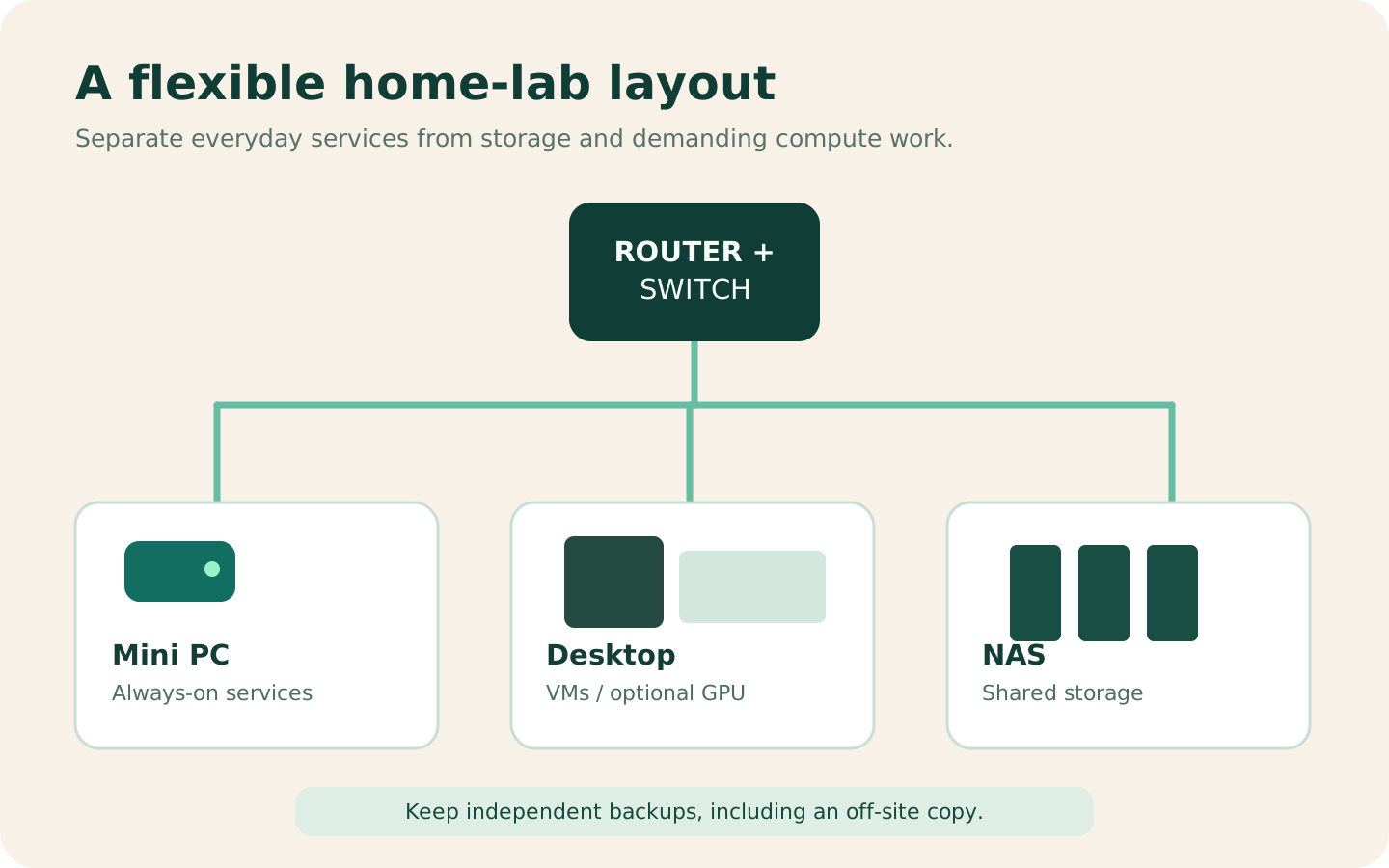
- Desktop or dedicated NAS for bulk storage, backups, or occasional compute-heavy work.
- Wired networking between the machines and a documented backup strategy.
- Optional schedule that powers down the high-performance host when not needed.
This separation is attractive when a storage service needs to remain available all day but a GPU workload only runs occasionally. The trade-off is extra administration, multiple operating systems, and greater networking complexity.
A buying checklist that prevents expensive mistakes
Before purchasing, write down answers to the following questions. If you cannot answer one, treat it as a research task rather than guessing.
- Workloads: Which three services will run first, and which future project is genuinely likely?
- Memory: How much RAM do those services need simultaneously, and what is the actual memory ceiling?
- Storage: How many independent drives or SSDs are required for boot, active data, and resilience?
- Processor: Does the exact CPU support your desired hypervisor, instruction sets, and media features?
- Network: Do you need one Ethernet port, multiple ports, 2.5GbE, or a future 10GbE upgrade?
- Expansion: Will you need PCIe, a GPU, additional NICs, or a storage controller?
- Power: Will the system run 24/7, and can you obtain credible whole-system wall-power data?
- Acoustics: Is this going beside a desk or somewhere noise does not matter?
- Support: Is there reliable firmware, operating-system compatibility, and a sensible repair path?
- Recovery: Where will backups go, and can you restore after a failed SSD or lost host?
If a mini PC satisfies every hard requirement and the expansion limits are acceptable, its compactness can be a genuine advantage. If several answers involve “later I may need another slot, disk, or GPU,” a desktop deserves a closer look.
Common mistakes to avoid
Buying only by CPU benchmark. The highest benchmark score may matter less than RAM capacity, NIC compatibility, thermals, or drive bays. Assess the whole system.
Confusing TDP with electricity use. Processor ratings are not measured wall power. Use a meter or trusted whole-system measurements for cost estimates.
Assuming every mini PC can take more RAM. Some memory is soldered, and official CPU and system limits differ. Confirm the exact model.
Assuming every desktop is expandable. Proprietary office desktops, tiny towers, and budget cases may limit PSU swaps, PCIe cards, or storage additions.
Hosting important data without backups. Mirrored drives cannot protect against every type of loss. Test restoring data to a separate machine or drive.
Buying a GPU before knowing the workload. A dedicated card increases purchase cost, heat, and potential idle power. Define the software and memory requirement first.
Planning based on unused capacity alone. Having eight CPU cores does not tell you whether a dozen VMs will fit in 16 GB of memory. Model each workload's resource needs.
Frequently asked questions
Is a mini PC powerful enough for Proxmox?
Yes, many x86 mini PCs are suitable for learning and small Proxmox installations. Check hardware-assisted virtualization, memory capacity, storage, and NIC compatibility. Proxmox distinguishes its minimal evaluation requirements from recommended memory and storage for production use [1]. A model with insufficient RAM or poor driver support can be less useful than a modest used desktop.
How much RAM should a beginner home lab have?
For lightweight containers and one or two modest VMs, 16 GB may be enough. A 32 GB configuration gives more room to experiment; 64 GB or more helps when several larger VMs run simultaneously. These are practical planning ranges, not universal minimums. Create a workload budget and verify upgrade options.
Does a desktop always use more electricity?
No. Desktop configurations vary enormously, as do mini PCs. Component selection and idle behavior can narrow or widen the gap. Compare measured average whole-system consumption for your intended workload instead of comparing processor TDP alone.
Is a mini PC a good NAS?
It can serve files and work with external or network-attached storage, but a multi-drive NAS benefits from dependable disk connectivity, appropriate bays, and easy replacement procedures. For TrueNAS, follow the platform's current memory and storage recommendations [2]. A dedicated NAS or desktop tower is often more convenient for several hard drives.
Can I add a graphics card to a mini PC later?
Most mini PCs lack an internal PCIe slot and power/cooling capacity for conventional desktop GPUs. Some specialized products support external GPU options, but these are model-specific and may add significant cost and complexity. If an internal GPU is a firm requirement, a suitable desktop is the safer default.
Which is better for Docker containers?
Either can work. Containers are not automatically CPU-intensive; some services mostly wait for network requests, while others perform substantial processing. Docker Engine supports mainstream Linux architectures, but individual application images and hardware dependencies still need checking [10]. Choose according to your workload's memory, storage, and device-access requirements.
Should I build a cluster of mini PCs?
A small cluster is educational for experimenting with networking, clustering, and service placement. It also adds network dependencies, administrative work, and the need to manage storage and failures. Do not assume a cluster automatically creates high availability: reliable quorum, workload migration, and appropriate storage design are separate requirements.
What if I need both a quiet server and GPU power?
Consider two complementary hosts. Run lightweight services on a small always-on machine and wake a separate desktop when you need GPU acceleration or demanding computations. This can reduce unnecessary continuous operation of the more powerful system, although it adds management complexity.
Final verdict: start with the workload, not the box
For a beginner building a quiet, affordable lab around Home Assistant, a handful of containers, monitoring, or one or two VMs, a well-chosen mini PC is often the most practical first purchase. It saves space, usually has a straightforward setup, and can serve as a dependable learning platform when its limitations are understood.
For a home lab built around extensive virtualization, multiple internal disks, PCIe networking, dedicated GPU compute, or frequent hardware upgrades, a desktop is usually the more flexible foundation. Its value comes from room to change and repair the system, not merely from a larger case.
And for many experienced home-lab builders, the strongest answer is neither an enormous all-in-one server nor a single miniature box. It is a thoughtfully divided setup: a small always-on service host, separate resilient storage, and a desktop for occasional heavyweight work.
The Practical Byte's decision rule: list your non-negotiable RAM, drive, networking, and GPU requirements first. Buy the smallest, most efficient system that meets those needs with credible room for the upgrades you are actually likely to make.
Sources and further reading
- Proxmox — Virtual Environment system requirements — host memory, virtualization, IOMMU, and storage recommendations.
- TrueNAS — Hardware guide — memory baseline, drive and storage considerations.
- Intel — Processor N100 specifications — cores, TDP, and memory limits.
- AMD — Ryzen 5 9600X specifications — desktop CPU example and TDP.
- Microsoft Learn — Windows 11 requirements — guest VM memory and virtual hardware basics.
- Home Assistant — Hardware options — mini PC and VM deployment options.
- Proxmox Backup Server — Storage and 3-2-1 backups — independent backup principles.
- NVIDIA Developer — Build local AI with NVIDIA GPUs — GPU memory and AI workload considerations.
- Intel — Check whether Quick Sync Video is enabled — processor-specific media support.
- Docker Docs — Install Docker Engine — supported platforms and architectures.
Editorial disclosure: This article was prepared using documentation-led research, examples, and editorial analysis. It does not claim original benchmark testing, electricity measurements, product ownership, or merchant endorsement. Illustrative configurations and energy calculations are identified as examples. Product specifications and platform requirements should be rechecked before purchase.