
COMPUTERS & ACCESSORIES / BUYING GUIDE
Mechanical vs Membrane Keyboards for Programming: Which Should You Buy?
Reviewed and approved by Syed Shuja Haider
A keyboard can be the most frequently touched part of a developer's setup, yet it is easy to choose one using the wrong criteria. Mechanical models promise satisfying key feedback, customizable switches, and long service life. Membrane models promise quiet operation, a familiar feel, and a lower price. Both can run the same code editor, terminal, and debugging shortcuts. Neither makes you a better programmer simply by being on your desk.
The sensible question is not which technology wins in the abstract. It is which keyboard fits your typing preferences, workspace, budget, and programming habits. Someone sharing a room during video calls might choose differently from a developer building a custom desktop workstation. A person comfortable with laptop keys might dislike a tall mechanical board even if it costs three times as much.

Quick verdict: Consider a well-built mechanical keyboard if you type extensively and want a choice of switch feel, replaceable components, or programmable keys. Choose a quality membrane or scissor-switch keyboard if quiet operation, a slim design, simplicity, or price matters most. For many coders, the most useful upgrade is the right layout and a more comfortable desk setup—not necessarily a different switching technology.
Mechanical vs membrane at a glance
| Buying factor | Mechanical keyboard | Membrane keyboard |
|---|---|---|
| Key activation | Individual mechanical switch assemblies, usually with electrical contacts | Commonly a rubber dome pressing conductive membrane layers |
| Typing feel | Wide selection of linear, tactile, and clicky responses | Typically a softer dome response; quality varies |
| Sound | From very quiet to deliberately loud | Usually quieter, though construction still matters |
| Typical purchase price | Often higher | Often lower |
| Size and height | Many full-height models; low-profile options exist | Frequently lightweight or slim; full-height options exist |
| Service life | Many switches have high manufacturer cycle ratings | Generally less modular and harder to repair |
| Customization | Keycaps, switches, firmware on selected models | More limited on typical office boards |
| Best fit | Typists who value switch choice and customization | Buyers prioritizing affordability and simplicity |
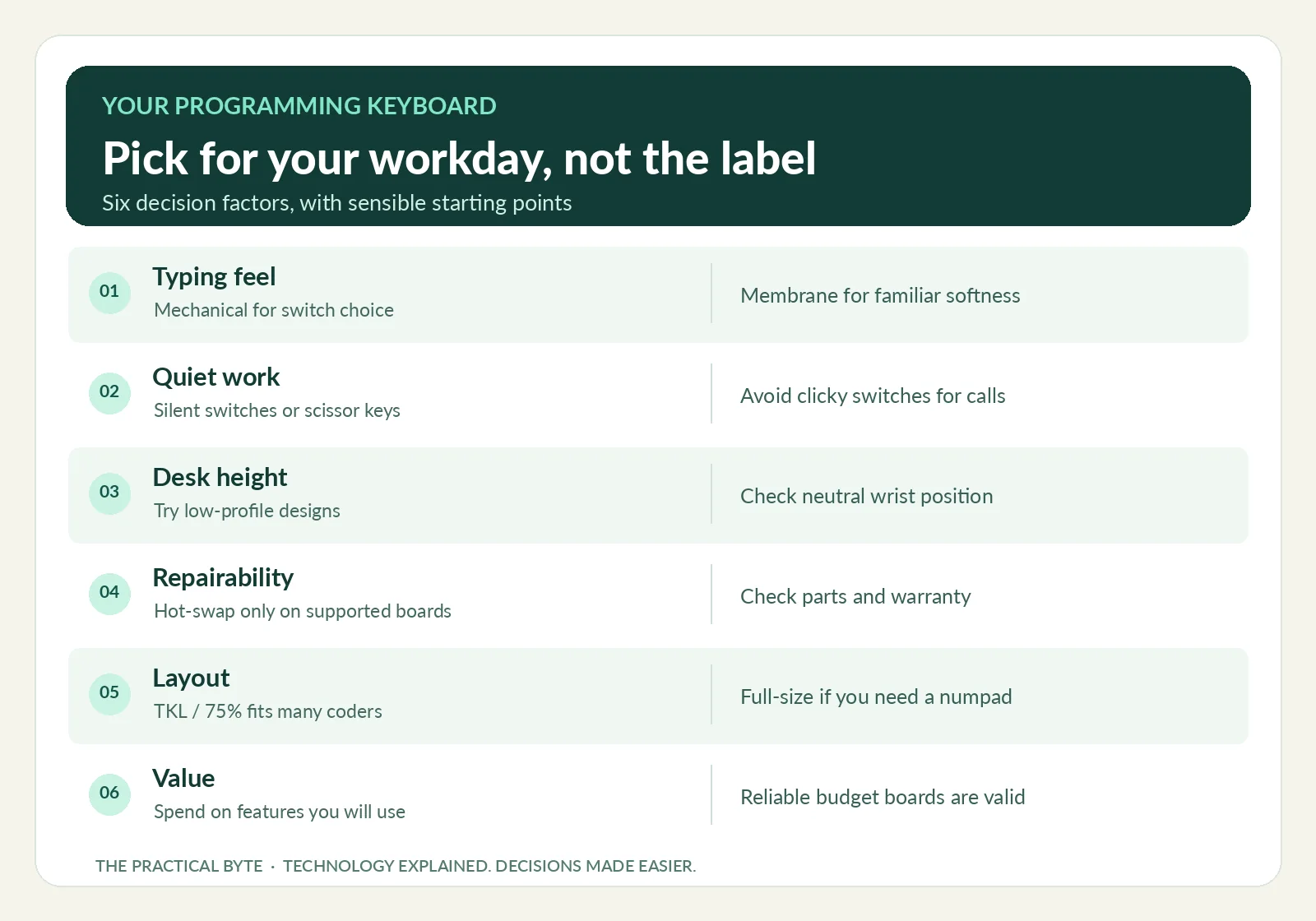
This table compares common designs, not guarantees. Mechanical does not mean loud, and membrane does not necessarily mean bad. The build quality of a specific keyboard can overturn a general rule.
How each keyboard registers a keystroke
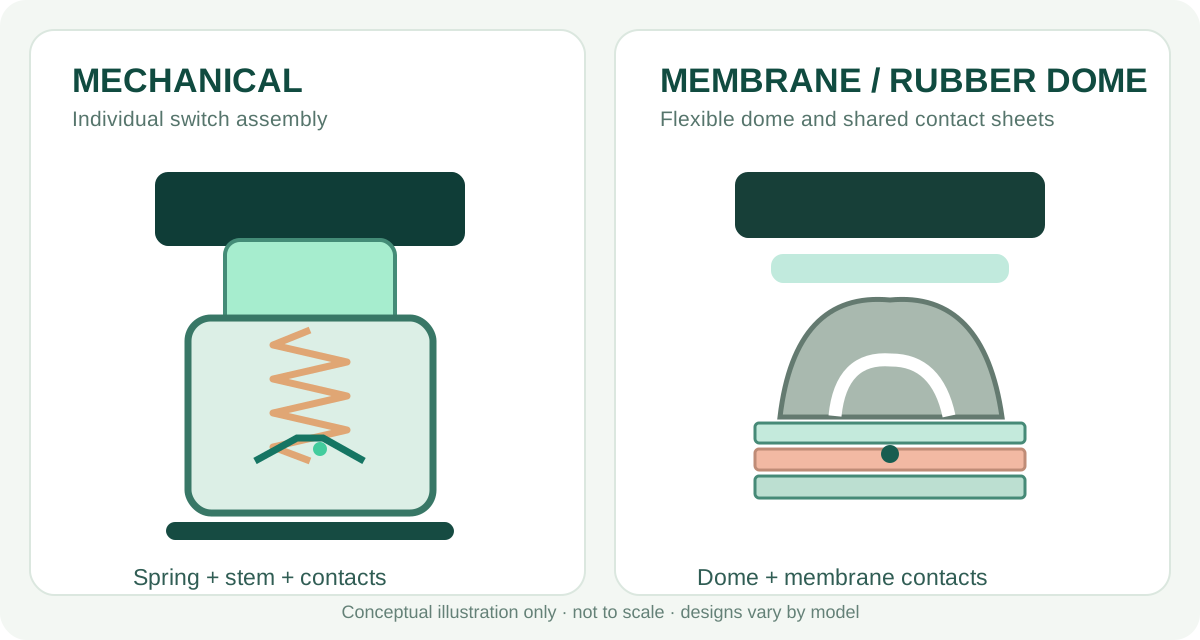
Inside a conventional mechanical switch
A traditional mechanical keyboard places a small switch assembly under each keycap. The stem travels against a spring, and metal contacts typically close to register a press. Switches can be designed to actuate before the key reaches its lowest point, so pressing all the way down is not always required. The switch mechanism also determines whether a press feels smooth, produces a bump, or generates an intentional click.
Individual switches give designers considerable freedom to adjust spring resistance, travel distance, tactile shape, and audible feedback. Two mechanical keyboards can feel dramatically different even if their layouts appear identical. Optical and magnetic keyboards also use individual switch assemblies, but they sense movement differently; this guide concentrates on conventional contact-based mechanical boards unless noted otherwise.
One useful specification is actuation force, meaning the force needed at the triggering point or specified test position. Another is pre-travel, the distance a key moves before it actuates. Total travel describes movement to the bottom of the keypress. For example, CHERRY lists its MX Red with 45 cN actuation force, 2.0 mm pre-travel, and 4.0 mm total travel. That describes one switch, not a rule for all linear models. [1]
Inside a rubber-dome membrane keyboard
A common membrane keyboard uses a flexible dome beneath a key. Pressing the dome brings electrical contact layers together. The dome provides resistance and helps the key return after release. Because a keyboard can use shared sheets and fewer individual switch modules, many membrane models are inexpensive and simple to manufacture.
Membrane is a broad label, though. A budget office board and a carefully engineered premium rubber-dome model do not necessarily feel alike. Key guides, stabilizers, dome materials, and case rigidity can change whether a keyboard feels stable or wobbly. It is more accurate to describe inexpensive membrane keyboards as sometimes soft or inconsistent than to claim all membrane keyboards are mushy. [2]
Where scissor-switch keyboards fit
Laptop-style scissor-switch keyboards are an important third option. A stabilizing scissor mechanism guides each keycap over a short distance, usually with a rubber-dome electrical system underneath. Their relatively flat, controlled movement is one reason people who regularly type on laptops may prefer them.
Scissor switches are not the same as the common full-height rubber-dome design, even though many share a membrane-based electrical circuit. If you enjoy a short press and a low keyboard profile, a quality scissor-switch model can be more suitable than either a tall mechanical keyboard or an inexpensive full-height membrane board.
Does one keyboard actually improve coding productivity?
A programmer's day is not a typing-speed contest. Work includes reading existing code, following a call stack, testing assumptions, reviewing pull requests, asking questions, and locating bugs. Physical keystrokes are only one part of that process. A more pleasant keyboard can improve how working feels, but a switch type alone does not establish a measurable productivity gain.
Imagine a developer working in Visual Studio, VS Code, IntelliJ, or a terminal. They alternate between writing a method, navigating to a definition, selecting lines, and testing a build. Having reachable arrow keys, a familiar function row, and modifiers that do not require awkward stretches can matter more than whether the key uses a metal-contact switch.
Likewise, a developer who writes Python might use indentation and punctuation differently from someone constantly entering numeric values in SQL reporting tools. Neither language requires a specific switch. Keyboard choice is about the whole workflow: layout, shortcuts, desk arrangement, and personal comfort.
Typing speed and error rate
There is no universal rule that a mechanical keyboard makes everyone type faster or commit fewer errors. A person who has used a low-profile membrane board for years may slow down temporarily on a deep-travel mechanical design, and another person might prefer tactile feedback immediately. Claims of a fixed typing-speed improvement should be treated skeptically unless they are tied to a credible study with relevant conditions.
If speed matters to you, compare your own performance after a normal adjustment period. Use identical text and conditions, record mistakes as well as words per minute, and pay attention to fatigue. A product video showing one fast typist is not evidence that you will get the same result.
Feedback versus performance
Tactile feedback is useful when you enjoy knowing how a press feels. It is not a shortcut to good software architecture, fewer defects, or improved concentration. Conversely, a soft membrane keyboard is not inherently inaccurate. Some users simply prefer a gentler keystroke and lighter acoustic signature. Preference is a valid buying reason; unsupported performance claims are not.
Mechanical switch types: linear, tactile, clicky, and silent
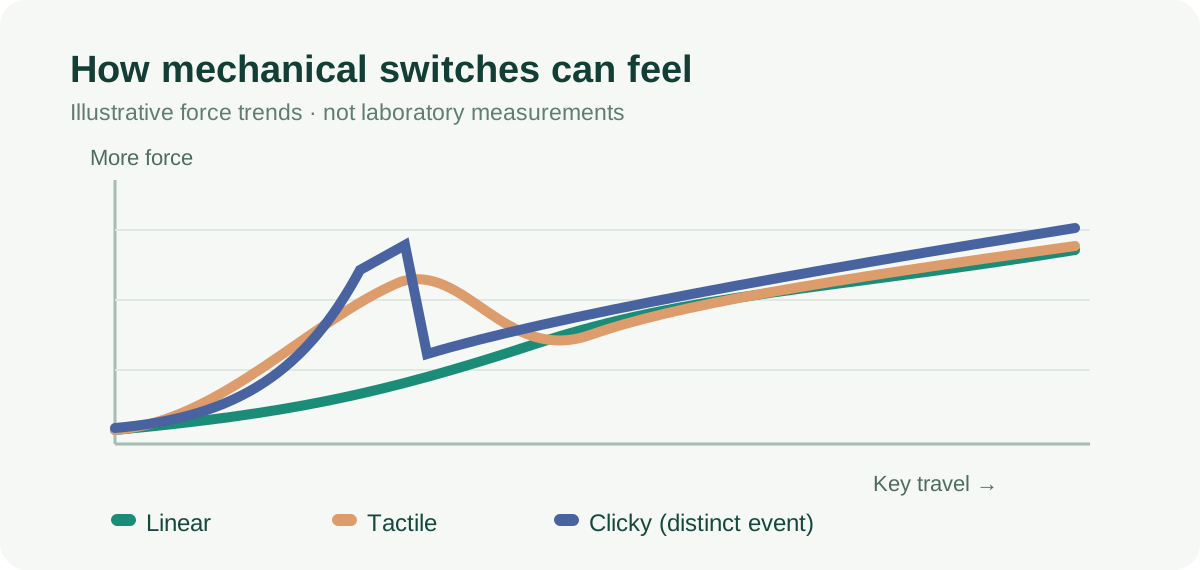
Choosing a mechanical keyboard usually means choosing a switch family first. The familiar Red, Brown, and Blue color names are convenient shorthand, not universal engineering standards. Different manufacturers may use the same color name for switches with different forces or travel.
Linear: smooth through the press
Linear switches move without a deliberately shaped tactile bump. They suit people who like uninterrupted travel and predictable spring resistance. Many Red-style switches are linear, but some are light while others are quite firm. Their absence of a click mechanism often makes them suitable for shared spaces, but a linear keyboard can still sound loud when keys hit the bottom of their travel or stabilizers rattle.
For coding, linear switches can feel excellent in longer typing sessions if their force matches your preferences. Very light examples may cause accidental presses for some users, particularly if they rest fingers heavily on the home row. Heavier examples can feel tiring to others. Neither outcome is universal.
Tactile: a noticeable bump
Tactile switches create a change in resistance as a key travels. Brown-style switches are familiar, but the bump can be mild or pronounced depending on the design. CHERRY's MX Brown, for example, is described as tactile rather than clicky. [3]
This is a sensible starting category for someone curious about mechanical keyboards who wants clear physical feedback without the purposeful noise of a clicky switch. Still, if you prefer an almost frictionless press, a tactile bump may feel distracting rather than reassuring.
Clicky: deliberate audible feedback
Clicky switches produce an identifiable sound as part of the switch mechanism. That sound can be satisfying in a private room and irritating in a shared office or during frequent meetings. Blue-style switches are often clicky, though exact characteristics vary.
Be particularly cautious if you record tutorials, join calls while taking notes, or share a workspace with someone sleeping or studying. Noise reduction in conferencing software helps in many situations but is not a reason to ignore a loud keyboard.
Silent mechanical: a middle ground
Specialized silent switches add dampening features that reduce impact noise. Quiet case construction, properly fitted stabilizers, and desk surfaces also influence the result. A good silent mechanical keyboard may approach the noise level of some membrane models, while an ordinary linear switch is not automatically silent. [2]
| Switch family | Sensation | General sound profile | Coding consideration |
|---|---|---|---|
| Linear | Smooth travel | Varies; no click mechanism | Good if you dislike tactile bumps |
| Tactile | Resistance bump | Varies; typically no deliberate click | Good if you value physical feedback |
| Clicky | Tactile and audible click | Usually noticeable | Better where noise is welcome |
| Silent linear/tactile | Damped key travel | Designed to be quieter | Worth considering for calls or shared rooms |
Practical test: Type a full paragraph and use your editor's shortcuts on a switch sample or demo keyboard. A few isolated key presses reveal less than ordinary typing and navigation.
Comfort, wrist position, and long programming sessions
Many purchase guides claim mechanical keyboards are more ergonomic because they feel more precise. That goes too far. Ergonomics depends on physical placement and fit, not simply the electrical switch technology. A keyboard that is too high can encourage an uncomfortable wrist angle, regardless of how sophisticated its switches are.
OSHA recommends placing the keyboard directly in front of you, keeping shoulders relaxed and elbows near the body, and maintaining wrists approximately straight and aligned with the forearms. It also advises adjusting desk and chair height rather than assuming one universal posture suits everyone. [4]
Height and front-edge design
Traditional mechanical boards frequently have thicker cases than office scissor-switch keyboards. If your desk is high and the keyboard has a tall front edge, your wrists may bend upward while typing. A lower-profile design or appropriate height adjustment may feel better. Conversely, a thinner keyboard will not solve discomfort caused by reaching too far forward.
Do not assume raising the rear keyboard feet automatically improves comfort. The tilt should support a neutral wrist position for your actual seated posture. OSHA notes that excessive tilt can contribute to awkward wrist positioning. [4]
Key force and fatigue
Very heavy switches can feel demanding to some typists, while ultralight switches can cause unwanted presses. Choose resistance based on how you type rather than a universal ideal. If you can test several options, type continuously instead of judging one key in isolation.
Key travel may also influence preference. Some typists like a short laptop-like press; others enjoy longer mechanical travel. A longer travel distance does not require more force in every design, and shorter travel is not inherently healthier.
Wrist and palm rests
A support can make the gap between your hands and a tall keyboard feel less severe, but pressing hard into the wrist area while typing may create contact stress. If you use a rest, evaluate whether it actually helps you maintain a relaxed neutral posture. OSHA provides separate guidance on wrist and palm supports. [5]
A split or tented keyboard can be helpful for some users who dislike the angles required by a conventional straight keyboard. However, OSHA explicitly cautions that available research does not conclusively show such alternatives prevent discomfort or injury. An ergonomic keyboard is a tool to evaluate, not a medical guarantee. [4]
If you have persistent pain, tingling, or numbness, stop treating the problem as a product-comparison question and seek appropriate professional assessment. Do not assume buying a mechanical keyboard is a treatment.
Noise, video calls, and shared workspaces
A keyboard may feel enjoyable to its owner and sound distracting to everyone else. Mechanical sound is created by more than the switch: the keycap can bottom out, the key can return against its housing, a stabilizer can rattle, and the case can amplify resonance. Desk mats and case damping can change what other people hear.
Rubber-dome and scissor-switch boards are often quieter because they lack purposeful click mechanisms and frequently have shorter travel. But a loose or inexpensive membrane model may also rattle. The right comparison is between actual keyboard models and how you type, not between two labels alone.
A simple approach for a remote developer is to record thirty seconds of realistic typing at the position where your microphone normally sits. Try your usual calling software with and without its noise-reduction features. Test function keys, the space bar, Enter, and Backspace—large keys often sound different from letter keys.
If you make tutorial recordings, work from a bedroom, or share a desk with family, prioritize a quiet keyboard. That could mean a reliable membrane model, a scissor-switch model, or a mechanical board with purpose-built silent switches. Clicky switches are the riskiest purchase when noise sensitivity is unknown.
Durability and long-term value: what switch ratings mean
Manufacturers often publish switch actuation-life ratings. For a concrete example, CHERRY lists its current MX Red and MX Brown models at more than 100 million keystrokes under its specified testing conditions. Those are manufacturer ratings for particular switches, not a prediction that every keyboard will last a certain number of years. [1][3]
A keyboard can fail elsewhere long before the switch rating is reached. Connections, controllers, batteries, stabilizers, solder joints, and keycap attachment points all affect the lifespan of the finished product. Some inexpensive membrane boards may last for years in light use, and expensive mechanical boards can still have defects.
Repairability is a separate but important part of value. A hot-swappable mechanical keyboard uses sockets that let you remove and install compatible switches without desoldering. Keychron's documentation explains this distinction from soldered boards. [6]
That does not mean every mechanical keyboard is hot-swappable. Some switches are soldered. Some hot-swap sockets support only certain electrical switch types or physical pin configurations. Low-profile, optical, and magnetic systems can have different compatibility requirements. Verify the manufacturer's exact switch and socket support before spending money on replacements.
A membrane keyboard's internal layers are usually less modular. Replacing a worn key mechanism may be difficult or uneconomical, so replacing the whole device is often more practical. But an inexpensive keyboard that meets your needs without maintenance can still be good value.
What to buy for longevity
Look beyond the largest advertised keystroke number. Check warranty coverage, cable quality, availability of replacement keycaps, compatibility of spare switches, battery serviceability on wireless models, and whether the manufacturer supports the keyboard after purchase. A well-built product with modest claims can be a better purchase than a flashy model with impressive-sounding marketing.
Layout matters more than many buyers realize
Programmers use punctuation, modifiers, navigation controls, and shortcuts repeatedly. The keyboard's physical layout determines how easily those keys fit into your workflow. A smaller keyboard saves space but may move frequently used functions behind additional key combinations.
Full-size: for number-heavy workflows
A full-size keyboard usually includes a dedicated number pad, arrow keys, navigation cluster, and function row. It is a useful choice if you frequently enter quantities, manipulate spreadsheets, work with accounting data, or prefer having everything available without a function layer.
Its drawback is width. A large number pad can push the mouse farther from your body. Some people prefer a separate number pad positioned only when needed.
Tenkeyless: an uncomplicated coding choice
A tenkeyless, or TKL, keyboard generally removes the number pad while keeping the arrow keys, function row, and navigation cluster. This gives you most familiar shortcuts and frees space beside the keyboard. For developers who rarely enter long sequences of numbers, TKL is one of the safest default layouts.
75%: compact while retaining important keys
A 75% design typically preserves arrow keys and the function row but groups them more closely and may reduce navigation keys. It offers a neat compromise between compactness and usability. Check the exact positions of Delete, Home, End, Page Up, and Page Down before buying; two products labeled 75% can differ in meaningful ways. [7]
65% and 60%: deliberate trade-offs
A 65% board commonly keeps arrow keys but generally has no dedicated function row. Many 60% boards place both the function row and arrows on additional layers. Developers who enjoy memorized shortcuts may adapt easily. Others may find it inconvenient while debugging, using F-keys in an IDE, or navigating code.
The percentage labels are approximations rather than strict standards. Look at a photograph of the precise layout and compare it with your key usage. [7]
| Layout | Usually retains | Main compromise | Who should consider it |
|---|---|---|---|
| Full-size | Function row, arrows, navigation, number pad | Largest footprint | SQL-heavy or numeric work |
| TKL | Function row, arrows, navigation | No number pad | General-purpose coding |
| 75% | Function row and arrows | Condensed navigation cluster | Small desks without major sacrifices |
| 65% | Arrows and core typing keys | Function row moves to layer | Compact setup enthusiasts |
| 60% | Core typing keys | Many navigation functions use layers | Users comfortable with remapping |
Regional layouts and operating systems
Choose the physical language layout you need. ANSI versus ISO differences affect Enter, left Shift, and nearby punctuation; regional legends determine where symbols appear. If you type code containing brackets, slashes, backticks, or backslashes all day, a mismatch between the printed keys and operating-system layout becomes annoying quickly.
Also check Mac and Windows modifier positions, how firmware behaves with Linux, and whether remapping software runs on your preferred OS. A keyboard can type on several platforms without offering identical configuration support on all of them.
Remapping and firmware: a genuine developer feature
A keyboard that supports remapping may be more useful for coding than one boasting extreme polling rates. You might assign a hard-to-reach key to Escape, move a modifier, or create a navigation layer that fits your editor. On compatible boards, QMK firmware can define layers in which one physical key performs different actions depending on which layer is active. [8]
For example, a compact-keyboard user could hold a designated layer key and turn letter positions into arrow keys. That can save desk space, but it also demands learning and consistency. If you regularly switch between machines, consider whether the remapping is stored on the keyboard or only in software on one computer.
Do not assume that all mechanical keyboards support QMK, VIA, or arbitrary custom keymaps. Many do not, and some membrane office keyboards offer useful programmable shortcuts too. Compare the specific firmware and software features, not the technology category.
Wired or wireless for a programming desk?
The difference between USB, Bluetooth, and a dedicated wireless receiver is usually less significant for everyday coding than reliability and convenience. A wired keyboard avoids batteries, charging, and pairing. It is easy to recommend for a fixed workstation where a cable is not a problem.
Wireless can be valuable when switching between a work laptop, personal desktop, and tablet. Check whether the keyboard supports multiple paired devices and how easily it switches between them. Also look for a wired fallback, the charging connector, battery information, and whether the keyboard retains settings after moving to another computer.
Gaming marketing sometimes emphasizes extremely high polling rates or very low latency. Those features can matter in particular competitive games, but they are rarely the deciding factor for writing applications, running tests, or reviewing code. Reliable connections, sensible key placement, and comfort will usually provide more day-to-day benefit.
How much should a programmer spend?
There is no universal price threshold at which a keyboard becomes suitable for professional development. Think about whether the purchase fixes an actual problem. Are you replacing unreliable keys? Trying to reduce noise? Moving to a smaller desk? Looking for a repairable board you can keep for years? Your answer gives the budget a purpose.
Low budget: Start with a dependable membrane or scissor-switch keyboard. Prioritize a comfortable layout, stable keys, standard connectivity, and a reasonable warranty. A cheap mechanical keyboard with poor stabilizers is not necessarily an upgrade.
Moderate budget: Compare a good office keyboard against a well-built entry-level mechanical model. If you can try the products, focus on key feel, sound, front-edge height, and the particular keys you use most. Do not pay extra merely for a gaming label.
Larger budget: Look for the features that you would actually use: switch compatibility, hot-swap sockets, quiet acoustics, remapping, solid construction, and after-sales support. Premium finishes or elaborate lighting are optional preferences rather than proof of typing performance.
Avoid making a purchase based on a permanently displayed online price or a promotion from an unverified merchant. Price and availability depend on region and date. If a retailer does not offer a suitable return policy, buying a switch type you have never experienced becomes riskier.
Practical scenarios: which should you buy?
A developer spending most of the day in an IDE
A TKL or 75% mechanical board with moderately weighted tactile or linear switches is a good place to start if you want to experiment with key feel. It preserves useful shortcuts and may offer long-term repair options. If you already enjoy your quiet office keyboard, however, replacing it may add little value.
A remote worker attending calls throughout the day
Start with a quality scissor-switch or membrane board, or evaluate a mechanical keyboard with silent switches. Record how it sounds at your microphone. A visually beautiful clicky board may be the wrong tool for a small shared apartment.
A student learning programming on a budget
Use a reliable keyboard you can afford and spend the remaining budget where it helps more, such as a better display arrangement or learning resources. There is no meaningful programming-language requirement for individual mechanical switches.
A programmer who alternates between a laptop and desktop
A low-profile keyboard or familiar scissor-switch design can reduce the feeling of switching between typing styles. If you want mechanical feedback, try a low-profile mechanical model but verify switch compatibility and the actual key travel.
A data-focused developer who frequently enters numbers
A full-size keyboard—or a compact board paired with a detachable number pad—may be more convenient than a minimalist 60% model. Database administration and spreadsheet-heavy work often reward direct number entry more than maximum desk minimalism.
A developer who enjoys customizing hardware
A hot-swappable mechanical keyboard with documented switch support and well-maintained firmware can offer an engaging, repairable platform. Budget for switches or keycaps only if you expect to use those options. Customization is a hobby benefit, not a requirement for productive programming.
Seven buying mistakes worth avoiding
- Assuming expensive means ergonomic. A premium tall keyboard can still be poorly positioned on your desk. Evaluate height, reach, and wrist angle first.
- Buying clicky switches from a silent product photo. The sound in your actual room is what matters, especially for colleagues and family.
- Confusing Red, Brown, or Blue names with standards. Force curves and travel vary by manufacturer. Read the specifications.
- Choosing a compact layout without testing shortcuts. Losing dedicated F-keys or arrows may make your actual editor workflow less convenient.
- Believing every mechanical board is hot-swappable. Inspect the model's socket and switch specifications rather than assuming replaceability.
- Treating a switch-life rating as a keyboard warranty. The cable, PCB, stabilizers, or battery may be the weak link.
- Buying for RGB or gamer branding instead of everyday use. Lighting is a preference; typing feel, noise, layout, and reliability are practical benefits.
A 10-minute keyboard decision checklist
Before placing an order, review these questions:
- Do I actually want a different typing feel, or do I simply want to replace a broken keyboard?
- Is my first priority quiet operation, price, customization, or compact size?
- Do I prefer long travel or short laptop-style keys?
- Can I reach Enter, Backspace, punctuation, arrow keys, and my IDE shortcuts comfortably?
- Does the layout include the number pad or function keys I regularly use?
- Will the front-edge height work with my desk, chair, and arm position?
- If it is mechanical, do I understand the switch type and whether switches are replaceable?
- Does remapping work without proprietary software on every computer I use?
- Do I need wireless multi-device switching, or would a cable be simpler?
- Can I buy from a seller with reliable support and a reasonable return policy?
If the retailer allows it, try the keyboard for actual coding-like tasks: type curly braces and punctuation, navigate a file, use your debugger's function keys, edit several lines, and enter some numbers. A keyboard that feels wonderful during a short typing demonstration can reveal layout compromises during normal work.
Frequently asked questions
Is a mechanical keyboard better for programming?
It can be better if you like its switch feedback, customization, and potential repairability. It is not inherently faster or more ergonomic for every programmer. A good membrane or scissor-switch board can be equally appropriate for professional coding.
Can you code professionally on a membrane keyboard?
Absolutely. Programming languages and IDEs work with ordinary input devices. If the keyboard registers keys reliably and its layout suits you, its membrane construction is not a barrier to development work.
Which switches should a beginner choose?
Moderately weighted tactile switches are a sensible first mechanical option if you want noticeable feedback without a deliberate click. Smooth linear switches are another good starting point if you prefer uninterrupted travel. Neither is universally best; try them if possible.
Are mechanical keyboards always louder?
No. Clicky mechanical keyboards are typically noticeable, but silent mechanical switches with suitable construction can be quite quiet. Many membrane keyboards remain naturally quiet choices, although individual models differ.
Will a mechanical keyboard prevent wrist pain?
No. Switch technology is not a medical treatment. Keyboard height, placement, chair and desk adjustment, work patterns, and individual health factors matter. OSHA does not claim that alternative keyboard designs conclusively prevent discomfort or injury. [4]
Is a 60% keyboard good for programming?
It can work well if you are comfortable with function layers and remapping. If you regularly use arrows, Delete, Page Up, or the function row, a TKL or 75% model is often the easier starting point.
Are hot-swappable keyboards worth it?
They can be if you want to replace worn switches or explore different typing feels without soldering. Check compatibility carefully; not every hot-swap system accepts every switch type.
How long does a mechanical keyboard last?
There is no reliable universal number of years. Some switches have high manufacturer cycle ratings, but complete-keyboard lifespan depends on build quality, components, environment, and use. Read warranty and repair information alongside switch ratings.
What about low-profile mechanical keyboards?
They can bridge the gap between traditional mechanical key feel and a thinner laptop-like design. Yet travel, sound, and compatibility vary, and not every low-profile board will appeal to someone who enjoys scissor switches.
Final verdict: choose the keyboard that works with you
For many programmers who type extensively and want a satisfying, configurable tool, a quality mechanical keyboard in a TKL or 75% layout is a strong purchase. Choose switches based on your actual noise tolerance and typing preference. If repairability matters, consider a model with proven hot-swap compatibility and available parts.
For a student, a budget-conscious professional, a fan of laptop-style keys, or anyone in a noise-sensitive workspace, a good membrane or scissor-switch keyboard may be the more sensible choice. A quieter, slimmer, more affordable device can be a better real-world fit than an elaborate mechanical model.
Rather than asking whether the keyboard is mechanical, ask whether it has the right keys, feels comfortable at your desk, works with your computers, and can be used for hours without becoming a distraction. That is how you buy a better programming keyboard.
Sources and further reading
- CHERRY — MX Red official specifications. Illustrative manufacturer data for actuation, travel, and rated switch lifespan.
- RTINGS — Mechanical vs membrane keyboards. Independent overview of mechanism, typing feel, sound, repairability, and trade-offs.
- CHERRY — MX Brown official specifications. Manufacturer explanation of tactile feedback and switch design.
- OSHA — Computer workstation keyboard guidance. Keyboard position, neutral wrist posture, tilt, and evidence limitations.
- OSHA — Wrist/palm supports. How support design relates to comfort and contact stress.
- Keychron — Hot-swappable mechanical keyboards. Explanation of socketed versus soldered switch replacement; manufacturer perspective.
- RTINGS — Keyboard size guide. Common layouts and trade-offs, updated August 2026.
- QMK Firmware — Layers documentation. Official explanation of programmable layers on supported keyboards.
Editorial transparency: This is a research-based buying guide. No hands-on keyboard testing, measured typing-speed improvement, or independent noise testing is claimed. This article contains no affiliate tracking links; any future monetized recommendations must use approved advertiser links with an appropriate disclosure.