
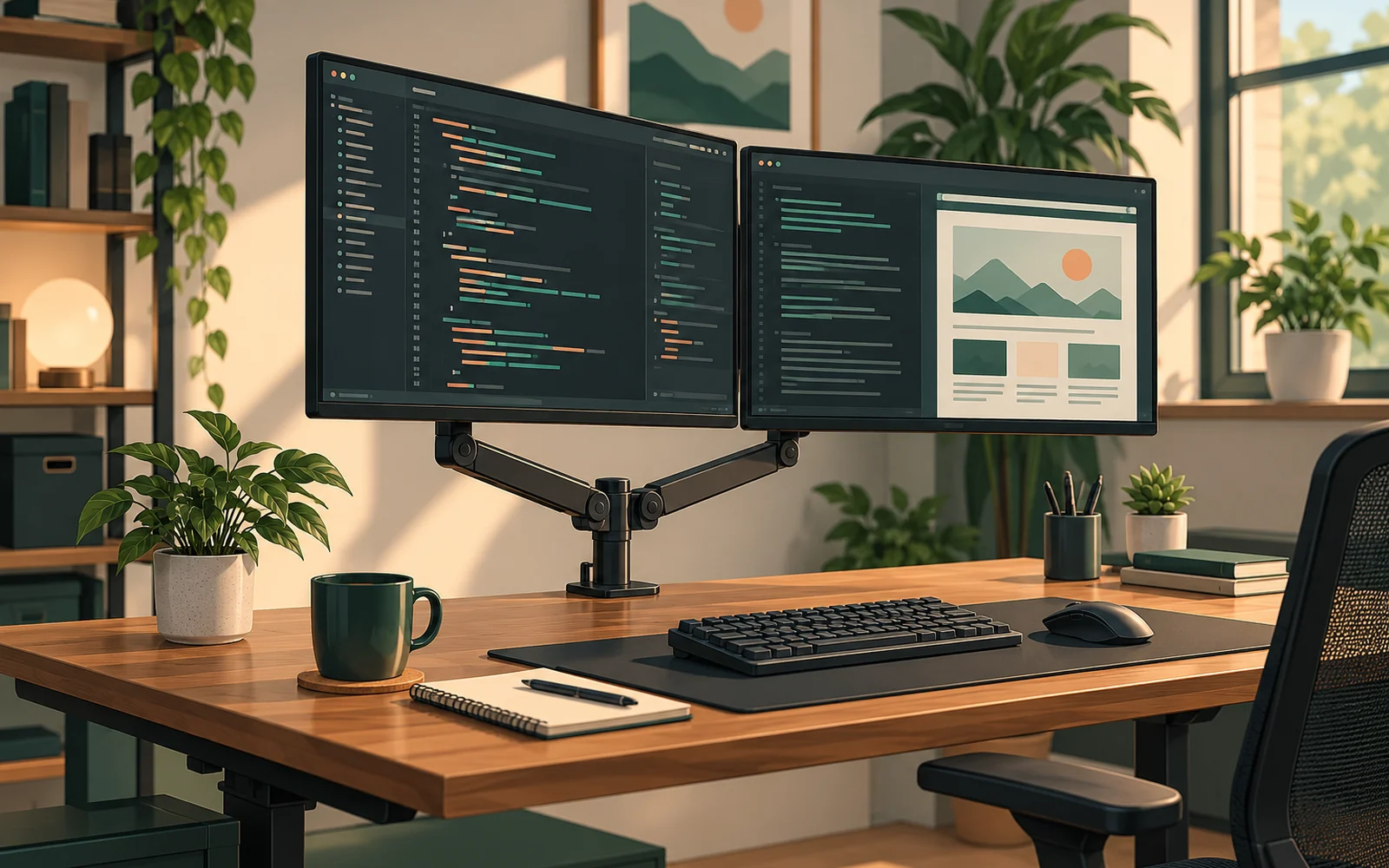
A dual-monitor desk can make programming feel more organized. Your editor occupies the main display while the second shows documentation, application output, database results, logs, or a video call. But two factory stands can consume valuable desk space, and positioning both screens comfortably is not always straightforward. A monitor arm can help—provided it suits the specific monitors, desktop, and layout you own.
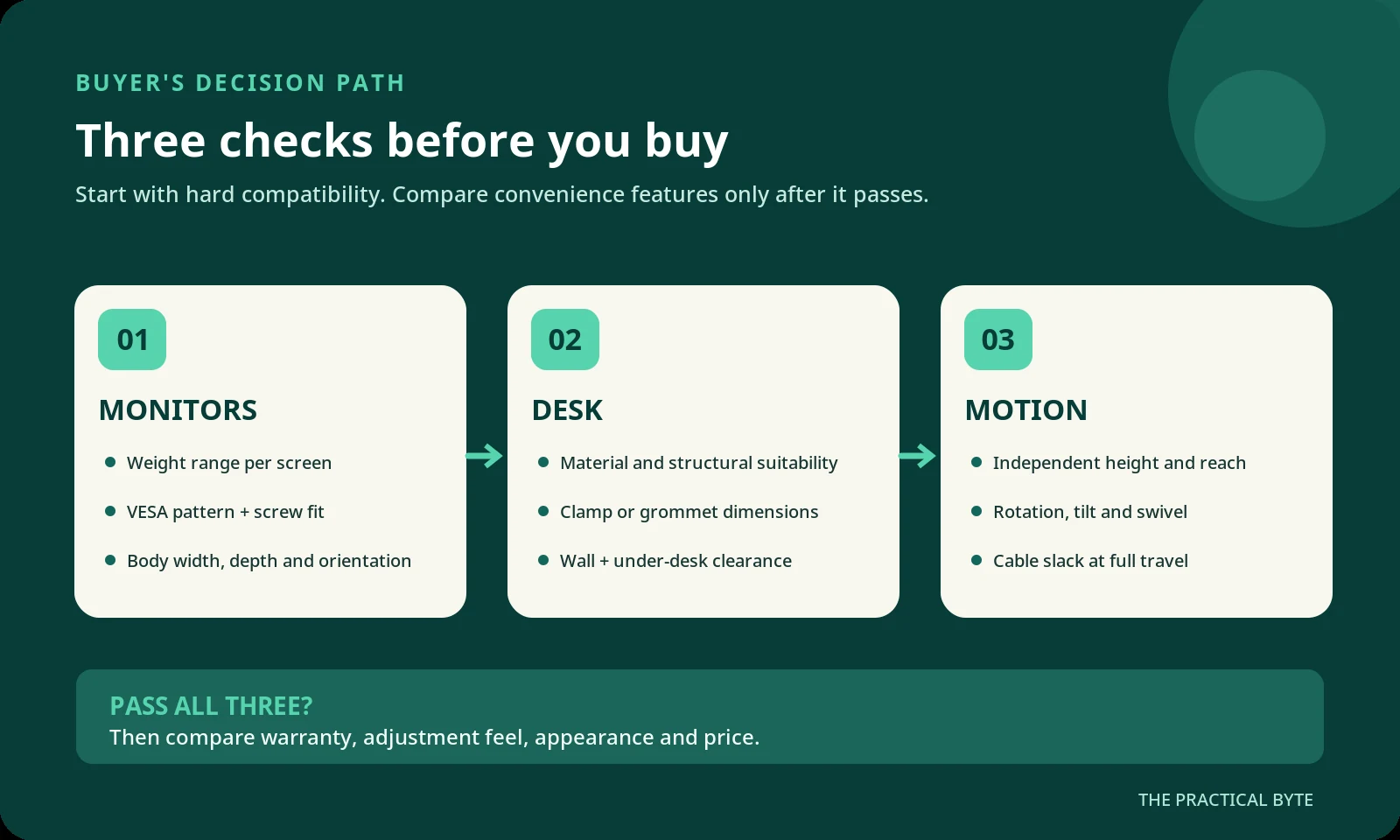
The buying process is more technical than the product listings suggest. A model advertised for “two 32-inch screens” could still be unsuitable because one display is too heavy, too light for its counterbalance, too deep, or too wide to sit beside its neighbor. Even a correctly rated arm can be unsafe on the wrong desktop material.
This guide walks through a reliable selection process, with dimensions to record, a worked compatibility example, developer-specific layouts, installation checks, and the trade-offs between a single dual arm and two individual arms. It is based on official ergonomics guidance and published manufacturer documentation—not a claimed hands-on comparison or an unverified ranking.
The short answer: For two conventional 24–27-inch monitors, start by looking for independent positioning, a compatible VESA pattern, a suitable per-screen weight range, and a mount approved for your desk. Choose gas-spring adjustment if you regularly move the displays; a simpler pole-mounted arm can be entirely adequate for a fixed position. Verify the actual model specifications before ordering.
1. Decide what problem the arm should solve
A monitor arm is useful when it improves a real limitation in your workstation. The common reasons are regaining desk space, bringing screens into a comfortable position, separating a primary display from a reference display, and making room for a laptop, notebook, or drawing tablet. If your current stands already allow good placement and your desk is spacious, an arm may be a convenience rather than a necessary upgrade.
For a programmer, a primary-centered arrangement is especially common: an IDE such as VS Code or Visual Studio stays in front, while the secondary monitor holds browser documentation, a running app, pull-request diffs, terminals, database tools, or team chat. The value is not that two monitors inherently increase productivity by a predictable percentage. It is that you can keep useful context visible without repeatedly changing windows.
Think through an ordinary workday. Do you move screens to share work with a colleague? Switch between sitting and standing? Rotate one screen for long logs? Keep both screens fixed all week? Your answers determine whether you need effortless spring-assisted movement or simply a secure fixed arrangement.
Also identify your constraints early: a shallow desk, a wall immediately behind it, a cable tray below the rear edge, or an unusually heavy monitor can narrow the options quickly. It is more efficient to eliminate incompatible designs than to start with a long list of attractive products.
2. Choose the arm architecture before the brand
Dual-monitor mounting systems are not all built the same way. The key differences are how independently the displays move, how height is adjusted, and how the mounting point carries the load.
| Arm design | What it does well | Main compromise | A sensible use case |
|---|---|---|---|
| Dual pole mount | Holds two displays with straightforward positioning | Height changes may require loosening collars or joints | Same-sized screens in a stable layout |
| Dual articulated gas-spring arm | Makes repeated height and reach changes easier | Must match each screen's counterbalance range | Flexible home-office or sit–stand desk |
| Dual direct-mount crossbar | Keeps two screens aligned and can look tidy | May limit independent height/spacing | Matched displays used as one wide workspace |
| Two individual single arms | Provides separate mounting positions and motion | Requires two attachment points; may cost more | Mixed sizes, portrait/landscape, asymmetric desk |
| Vertical stacking mount | Places one screen above another | Upper screen can be uncomfortably high | Restricted desk width or occasional monitoring |
| Freestanding dual stand | Avoids clamping the desktop | Uses desk surface area and needs a stable base | Desks that cannot accept approved clamps |
Pole-mounted arms usually rely on a vertical post and manually adjusted joints. They can be a good value if screens seldom move. Check whether each screen has independent height adjustment; some models only move both displays together or make adjustment cumbersome.
Gas-spring and other counterbalanced arms help you move a screen with less effort. They have a load range, not merely an upper limit. A monitor below the minimum may float upward or fail to remain in place; one above the maximum may sink. Some models use different internal mechanisms, so follow the actual product documentation rather than treating “gas spring” as a guarantee of quality.
Crossbar and dual-direct systems are attractive for matched monitors. But if one display is portrait or one is larger, a common beam may prevent an ideal alignment. Some advanced dual products do provide independent pivots or other adjustments. Read the movement diagram, not just the product name.
Two single arms are worth considering when one monitor is 32 inches and the other is 24 inches, when the desk has two suitable mounting locations, or when you need a very particular reach. They are not automatically stronger or safer: each mount and its desktop attachment still needs to be suitable.
3. Record the exact monitor weight—including the minimum
The most important specification is the supported monitor load. Find the precise model number of each display and locate weight without stand in its official specifications. The shipping weight and weight with the factory stand are usually not the values used for a typical VESA installation.
Then compare each screen separately to the arm's minimum and maximum supported weight per display. Check combined or system limits where the manufacturer specifies them. If you add a VESA adapter, camera bar, soundbar, or other attached accessory, account for that load in the way the arm maker directs.
A made-up example illustrates the check. Suppose your primary 27-inch screen weighs 4.6 kg without its stand, and your secondary 27-inch screen weighs 5.8 kg. A hypothetical dual arm supports 2–8 kg per screen, with a stated 16 kg total capacity. Both individual weights are within range, and the combined monitor-only weight is 10.4 kg. That passes an initial load screening; it does not yet prove compatibility.
Why not? The arm may have screen-width restrictions, a limited horizontal separation, or a lower usable capacity for unusually deep screens. Ergotron's published specifications for certain LX dual models expressly warn that greater monitor depth may reduce weight capacity and that oversized screens can restrict motion. Treat these as model-specific conditions—not a universal derating formula for all arms. Source: Ergotron LX Pro dual specifications.
A lightweight 24-inch display presents the opposite problem. A high-capacity spring arm might have a minimum of several kilograms, which your screen does not reach. Do not buy far more capacity “for future-proofing” without verifying it can hold the monitors you actually use today.
Finally, if a listing says only “up to 20 kg” without specifying whether that is per monitor or total, consider the information incomplete. Obtain the manufacturer’s written specifications before relying on the claim.
4. Confirm VESA mounting—not just monitor size
Most conventional monitor arms use standardized mounting interfaces commonly called VESA mounts. The measurement describes the center-to-center spacing of the mounting holes on the rear of a display. Two common computer-monitor patterns are 75 × 75 mm and 100 × 100 mm. Many arms accept both. The VESA Flat Display Mounting Interface family defines standardized ways for displays and mounts to connect; a particular arm still supports only the patterns listed in its documentation.
Look up your monitor's official specification sheet and search for “VESA,” “mounting interface,” or “wall mount.” Removing the factory stand may expose the four mounting holes. Do not confuse the presence of screws on a decorative rear housing with an approved mounting interface.
A monitor may present additional complications:
- Recessed holes: The arm's plate may not sit flush; an approved spacer arrangement might be required.
- Proprietary stand connection: Some displays need an exact adapter or a different factory configuration.
- Unusual screw requirements: Thread size and allowable screw depth must follow the monitor manual.
- Offset VESA position: The hole pattern may sit above or below the display's geometric center, affecting alignment.
- Non-VESA displays: Standard arms cannot be assumed compatible without a suitable approved adapter.
Do not improvise with extra-long screws, loosely stacked spacers, or generic adapters of unknown rating. A VESA pattern match is necessary but does not by itself establish secure installation.
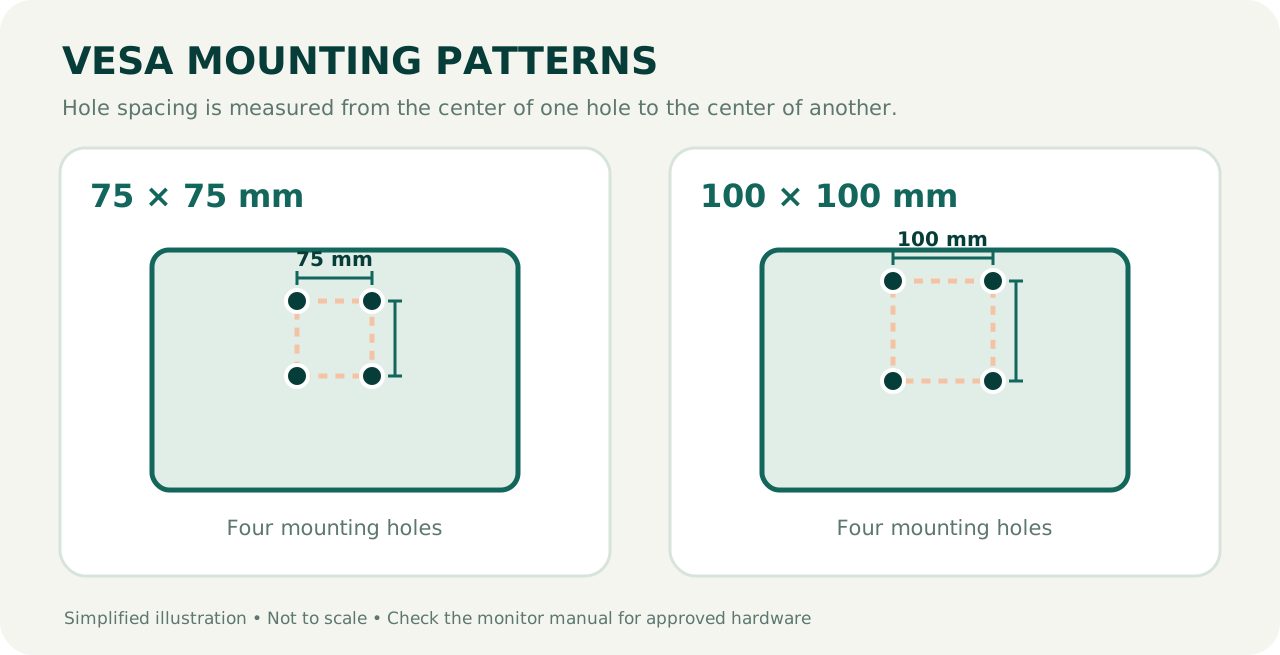
For example, Ergotron's LX Pro dual arm lists VESA 75 × 75 mm and 100 × 100 mm interfaces and separately publishes its screen load, depth, and desk-clamp specifications. Those are distinct compatibility checks, not interchangeable assurances. Source: Ergotron LX Pro.
5. Make sure the desktop can safely accept the mount
An arm is only as dependable as its attachment. The desktop does not merely carry the monitors' vertical weight; an extended arm can also place a twisting load on the mounting area. The practical implication is simple: desk material, structure, edge geometry, and thickness matter.
A C-clamp wraps around the desk edge. It usually avoids drilling and is convenient on a suitable solid desktop. Check the allowed thickness range and the shape of the edge. A beveled edge, thick rear cable-management lip, drawer housing, or steel apron can prevent full clamping even when the tabletop's overall thickness seems correct.
A grommet mount passes a bolt through an approved hole in the desktop. This can work where rear access is awkward, but the hole diameter, surface thickness, washer placement, and structural suitability must follow the maker's instructions. It is not a shortcut to making a weak desk safe.
A wall mount keeps the desk free of mounting hardware but requires a suitable structural wall and correctly specified fasteners. It can be awkward with a height-adjustable desk because the display does not rise automatically with the work surface. A freestanding mount avoids holes and clamps, but the base consumes space and must be designed for the intended loading and positions.
BenQ's INFTYLAB guidance for its monitor arms recommends solid wood, durable engineered wood, or metal desktops and warns that glass, hollow-core, and honeycomb constructions may be unsuitable for clamping because concentrated force can damage them. This is a manufacturer's product-family guidance, not a certification that all engineered wood desks are compatible with every arm. Source: BenQ INFTYLAB specifications.
Important safety rule: Do not clamp an ordinary monitor arm to a glass or structurally uncertain desk unless both the relevant desk and mounting-system manufacturers explicitly approve that arrangement. A reinforcement plate may spread pressure on an otherwise approved surface, but it cannot automatically transform an unsuitable desktop into a safe one.
Inspect under the rear edge before ordering: a cable tray or horizontal support rail often occupies exactly the space a clamp needs. Also check the desk's own maximum load and any restrictions for accessories attached at its edge.
6. Measure real-world clearance: width, depth, and wall distance
Advertised monitor diagonal is a poor substitute for real physical dimensions. Two 27-inch screens can differ in outer width, bezel thickness, rear depth, and VESA location. Write down the actual outer width and height, not just the diagonal, for each monitor.
For context, the visible panel width of a 27-inch 16:9 screen is approximately 59.8 cm (23.5 inches), while a 32-inch 16:9 panel is about 70.8 cm (27.9 inches) wide. These are geometry-based approximations for the display area, not full monitor-body dimensions. Add bezels and any gap when planning a side-by-side arrangement.
If your monitors are both wide, an arm may be physically unable to place them tightly together, even when the manufacturer advertises support for the screen size. Some dual-arm product pages provide a maximum monitor body width or explicit restrictions on stacking. Look for those drawings and figures rather than trusting a generic “up to 32 inches” label.
Desk depth is equally important. An articulated joint can fold behind the mounting point or project toward you. On a shallow desk, an arm with a long maximum extension does not necessarily have a compact minimum profile. Ask: Can I place the screen far enough back to read comfortably? Can the arm fold without hitting the wall? Where does the rear elbow go?
OSHA recommends a viewing distance generally around 50–100 cm (20–40 inches), adjusted so text is readable without leaning or twisting. This is guidance for workstation setup, not a universal desk-depth specification. Font size, scaling, corrective lenses, and individual comfort all matter. Source: OSHA monitors.
Take these measurements before buying:
| Dimension to record | Why it matters |
|---|---|
| Desk width and depth | Determines usable positions and screen distance |
| Thickness at the actual clamp point | Must fall inside the mount's supported range |
| Under-desk clearance at the rear edge | Prevents interference with supports and cable trays |
| Gap between desktop and wall | Allows arms to retract or swivel as intended |
| Each monitor's outer width, height, depth | Reveals collisions and orientation limitations |
| VESA plate location on each monitor | Affects achievable screen-height alignment |
| Desired eye-to-screen distance | Ensures the arm can reach a usable resting position |
A useful way to shop is to draw your desk as a rectangle, sketch the screen widths at their desired positions, and mark the mount. If the manufacturer publishes a dimensional diagram or top-view reach drawing, compare it to the sketch. This often exposes a bad fit before purchase.
7. Pick a layout that matches your programming workflow
A monitor arm should support your normal working posture, not force you into a fashionable desk photograph. There are four common layouts, each with different implications for arm geometry.
Primary monitor centered; secondary angled toward you
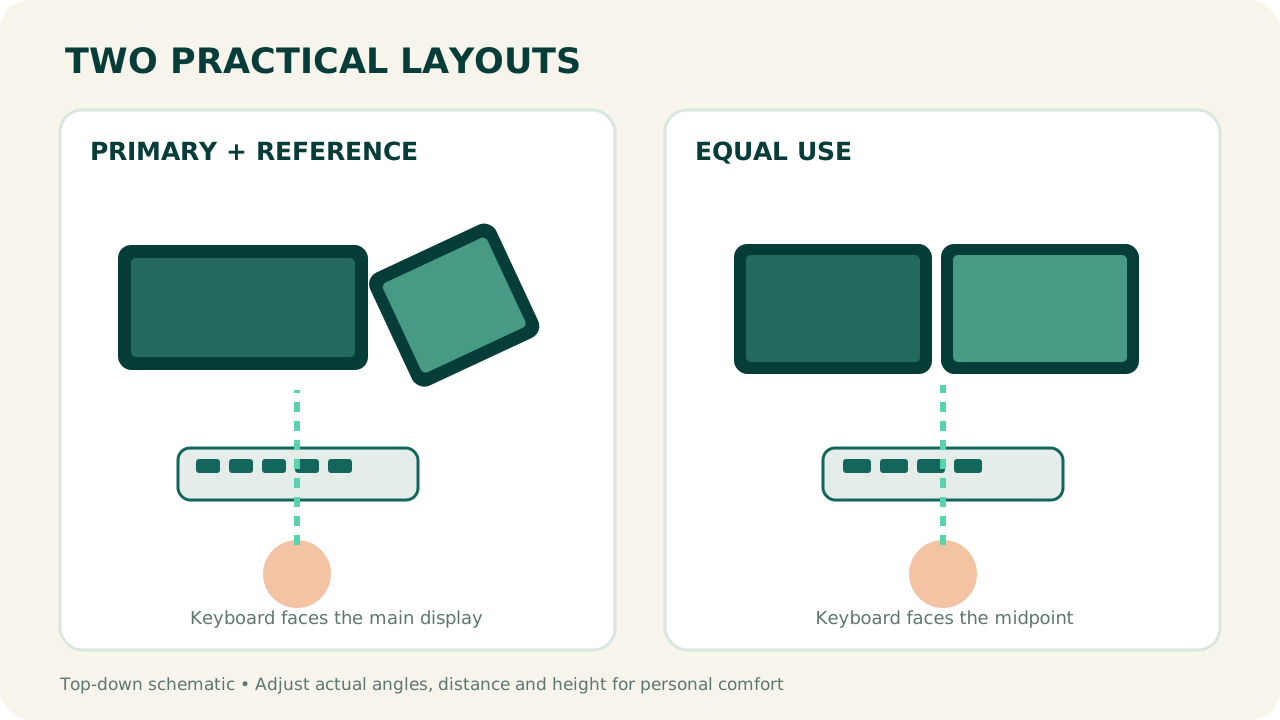
This arrangement is a strong default when you spend most of your time in one editor or main application. Place the primary screen in front of your chair and keyboard, then put the secondary display beside it, angled inward. Your documentation, console, log viewer, browser, and message apps can stay visible without becoming the constant focus.
UC Davis's ergonomics guidance recommends keeping the keyboard and dominant display aligned and placing the secondary monitor at roughly a 30-degree angle in an unequal-use setup. Treat that as a positioning starting point, then adapt to screen size and comfort. Source: UC Davis dual-monitor setup.
Two displays used equally
If you review two codebases, compare designs, or move constantly between a debugger and application preview, neither display may dominate. Put both screens close together in a shallow inward-facing arrangement and center yourself and the keyboard between them. OSHA's workstation evaluation checklist distinguishes this from the single-primary-monitor case. Source: OSHA evaluation checklist.
Landscape plus portrait
A portrait secondary screen can help with tall documents, API references, source files, long terminal output, or detailed code review. It requires a pivot that supports the rotation and enough room so the long edge does not hit the desk, wall, arm, or nearby screen. Check cable slack and whether the panel's on-screen display can rotate independently of the operating system.
Portrait mode is a workflow choice, not a universal efficiency improvement. If you spend most of your time reading wide tables, dashboards, or horizontal diff panes, landscape may remain better.
Vertically stacked screens
Stacking can fit more display area into a narrow footprint. It works best when the upper monitor is used occasionally for passive information, because placing a frequently read display high above eye level can encourage repeated neck extension. Use a mount explicitly designed for stacking rather than assuming ordinary side-by-side arms have sufficient height.
8. Set up viewing height, distance, and angles thoughtfully
An adjustable arm is useful only when adjusted properly. Start in your normal chair position, with your back supported, shoulders relaxed, and keyboard in reach. Then bring the primary monitor to a position that lets you read code without craning toward the screen.
OSHA advises keeping the top of the monitor at or slightly below eye level, with the center of the screen generally below the horizontal line of sight. It also emphasizes placing the primary screen in front of the user and avoiding excessive sideward viewing. For people using bifocal or progressive lenses, lower positions may be more comfortable. Source: OSHA monitor placement.
There is no need to make every physical dimension identical across users. If code looks too small at a comfortable distance, first try changing text size or display scaling instead of sliding your neck toward the screen. Set brightness and room lighting to minimize glare. A matte desk surface and a screen placed away from direct window reflections can also help.
For two screens used equally, keep them at similar viewing heights and distances where practical. For a primary-plus-reference setup, prioritize the screen you look at most and angle the other to minimize large head turns. If the monitors have different sizes or resolutions, matching their physical top edges may not create the most comfortable relationship; adjust them based on where the information you actually read appears.
A monitor arm alone does not fix a chair that is too low, a keyboard that is too far away, or a wobbling sit–stand desk. Treat the arm as one component of the workstation, not a complete ergonomic solution.
9. Look beyond basic tilt and swivel specifications
Product descriptions often list impressive rotation numbers, but the useful question is what movement each screen can achieve once both are installed. A 360-degree joint does not mean the assembled system rotates freely without colliding with the other monitor or a wall.
Pay special attention to the following specifications:
- Height travel: The range over which the VESA pivot can rise and fall. Also check the starting height set by the post or base.
- Reach and minimum profile: How far the monitor can extend forward and how closely it can retract toward the mounting point.
- Swivel/pan: Whether both screens can angle inward enough for the intended arrangement.
- Tilt: Whether the screen can be angled for a comfortable viewing line and glare control.
- Portrait rotation: Whether the pivot supports 90-degree rotation with sufficient real-world clearance.
- Independent adjustment: Whether moving one screen forces the other to move, particularly on a common crossbar.
- Rotation stops: Whether a stop can prevent an elbow from swinging into a wall.
- Tension adjustment and accessibility: Whether you can balance each actual screen after mounting.
Published specifications illustrate why exact model identification matters. Ergotron lists separate maximum extension, screen-size, depth notes, VESA patterns, and per-monitor ranges for its dual models; one design can be very different from another within the same brand. These examples demonstrate how to read a specification sheet, not a product endorsement. Source: Ergotron dual-mount comparison.
Cable routing is easy to underestimate. Leave enough slack for every intended position, especially height changes on a standing desk and portrait rotation. Do not cinch display or power cables across moving joints. Prefer a tidy path through approved cable clips rather than pulling connectors taut to achieve a cleaner appearance.
10. A worked buyer's decision: two mismatched 27-inch monitors
Imagine a developer using a 27-inch 1440p main monitor for the IDE and a second 27-inch monitor for documentation and testing. The main screen weighs 4.6 kg without its stand; the reference display weighs 5.8 kg. Both list 100 × 100 mm VESA mounts, but the secondary is deeper and sometimes rotates to portrait mode.
The desk is 140 cm wide and 70 cm deep. Its rear mounting area is constructed from a suitable solid desktop material, but a cable tray runs near the center. There is limited clearance between the desk and the wall. These are hypothetical measurements, included to demonstrate the process rather than represent a real tested workstation.
Step 1 — reject inadequate load ranges. A model rated 3–5 kg per monitor fails because the 5.8 kg secondary exceeds its rated maximum. A model rated 6–12 kg fails because neither screen reaches its minimum. A hypothetical 2–8 kg-per-display arm remains a candidate, subject to all other requirements.
Step 2 — check geometry. Confirm both 27-inch monitor bodies fit beside each other. Read the manufacturer’s dimension drawing to see whether a compact wall-side configuration is possible. The screen's depth may change capacity or positioning, depending on the product.
Step 3 — check the desk. The cable tray may obstruct a central clamp. A compatible mount attached to a different approved point or two separate arms might work better, but only if each location is structurally sound.
Step 4 — check daily movements. Portrait rotation and independent height changes make a common fixed crossbar less appealing. An articulated dual model or two independent arms is a stronger candidate.
Step 5 — choose by supported workflow, not price alone. If the screens will remain nearly fixed, manually adjustable arms may be satisfactory. If frequent movement is essential, appropriate counterbalanced arms are easier to justify.
This example shows why it is misleading to give a single blanket recommendation for “two 27-inch monitors.” Monitor weight is only the first filter.
11. Match the budget to the features you will actually use
Price varies substantially by country, retail channel, warranty, finish, load capacity, and mechanism. Rather than publishing unverified price bands, compare designs by function.
A basic dual pole arm can be a cost-conscious choice for similar monitors that stay put. Verify the quality of its joints, the specificity of its weight limits, and the suitability of its desk mount; a low price is not a substitute for documentation.
A midrange articulated arm may be worth considering for a mixed coding-and-documentation setup. Independent positioning and a realistic working range usually matter more than decorative cable covers or integrated peripheral ports.
A premium counterbalanced system makes the most sense for frequent movement, unusually demanding hardware, long-term service requirements, or workplace configurations that need documented replacement parts and adjustments. Higher cost does not guarantee that it will support your particular desk or monitor.
Spend money in this order: safe desk attachment → exact monitor compatibility → useful adjustment range → dependable warranty/support → optional conveniences. If a simpler model passes every practical check and offers the movement you need, upgrading only for a more recognizable logo may add little value.
12. Important disadvantages and trade-offs
Monitor arms are useful, but they have limits worth acknowledging before purchase.
They can transmit wobble. A monitor at the end of a long extension can visibly move if the desktop or frame vibrates. A heavy-duty arm will not automatically stabilize a flexible desk. Keep the support structure, mounting point, and extension distance in mind.
They complicate installation. Removing monitor stands, aligning VESA plates, balancing springs, and safely lifting two displays takes more preparation than unpacking factory stands. Some screens may require another person to help during mounting.
They can reduce rather than increase available space in one direction. An articulated elbow may project behind the desk or occupy part of an adjacent work area. Check the minimum and maximum reach drawings.
Some arms are difficult to adjust precisely. Less expensive joints may require tools or repeated tightening. Premium systems can also have quirks when the monitor sits near the edge of a permitted weight range.
An attractive arrangement is not always ergonomic. Stacked monitors, extreme portrait positions, or screens spread far apart can encourage neck movement. Prioritize a comfortable working position over desk photography.
There is also a meaningful alternative: keep the factory stands and improve the rest of the workstation. If the stands already adjust adequately and the desktop is unsuitable for a clamp, buying an arm may create more difficulty than benefit.
13. Installation checklist: reduce avoidable problems
Follow the instruction manuals for the exact arm and monitors. The steps below are a planning aid, not a substitute for the manufacturer's torque values, fastener requirements, or safety warnings.
- Confirm parts and condition. Check that supplied mounting plates, fasteners, spacers, and clamps are correct and undamaged.
- Clear the desk and disconnect the screens. Provide a protected, clean surface for placing each monitor face-down if the manual allows it.
- Inspect the mounting area. Verify material, thickness, underside access, and load suitability; do not clamp across a weak lip or obstructing rail.
- Secure the base exactly as instructed. Do not overtighten or invent a reinforcing method the product does not permit.
- Fit the VESA plate correctly. Use the specified screw size, length, spacer configuration, and tightening procedure.
- Attach screens with assistance if needed. Keep the display supported until all locks and fasteners are engaged.
- Set spring or joint tension. Follow the maker's sequence; never release a loaded arm unexpectedly.
- Adjust positioning while seated. Align the primary screen, then bring the secondary screen close enough for normal viewing.
- Route and test cables. Move through the intended range gently while confirming no cable pulls, pinches, or snags.
- Recheck stability. Confirm that both displays remain stable and that the attachment has not shifted.
If a screen sags, rises unexpectedly, or causes the mounting base to move, stop and correct the installation according to the manufacturer. Do not compensate by forcing adjustment screws beyond their specified range.
14. The final pre-purchase checklist
Before ordering, make a small specification sheet for your actual setup. Use the following as a pass/fail test rather than merely a wish list.
| Check | What you should be able to confirm |
|---|---|
| Monitor identification | Exact make and model of each screen |
| Weight | Weight without stand, plus applicable accessories; each within rated range |
| VESA | Hole pattern, recess and correct attachment hardware |
| Physical dimensions | Actual width, height, depth and needed orientation |
| Mounting method | Desk/wall/base supports this specific installation |
| Desk measurements | Material, thickness, edge shape, underside and wall clearance |
| Working position | Screens can reach appropriate height, distance and angle |
| Movement | Landscape/portrait or sit–stand movement is truly supported |
| Cables | Adequate slack throughout intended travel |
| Documentation | Available installation guide, load specs, warranty and support |
Do not order yet if a critical line remains unknown. The most expensive mistakes usually start with a skipped compatibility check, not with choosing the wrong color or optional feature.
Frequently asked questions
Is a dual-monitor arm worth it for coding?
It can be, especially when factory stands limit height adjustment, desk space, or screen positioning. It is not essential for every programmer. A comfortable fixed setup with good factory stands can serve just as well if the required layout is already achievable.
Do I need gas springs for two 27-inch monitors?
No. Gas-spring adjustment is valuable when you move displays often. A suitably rated mechanical or pole-mounted arm may be sufficient when the monitors remain in roughly the same position. Weight and geometry compatibility still come first.
Can one arm support a 24-inch monitor and a 32-inch monitor?
Possibly. Look at each monitor's weight and outer dimensions, the per-screen limits, and independent reach/height. Two individual arms may make asymmetrical positioning easier, but they are not an automatic requirement.
Will a 100 × 100 mm VESA monitor fit a 75 × 75 mm arm?
Only if the arm's mounting plate also supports 100 × 100 mm or an appropriately approved adapter is available. Do not infer compatibility from photographs of the plate.
Is one dual arm stronger than two single arms?
Not inherently. Load ratings, joint construction, extension, and desktop attachment determine what a specific system can safely carry. Compare documentation for the exact products rather than the number of bases.
Can I attach a clamp arm to a glass desk?
Do not use a conventional clamp on glass unless the relevant desk and mounting-system manufacturers expressly approve that combination. For uncertain desks, consider a compatible freestanding or properly installed wall-mounted option.
Will a monitor arm eliminate screen wobble?
Not necessarily. A flexible desktop, lightweight frame, long extension, or loose installation can all contribute to movement. Check the supporting furniture as well as the arm.
Can I rotate only the secondary monitor to portrait?
Yes, on a model that gives that screen independent portrait rotation and enough clearance. On some shared crossbar designs, rotation or height can be restricted, so inspect the exact adjustment drawing.
How far should coding monitors be from my eyes?
OSHA gives a general preferred range of about 50–100 cm, but readability and posture matter more than matching one number. Increase font size or display scaling if necessary rather than leaning forward to read small text.
What is the single most important thing to check?
There is no single substitute for a complete compatibility check. At minimum, confirm the desk mount, each screen's full weight range, VESA attachment, and the physical reach needed for your preferred layout. Failure on any one of those can make an otherwise attractive arm unsuitable.
Final verdict: buy for compatibility, then convenience
For a typical dual-monitor programming desk, independently adjustable screens and a secure, manufacturer-approved desk attachment are more valuable than a long list of promotional features. If you regularly switch posture or screen orientation, a correctly balanced articulated arm is convenient. If your two screens stay fixed, a simpler pole mount can be a rational purchase.
Do not treat the advertised diagonal size as a compatibility guarantee. Verify each monitor's actual weight without its stand, its VESA interface, overall dimensions, and the mount's specific limits. Then measure your desktop—including the part under the edge where the clamp must sit—and sketch how the screens will fit beside the wall and each other.
The result should be a workspace that supports coding, debugging, reading, and focused work without making you think about the arm. Choose the one that fits your desk today and offers enough flexibility for your realistically expected needs—not the one with the biggest number on the box.
Sources and further reading
The references below support the safety, ergonomics, mounting-interface, and manufacturer-specification details discussed above. Specific products are used as examples of documented specifications, not as tested recommendations.
- OSHA — Computer Workstations: Monitors — Viewing distance, screen height, angle, and workstation position.
- OSHA — Computer Workstation Evaluation Checklist — Primary versus equally used monitor arrangements.
- OSHA — Computer Workstations: Desks — Desk depth, equipment placement, and work surface considerations.
- UC Davis — Dual Monitor Setup — Dominant and equal-use dual-monitor arrangements.
- WorkSafe Queensland — Setting Up Your Workstation — Viewing distances and dual-monitor positioning.
- Ergotron — LX Pro Dual Monitor Arm — Manufacturer example of per-display and combined loads, VESA patterns, monitor depth notes, and clamp requirements.
- Ergotron — Multiple Monitor Mounts — Comparison of distinct multi-monitor mount geometries and adjustments.
- BenQ INFTYLAB — AM02 Specifications and Mounting Guidance — Example of desktop material, edge structure, and mounting constraints.
Editorial transparency: This article is an educational buying guide prepared from published manufacturer information and official ergonomics resources. It does not present first-hand tests, medical advice, or independent product ratings. Specifications and manufacturer instructions may change; confirm the exact model details before purchase.